Razor-sharp InDesign recipes

Tips & tricks for Adobe InDesign: New contours and various gimmicks thanks to Easter Eggs

All videos of the tutorial Razor-sharp InDesign recipes
Stefan Petri
By Stefan Petri Last updated on
Tips & tricks for Adobe InDesign: New contours and various gimmicks thanks to Easter Eggs

The video is only loaded from YouTube when you play it – data (including your IP address) is then transmitted to YouTube/Google. More in the privacy policy

This tutorial is about luring out a few functions that the InDesign developers have come up with, namely hidden functions that are also called Easter Eggs.


Here we go: Steps 1-10

Step 1

Let's start; I want to have a really cool outline. To do this, I can draw a circle and would like a thicker contour. There are various contours to choose from.

Tips & tricks for Adobe InDesign: New contours and various gimmicks thanks to Easter Eggs

Step 2

We can make wavy lines or dotted lines, but there's not much more we can do.

Tips & tricks for Adobe InDesign: New contours and various gimmicks thanks to Easter Eggs

Step 3

Or I can grab the contour control panel and go to the contour styles,...

Tips & tricks for Adobe InDesign: New contours and various gimmicks thanks to Easter Eggs

Step 4

... click on New and can create new contours there. Here, for example, I can define how wide the strokes should be.

Tips & tricks for Adobe InDesign: New contours and various gimmicks thanks to Easter Eggs

Step 5

Unfortunately, I don't really have much choice here. We can choose between stroke, dotted and striped options.

Tips & tricks for Adobe InDesign: New contours and various gimmicks thanks to Easter Eggs

Step 6

For example, we can create several stripes.

Tips & tricks for Adobe InDesign: New contours and various gimmicks thanks to Easter Eggs

Step 7

It's all quite nice, but the developers have said that we need to add something nice, and we need to know what exactly.

If I now press New in the Contour Styles window and enter the name "Feet", ...

Tips & tricks for Adobe InDesign: New contours and various gimmicks thanks to Easter Eggs

Step 8

... then we see a small preview in the contour style window.

Tips & tricks for Adobe InDesign: New contours and various gimmicks thanks to Easter Eggs

Step 9

What could that be? Yes exactly, feet, I can select them and then I have the feet here. I don't know what we can use them for, but if we need them, we have them with the selection method.

Tips & tricks for Adobe InDesign: New contours and various gimmicks thanks to Easter Eggs

Step 10

There's more. Let's go back into the Outline Styles>New and enter Lights.

Tips & tricks for Adobe InDesign: New contours and various gimmicks thanks to Easter Eggs

Steps 11-20

Step 11

Now I have a chain of lights.

Tips & tricks for Adobe InDesign: New contours and various gimmicks thanks to Easter Eggs

Step 12

You want more? No problem, let's take Happy for example ...

Tips & tricks for Adobe InDesign: New contours and various gimmicks thanks to Easter Eggs

Step 13

... and then I have really cool smileys here.

Tips & tricks for Adobe InDesign: New contours and various gimmicks thanks to Easter Eggs

Step 14

Or I can enter bounce, ...

Tips & tricks for Adobe InDesign: New contours and various gimmicks thanks to Easter Eggs

Step 15

... then I have this striped outline.

Tips & tricks for Adobe InDesign: New contours and various gimmicks thanks to Easter Eggs

Step 16

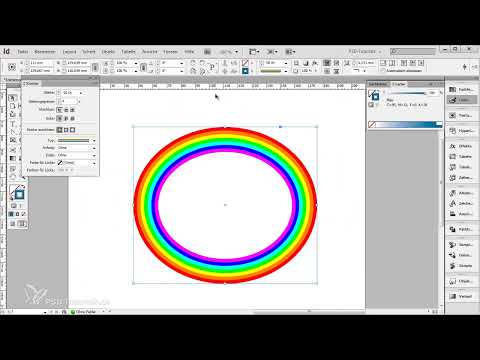
The last outline I would like to show would be Rainbow, for example. But not in dash-dot, but in stripes.

Tips & tricks for Adobe InDesign: New contours and various gimmicks thanks to Easter Eggs

Step 17

Voilà, here we have the rainbow.

Tips & tricks for Adobe InDesign: New contours and various gimmicks thanks to Easter Eggs

Step 18

That's great! I don't have any more contours to choose from. But I can show you more. Among other things, if I click on Help and then select About InDesign.

Tips & tricks for Adobe InDesign: New contours and various gimmicks thanks to Easter Eggs

Step 19

Here I simply write the word "Butterfly" on the keyboard.

Tips & tricks for Adobe InDesign: New contours and various gimmicks thanks to Easter Eggs

Step 20

A little game opens, and if I click on a butterfly with the left mouse button, I can pin it to the position. A nice little gimmick that the developers have come up with. I can get out again by pressing the Esc key.

Tips & tricks for Adobe InDesign: New contours and various gimmicks thanks to Easter Eggs

The last steps

Step 21

What else? Ok, the last Easter Egg, I can now print the whole thing via File>Print.

Tips & tricks for Adobe InDesign: New contours and various gimmicks thanks to Easter Eggs

Step 22

If I say Save template here , name it "Friendly Alien" and click OK, ...

Tips & tricks for Adobe InDesign: New contours and various gimmicks thanks to Easter Eggs

Step 23

... nothing happens yet. I first have to click in the preview window.

Tips & tricks for Adobe InDesign: New contours and various gimmicks thanks to Easter Eggs

Step 24

Only now does an alien fly in.

Tips & tricks for Adobe InDesign: New contours and various gimmicks thanks to Easter Eggs

Step 25

It comes a little closer and lo and behold, it's there for a moment and then gone again.

Tips & tricks for Adobe InDesign: New contours and various gimmicks thanks to Easter Eggs


Nice gimmick. If you ever have too much time during working hours, you can try this out.

Stefan Petri
Trainer About Stefan Petri Together with his brother Matthias, Stefan Petri runs the popular specialist forum PSD-Tutorials.de and the e-learning platform TutKit.com, which focuses on the training and further education of digital professional skills. All courses by Stefan Petri