

In this guide, you will learn how to obscure faces or specific areas in an image using Adobe Photoshop. Whether you want to pixelate a face for privacy reasons or simply work creatively, the techniques I will show you are easy to learn and apply. Let's start by understanding the basics and going through the steps.
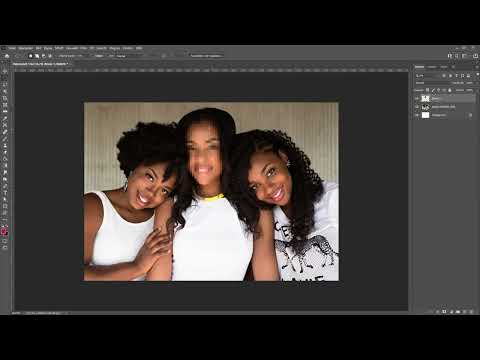
The video is only loaded from YouTube when you play it – data (including your IP address) is then transmitted to YouTube/Google. More in the privacy policy
Main Findings
- Selections can be made quickly and precisely.
- The pixelation is achieved through the mosaic effect.
- Changes to the layer allow for more flexibility in editing.
Step-by-Step Guide
First, you need to open an image in Photoshop where you want to obscure faces.
To select the appropriate area, you can use the Elliptical Marquee tool. Click on the tool in the toolbar, then drag a circle around the face or area you want to obscure while holding down the mouse button.

You can now move and adjust the selection by holding down the spacebar and moving the selection in the image.

To ensure the selection fits perfectly on the face, right-click inside the selection and choose "Transform Selection." Here, you can further adjust the size and shape of the selection.

Only when you are satisfied with the selection, confirm the adjustments by pressing the Enter key.

Now, let's move on to the next step: you need to copy the selection to a new layer. To do this, right-click on the selection again and choose "Copy to New Layer."

You will now see that your selection has been created on a new layer. This is useful because it does not affect the original layer and allows you to undo changes later if needed.

To apply the pixelation, go to "Filter" in the top menu, choose "Pixelate" and click on "Mosaic Effect."

Here, you can adjust the size of the squares depending on how much you want to obscure the face. A larger number means larger pixels.

Experiment a bit with the settings to achieve the desired result. Once you are satisfied, click "OK".

Another advantage of working on this new layer is that you can show or hide the pixelation at any time. This provides you the freedom to try different options without deleting the underlying layer.

If you don't like the pixelation and want to try something else, you can simply delete the layer by right-clicking on it and choosing "Delete Layer."
Another option for selection is the Lasso tool. This allows you to make a freely shaped selection, ideal for irregular face shapes.

You can simply drive around the face and adjust the selection to capture exactly the desired area. Once you have created the selection, right-click again and copy the layer.

Then apply the mosaic effect again, just as described before, and set the desired pixel sizes.

The technique is the same as before, and you have the flexibility to work with different tools to achieve the best result.
Summary
In this tutorial, you have learned how to make faces unrecognizable in Photoshop by using various selection tools and applying the mosaic effect. These techniques give you the opportunity to creatively work with your images and customize them according to your preferences.
Frequently Asked Questions
How can I reset a previously edited layer?You can simply delete the layer and repeat the steps to make a new adjustment.
Can I use this technique in other areas of the image as well?Yes, you can make anything in the image unrecognizable by selecting the respective areas and applying the pixelation.
How safe is it to pixelate faces in images?Pixelation is a good method to protect the identity of individuals, but you should always consider the legal regulations regarding image usage.

