
Editing and outputting videos in HDR(High Dynamic Range) or HLG(Hybrid Log-Gamma) gives you the opportunity to create vibrant and detailed content. MAGIX VEGASPro 17 brings innovative features in this area and allows you to showcase your projects in higher image quality. Let’s go through the steps to effectively utilize these new HDR and HLG output options.
The video is only loaded from YouTube when you play it – data (including your IP address) is then transmitted to YouTube/Google. More in the privacy policy
Key Insights
- VEGAS Pro 17 supports HDR and HLG objects.
- Selecting the HDR mode is crucial for the output quality.
- The Color Grading Panel offers advanced customization options for color correction.
- File-specific settings allow for tailored editing.
Step-by-Step Guide to Effectively Using HLG and HDR in VEGAS Pro 17
To get started with HDR and HLG output in VEGAS Pro 17, follow these simple steps:
Step 1: Create Project and Select HDR Mode
Open VEGAS Pro 17 and create a new project. You have the option to select the HDR mode at the top left in the project settings. Click there to choose between HDR10 and HLG. In this case, simply select HDR10.

Step 2: Set Pixel Format and Video Level
After selecting the HDR mode, you can adjust the pixel format. Go to the "Pixel Format" section where you can choose whether to work with 8 Bit, 10 Bit, or another format. This setting significantly affects the output quality of your project.

Step 3: Adjust Color Space and Color Grading
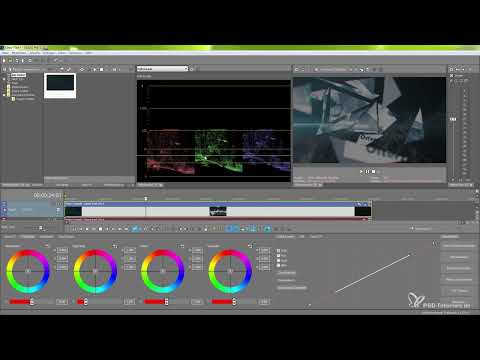
To use the color space effectively, open the Color Grading Panel. Here you can make specific adjustments that affect your entire editing process. If you are working with video color effects, enable the necessary settings in the color grading area to achieve optimal results.

Step 4: Make File-Specific Settings
Another important step is to adjust the file-specific properties. Right-click on your video file in the timeline and select "Properties". Under the media options, you will find the color space where you can choose additional specific settings. This is designed to give you flexible adjustment of your files.

Step 5: Use Custom Color Corrections and LUTs
To further refine the color correction, you can use LUTs (Lookup Tables) in your projects. Upload your desired LUT into the color grading tool and adjust the intensity of the effect with the slider. This feature allows you to significantly enhance the visual aesthetics of your video.

Step 6: Online Sharing of Projects
The final highlight is the ability to publish your edited HDR videos directly online. Go to "File" and select "Online Share". Here you will find options for platforms such as YouTube, Vimeo, and Facebook, all of which support the native HDR settings. With just a few clicks, you can make your content accessible to the world.

Summary – HLG and HDR Output in MAGIX VEGAS Pro 17: A Step-by-Step Guide
The new HDR and HLG support in VEGAS Pro 17 allows you to elevate your video projects to a new level. With the right settings and customizable options, you can create films in spectacular quality and easily share them online. With the steps outlined, you are well informed and ready for your next creative challenges.
FAQ
What is the difference between HDR10 and HLG?HDR10 is a standardized format, while HLG is optimized for live broadcasts and does not require metadata.
How can I adjust the color space in VEGAS Pro 17?You can adjust the color space by opening the properties of your media file and making the appropriate settings there.
Can I use multiple LUTs in one project?Yes, you can apply multiple LUTs within a project and individually adjust the intensity of each LUT.
How do I publish my video in HDR?Use the “Online Share” feature in VEGAS Pro 17 to upload your HDR projects directly to platforms like YouTube or Vimeo.
Are the HDR and HLG features available in earlier versions of VEGAS Pro?No, HDR and HLG support was introduced specifically for VEGAS Pro 17.


