
Anyone who regularly builds websites with HTML5 and CSS3 knows the little hurdles: entering browser prefixes by hand, searching for matching colors, embedding fonts in a license-safe way, or tracking down a layout error that just won't go away. There are free helpers for all of these tasks that will save you a lot of time. This guide introduces you to the most important tools, shows you what you can use them for, and gives you tips for practical use.
The video is only loaded from YouTube when you play it – data (including your IP address) is then transmitted to YouTube/Google. More in the privacy policy
Key Takeaways
- Generators like html5css3box.com take over the writing of recurring CSS3 properties and media tags for you.
- Online snippet management and color tools like Adobe Color structure your work and provide design ideas.
- Fonts can be embedded in a legally compliant and cross-browser way via Google Webfonts or Cufon.
- Browser developer tools in Chrome and Firefox help you find errors quickly and test changes directly.
- Chrome usually works faster than Firefox with many add-ons when it comes to developer tools and extensions.
Step-by-Step Guide
Step 1: Getting to know the toolbox on html5css3box.com
First, open html5css3box.com. The site is more than a single tool, namely a collection of small generators, webmaster aids, and links to other services. It is worthwhile above all because you can try out many functions directly without installing anything.

Step 2: Automatically generating audio and video tags
The site offers small generators for the HTML5 elements audio and video. You select the file, controls, and options, and the finished code appears immediately. This way you avoid typos in attributes and keep the structure of the markup in view.
Step 3: Creating CSS3 properties with live preview
For properties like border-radius, box-shadow, or gradients, you can set values with the slider and see the result directly in a demo. The generated code already contains the necessary vendor prefixes for Firefox, Webkit browsers, and other engines. Simply copy the code into your stylesheet file.

Step 4: Using webmaster aids like the robots.txt generator
Besides the CSS tools, you will find simple webmaster tools on the site. The robots.txt generator helps you tell search engine crawlers specifically which areas of your site they may crawl. You don't need to know the syntax by heart for this.

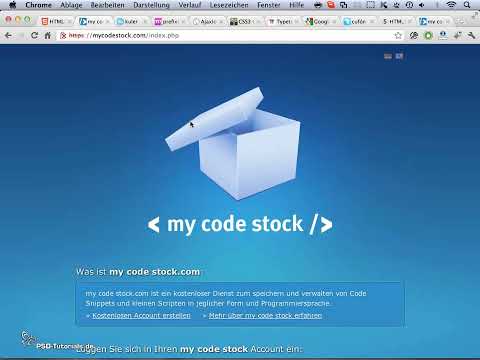
Step 5: Saving code snippets on mycodestock.com
If you don't want to search for recurring code sections anew every time, mycodestock.com is worthwhile. The service is free, you sign up and save snippets online. The advantage: Your collection is preserved even if your hard drive fails, and you can access it from any computer.

Step 6: Organizing and searching snippets
Create folders for topics like jQuery, WordPress, or layout. The search function finds terms in titles and in the code. If you enter "jQuery", for example, you get all saved examples, such as those for document.ready. Code highlighting makes the snippets clearly readable.

Step 7: Finding color combinations with Adobe Color
Many projects start with a given requirement, such as a brand color, and then matching contrast colors are missing. Adobe Color (formerly kuler.adobe.com, now color.adobe.com) shows you ready-made color schemes. You search for keywords like "green", enlarge combinations, and drag individual colors into your layout. Additionally, you can display popular or highly rated palettes.

Step 8: Automatically generating browser prefixes with mycss.com
Older browsers require vendor prefixes like -moz- or -webkit- for some CSS3 features. With mycss.com, you simply write the property in the standard format and let the tool add the prefixes. This is especially helpful for box-shadow and border-radius.

Step 9: Creating loading graphics with ajaxload.info
When you load content dynamically via Ajax, you often need a loading animation. On ajaxload.info you choose the shape, color, and background, for example transparent, and download the graphic as a GIF. The preview immediately shows you how the animation looks.

Step 10: Comparing fonts in Typetester
With typetester.org you test fonts before making a decision. You enter a sample text, choose two fonts such as Verdana and Arial at the same size, for example 12 pixels, and compare styles such as Regular, Bold, or Italic. Colors and spacing can also be adjusted until the result fits.

Step 11: Integrating Google Webfonts
Google Webfonts offer a large selection of open-source fonts that you may use without licensing issues. Select a font, specify the styles you need, such as Regular, Italic, or Bold, and copy the code. In the stylesheet, a declaration like font-family is then enough, and the font is loaded automatically. The display also shows you how much the font affects loading time.

Step 12: Displaying fonts in older browsers with Cufon
Cufon is a JavaScript script that brings fonts to the browser that otherwise don't work reliably, for example in Internet Explorer 6 or 7. You upload your TTF file, enter the font name, select the characters you need, and can restrict usage to your domain. In the end, you receive a JavaScript font file.

Step 13: Embedding videos with Video.js
Video.js is a JavaScript library for HTML5 video. It comes with various skins and includes a generator that assembles the finished code. Through a Flash fallback, playback also works in older browsers in which HTML5 video is not supported.

Step 14: Installing helpful extensions in the Chrome browser
In Chrome's extensions section you'll find useful helpers for everyday work. AdBlock hides annoying ads, Flash banners, and blinking GIF animations so that you can work with focus. Only install extensions that you actually need, because every additional extension can slow down the browser.

Step 15: Using the developer tools in Chrome
With the keyboard shortcut Ctrl+Shift+C (on macOS Cmd+Shift+C) you open the inspection tool. With it you highlight elements on the page, see size and position, and can change values directly. Experimenting here is harmless, because your local files remain unchanged until you apply the changes.

Step 16: Analyzing network requests and scripts with Firebug
Firebug is an add-on for Firefox and offers similar functions to the Chrome developer tools. You install it via the add-on section, search for "Firebug," and restart the browser. In the network section you see how long graphics and Ajax requests take. In the script section you can set breakpoints and check code step by step.

Step 17: Using the Web Developer Toolbar for troubleshooting
The Web Developer Toolbar adds extra checks to Firefox. You display form details, show alt attributes of images, or disable CSS to check how the page looks without styles. However, keep in mind that Firefox becomes noticeably slower with many of these tools. Many developers therefore switch to Chrome for intensive troubleshooting.

Summary ??? HTML5 CSS3 Tools: The best helpers for faster web development
The tools presented cover almost every step in creating HTML5 and CSS3 pages. Generators like html5css3box.com and mycss.com take repetitive coding work off your hands. With mycodestock.com you keep your snippets under control, and Adobe Color provides color ideas for your layout. For fonts, Google Webfonts and Cufon offer license-safe solutions, while Typetester helps you with comparison. For troubleshooting, the developer tools of Chrome and Firefox, including Firebug and the Web Developer Toolbar, are indispensable. Try out the tools one after another, and you will quickly find out which ones fit your workflow. You can find the complete list of links in the description of the video.
FAQ
Which tools are best suited for CSS3 properties like border-radius and box-shadow?For these properties, html5css3box.com with live preview and mycss.com, which automatically adds vendor prefixes, are well suited.
Do I still have to write vendor prefixes manually?With current browsers, this is mostly no longer necessary. For older versions, tools like mycss.com help you add the prefixes correctly.
How do I store code snippets permanently and within easy reach?You can use mycodestock.com. There you create folders, save snippets with code highlighting, and access them from any computer.
What can I use to find suitable color combinations for my design?Adobe Color shows you color schemes by keywords, by popularity, or as a random combination.
Which fonts can I embed in my website without license concerns?Google Webfonts offers a large selection of open-source fonts that you can use without license problems.
What is the difference between Google Webfonts and Cufon?Google Webfonts uses the CSS3 feature @font-face. Cufon works with a JavaScript script and therefore also works in older browsers such as Internet Explorer 6 or 7.
How can I compare fonts before choosing?With typetester.org you enter a sample text, select two fonts, and compare styles and colors side by side.
How do I embed videos in HTML5 across browsers?Video.js offers skins, a generator, and a Flash fallback so that videos are also played in browsers without HTML5 support.
Which browser extension helps against annoying ads?AdBlock blocks ads, Flash banners, and blinking GIF animations.
How do I inspect elements and styles in my website?In the Chrome browser, you open the developer tools with Ctrl+Shift+C (on macOS Cmd+Shift+C). There you can select elements, change CSS, and check network requests.
Is Firebug necessary for Chrome?No. Firebug is an add-on for Firefox. Chrome already comes with similar developer tools, which mostly work faster.
Why should I be careful with many developer add-ons in Firefox?Many inspection tools noticeably slow down Firefox. That is why it makes sense to keep only the needed extensions active or to switch to Chrome for troubleshooting.

