
You want to build your first website and are wondering what you should actually work with? The answer depends heavily on how much comfort you need. A good editor saves you typing, shows errors early and makes writing HTML significantly more pleasant. This overview takes you from the simple text editor that every operating system includes, through professional programs such as Dreamweaver and Coda, to a local test server. You will learn which tools you really need and which are more optional. The installation of each individual program is not walked through step by step; the focus is on the sensible use of the tools.
The video is only loaded from YouTube when you play it – data (including your IP address) is then transmitted to YouTube/Google. More in the privacy policy
Key Takeaways
- Your operating system hardly matters for web development, because HTML files run everywhere.
- A simple text editor and a file with the extension .html are enough for the first steps.
- Dreamweaver offers a lot of comfort, but it is paid software and often overloaded for beginners.
- Coda is a lean editor with code highlighting, auto-completion and an upload function.
- Free editors such as EditPlus 5 are helpful, but are maintained less often and do not always support new HTML5 tags.
- With a local server such as XAMPP, you test PHP pages directly on your own computer.
- Try out trial versions before you spend money on a program.
Step-by-Step Guide
Step 1: The Operating System Is Secondary
Whether Windows, macOS or Linux, your operating system is not decisive for creating websites. In the end, websites are nothing more than text files that any browser can open. So choose the system you enjoy working with anyway.

Step 2: The Text Editor as a Starting Point
A simple text editor is already installed on Windows and macOS. Open it and create a new text file. With this tool, you write the pure code of your page. You will quickly notice how much manual work is necessary without additional help.

Step 3: Writing the Basic HTML Structure
Every HTML page begins with the opening html tag. Inside it is the head section, which contains information about the page, such as the title tag, which sets the title in the browser tab. The visible content is in the body section, for example a heading and a paragraph of text. Make sure to close every tag again, for example </head> after the head section and </html> at the end of the file.

Step 4: Saving the File as an HTML File
A file with the extension .txt is unsuitable for a website, because the browser only displays it as plain text. Therefore, save your file with the file type "All Files" and the extension .html, for example as test.html on the desktop. After that, the system recognizes the file as a web page, and it receives the icon of your default browser.

Step 5: Checking the Page in the Browser
A double-click on the file opens it in your browser, for example in Google Chrome. You don't have to install anything for this. For simple, static pages, this is already a complete workflow: change the code, save, reload in the browser.

Step 6: More Comfort with Dreamweaver
Dreamweaver is a comprehensive editor from Adobe and is considered a great classic among HTML editors. In addition to HTML, it also supports PHP, XML and JavaScript. Here you create a new HTML page with a predefined basic structure, so you have to write significantly less. The program also comes with an integrated file manager for uploading as well as ready-made scripts.

Step 7: Using Auto-Completion
If you start typing a tag in Dreamweaver, such as the beginning of an article tag, the editor completes it automatically. The closing tag is also set by itself. This saves time and prevents you from having to laboriously search for forgotten tags later.

Step 8: Keep an Eye on the Costs
Dreamweaver is a paid product, and the purchase is often a big hurdle for beginners. You won't use many of the additional features, such as the built-in validation or the scripts, at the beginning anyway. So think carefully about which features you actually need before buying a comprehensive program.

Step 9: Coda as a Lean Alternative for macOS
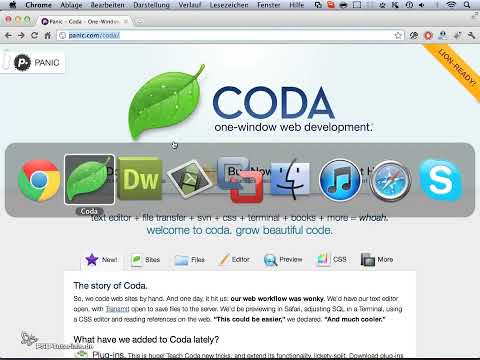
Coda comes from the company Panic and, according to the video, costs around 99. You should check the current price on the manufacturer's website. The speaker uses Coda himself as his favorite tool because it focuses on the essentials and looks more pleasant than Dreamweaver. You can find a trial version on Panic's website.

Step 10: Recognizing the Most Important Features of Coda
For programming, you really only need a few things: an editor with code highlighting, autocompletion, and an area where you can upload files directly. Coda offers exactly these three features without overloading you with additional scripts or built-in validation. Especially if you deliberately want to work lean, this is a big advantage.

Step 11: Trying Out the Trial Version
Before you buy Coda, download the trial version and work on a small project with it. That way you can find out whether the interface and the workflow suit you. By the way, this applies to all the editors you see in this overview.

Step 12: A Free Alternative on Windows
For Windows, the video presents the free editor EditPlus 5. In the transcript, the name was captured slightly incorrectly; what is meant is very likely EditPlus. After downloading, you start the installer and complete the installation. Then you create a new file and select the HTML file type. The editor closes tags automatically, which saves you a lot of work on your first pages.

Step 13: Recognizing the Limits of Free Editors
Free programs are often not maintained quite as intensively as commercial products. In the video, EditPlus 5 lacks support for the new HTML5 tags. For getting started this is not a knockout criterion, but you should be aware of it if you want to use modern elements such as <article> or <section>.

Step 14: Starting the Local Server with the Control Panel
For dynamic pages with PHP, you need a server. The video uses XAMPP for this. After the installation, you click Finish, open the Control Panel, and start the Apache service. You don't need MySQL, the mail server Mercury, and Tomcat for this introduction, so you can leave them switched off.

Step 15: Accessing the Local Server in the Browser
Open your browser and enter localhost in the address bar. The start page of the local server appears, where you can select the language, among other things. From now on, PHP files will also be interpreted on your computer.

Step 16: Placing Your Own Files in the htdocs Folder
So that your pages are accessible via the local server, you place them in the htdocs folder. In a standard installation of XAMPP, it is located at C:\xampp\htdocs. If you then call up localhost with the name of your file, you see your page the way it would later appear on a real web space. This is ideal for finding errors before you upload.

Step 17: Finding Your Personal Development Environment
In the end, there is no single right program. Some developers get by with a simple editor, while others swear by Dreamweaver or Coda. Test several options, pay attention to what you actually need, and don't immediately buy the most expensive program. If plain code is enough for you, you are often best served by a lean editor.

Summary ??? Development Environment for Websites: Editors and Tools at a Glance
For your first websites, you don't need an expensive specialized program. A text editor and an .html file are enough to understand how HTML works. With Dreamweaver you get a lot of convenience, but you pay a high price for it and get numerous features that you will hardly use at the beginning. Coda is a lean, clearly organized alternative for macOS with code highlighting, autocompletion, and an upload function. On Windows, you can start for free with EditPlus 5, but you should be aware of the lack of HTML5 support. For PHP pages, you set up a local server with XAMPP, place your files in the htdocs folder, and test them via localhost. For uploading to the web space, the video description also mentions Transmit and FileZilla. Try everything out in trial versions, and you will quickly find the environment that suits you.
FAQ
Do I absolutely need Dreamweaver to create a website?No, a simple text editor and a file with the extension .html are completely sufficient for your first pages.
Why shouldn't I save my file as .txt?The browser displays a .txt file only as plain text. A website must be saved as an .html file in order to be displayed correctly.
Is Coda only available for macOS?In the video, Coda is presented as an alternative for macOS. Whether and in what form it is available for other systems, you should check on the manufacturer's website.
Do I need a server to test an HTML page?Not for pure HTML pages; they can be opened directly in the browser. For PHP files, however, you need a server, for example via XAMPP on your own computer.
What does localhost mean?Localhost is the address of your own computer. When you call it up in the browser, you access the local server and can test your pages before they go online.
Do I have to start Apache, MySQL, Mercury, and Tomcat all together?To get started, the Apache service is enough. MySQL, the Mercury mail server, and Tomcat are not needed for simple websites.
Are free editors worse than paid ones?Not necessarily, but they are often updated less frequently. In the video, for example, EditPlus 5 lacks support for HTML5 tags.


