
Lightroom course with tips for an efficient photo workflow

- Well informed all round: From import to processing and export
- Learn to fully master the sophisticated functions of Lightroom
- Apply retouching techniques and speed up your workflow
Photoshop artist Michael Baierl ignites passion with and in you. Let yourself be inspired and show the world what your photos are made of!
64 Videos, 288 minutes
Intro to the video training
This is what you can expect in the video training "Lightroom course with tips for an efficient photo workflow"
An exciting video training course on getting started with image editing awaits you - you can find out everything you need to know here.
This is what you can expect in the video training "Lightroom course with tips for an efficient photo workflow"
2 min OpenIntroduction
Lightroom for beginners and intermediates: 01 - Introduction - 1.1 - Why Lightroom?
In this video training you will get an overview of what Lightroom actually does and whether it is made for your purposes.
Lightroom for beginners and intermediates: 01 - Introduction - 1.2 - The Lightroom interface
Here I explain how the Lightroom interface is structured and how you can customize it.
Lightroom for beginners and intermediates: 01 - Introduction - 1.3 - Catalog settings
With the right catalog settings, you will be able to work faster and better with Lightroom.
Lightroom for beginners and intermediates: 01 - Introduction - 1.4 - Modules
Lightroom is divided into different work modules. Here you can find out what they are used for.
Lightroom for beginners and intermediates: 01 - Introduction - 1.1 - Why Lightroom?
3 min OpenLightroom for beginners and intermediates: 01 - Introduction - 1.2 - The Lightroom interface
5 min OpenLightroom for beginners and intermediates: 01 - Introduction - 1.3 - Catalog settings
10 min OpenImport
Lightroom for beginners and intermediates: 02 - Import - 2.1 - Catalog settings
In this video training, I'll show you how easy it is to import images into Lightroom.
Lightroom for beginners and intermediates: 02 - Import - 2.2 - Import presets
With import presets, you can reach your goal faster in Lightroom!
Lightroom for beginners and intermediates: 02 - Import - 2.3 - Metadata defaults
Keywording in Lightroom is important. Here I explain how you can embed metadata into images more quickly using presets.
Lightroom for beginners and intermediates: 02 - Import - 2.4 - Synchronization
Manually synchronizing images every time you import them is tedious. Here you can learn how to speed up the process.
Controls at a glance
Lightroom for beginners and intermediates: 03 - Controls at a glance - 3.1 - Library
The library module is your basis. I'll show you an initial overview here.
Lightroom for beginners and intermediates: 03 - Controls at a glance - 3.2 - Develop
Get your pictures in shape in the Develop module!
Lightroom for beginners and intermediates: 03 - Controls at a glance - 3.3 - Cards
The map module allows you to organize your recording data cartographically.
Lightroom for beginners and intermediates: 03 - Controls at a glance - 3.4 - Book
In the book module, you can design photo books in no time at all.
Lightroom for beginners and intermediates: 03 - Controls at a glance - 3.5 - Slideshow
What would pictures be without a corresponding presentation? Let me show you the slideshow module at a glance.
Lightroom for beginners and intermediates: 03 - Controls at a glance - 3.6 - Printing
Looking at pictures on a monitor is nice, but they look even nicer when they are printed and hung on the wall.
Lightroom for beginners and intermediates: 03 - Controls at a glance - 3.7 - Web
Publishing on the Internet is easy with Lightroom.
Lightroom for beginners and intermediates: 03 - Controls at a glance - 3.1 - Library
8 min OpenLightroom for beginners and intermediates: 03 - Controls at a glance - 3.2 - Develop
9 min OpenLightroom for beginners and intermediates: 03 - Controls at a glance - 3.3 - Cards
2 min OpenLightroom for beginners and intermediates: 03 - Controls at a glance - 3.4 - Book
3 min OpenLightroom for beginners and intermediates: 03 - Controls at a glance - 3.5 - Slideshow
2 min OpenLightroom for beginners and intermediates: 03 - Controls at a glance - 3.6 - Printing
2 min Opencatalog
Lightroom for beginners and intermediates: 04 - Catalog - 4.1 - Naming images
You want to add your own names to pictures? Nothing could be easier.
Lightroom for beginners and intermediates: 04 - Catalog - 4.2 - Tagging images
To separate good from bad images, you need to mark them. This video training shows you how to do this.
Lightroom for beginners and intermediates: 04 - Catalog - 4.3 - Filter images
Over time, a huge number of images accumulate. Intelligent filters teach you how to display them in a targeted manner.
Lightroom for beginners and intermediates: 04 - Catalog - 4.4 - Collections
Is the normal catalog in Lightroom no longer enough for you and you want a better overview? Then use collections.
Lightroom for beginners and intermediates: 04 - Catalog - 4.5 - Manage catalogs
At some point, even the best catalog becomes confusing. I'll show you here how you can easily work with multiple catalogs.
Develop pictures
Lightroom for beginners and intermediates: 05 - Developing images - 5.1 - Image selection
The right image selection is made before developing. Here you can find out how to get there quickly and easily.
Lightroom for beginners and intermediates: 05 - Developing images - 5.2 - Developing with presets
Lightroom comes with many development presets. Learn how to use them here.
Lightroom for beginners and intermediates: 05 - Developing images - 5.3 - Before/after comparison
The before/after comparison helps you to keep an eye on your corrections at all times and not overshoot the mark.
Lightroom for beginners and intermediates: 05 - Developing images - 5.4 - Synchronizing developments
Lightroom is designed for many images. It therefore makes sense to synchronize developments of a single image to a series.
Lightroom for beginners and intermediates: 05 - Developing images - 5.5 - Basic corrections
The basic corrections or basic settings are the most powerful tools in Lightroom.
Lightroom for beginners and intermediates: 05 - Developing images - 5.6 - Development tools
Here you will learn everything you need to know about common development tools in Lightroom.
Lightroom for beginners and intermediates: 05 - Developing images - 5.7 - HSL: Hue, luminance, saturation
HSL basically stands for three areas with which you can post-process images in detail in terms of color, saturation and brightness.
Lightroom for beginners and intermediates: 05 - Developing images - 5.8 - Sharpening with LR
In this video training, I'll show you how to get your pictures really crisp.
Lightroom for beginners and intermediates: 05 - Developing images - 5.9 - Reducing noise
If you brighten up underexposed photos, image noise quickly becomes visible. Here you can learn how to get it under control.
Lightroom for beginners and intermediates: 05 - Developing images - 5.10 - Creative effects
Weak images can be quickly enhanced with creative effects.
Lightroom for beginners and intermediates: 05 - Developing images - 5.11 - Correcting vignetting
In this video training, you will learn how easy it can be to correct vignetting with Lightroom or to deliberately enhance it.
Lightroom for beginners and intermediates: 05 - Developing images - 5.1 - Image selection
3 min OpenLightroom for beginners and intermediates: 05 - Developing images - 5.2 - Developing with presets
3 min OpenLightroom for beginners and intermediates: 05 - Developing images - 5.3 - Before/after comparison
2 min OpenLightroom for beginners and intermediates: 05 - Developing images - 5.4 - Synchronizing developments
4 min OpenLightroom for beginners and intermediates: 05 - Developing images - 5.5 - Basic corrections
11 min OpenLightroom for beginners and intermediates: 05 - Developing images - 5.6 - Development tools
4 min OpenLightroom for beginners and intermediates: 05 - Developing images - 5.7 - HSL: Hue, luminance, saturation
7 min OpenLightroom for beginners and intermediates: 05 - Developing images - 5.8 - Sharpening with LR
5 min OpenLightroom for beginners and intermediates: 05 - Developing images - 5.9 - Reducing noise
5 min OpenLightroom for beginners and intermediates: 05 - Developing images - 5.10 - Creative effects
3 min OpenLightroom for beginners and intermediates: 05 - Developing images - 5.11 - Correcting vignetting
4 min Openretouching tools
Lightroom for beginners and intermediates: 06 - Retouching tools - 6.1 - Editing
Just like before, you can also crop your images with Lightroom, i.e. define a section of the image.
Lightroom for beginners and intermediates: 06 - Retouching tools - 6.2 - Aspect ratio
Different aspect ratios are a dime a dozen. Here you can learn how to adjust the aspect ratio of a photo.
Lightroom for beginners and intermediates: 06 - Retouching tools - 6.3 - Area repair
You can use the area repair function to remove minor issues such as sensor spots from your photo.
Lightroom for beginners and intermediates: 06 - Retouching tools - 6.4 - Radial gradient
Here you will learn to apply the radial gradient, a circular change.
Lightroom for beginners and intermediates: 06 - Retouching tools - 6.5 - Linear gradient
The linear gradient is your all-purpose weapon if you want to make the sky blue and dramatic, for example.
Lightroom for beginners and intermediates: 06 - Retouching tools - 6.6 - Correction brushes
With this almost magical brush, you can paint on specific changes directly in Lightroom.
Lightroom for beginners and intermediates: 06 - Retouching tools - 6.2 - Aspect ratio
3 min OpenLightroom for beginners and intermediates: 06 - Retouching tools - 6.3 - Area repair
2 min OpenLightroom for beginners and intermediates: 06 - Retouching tools - 6.4 - Radial gradient
4 min OpenLightroom for beginners and intermediates: 06 - Retouching tools - 6.5 - Linear gradient
5 min OpenLightroom for beginners and intermediates: 06 - Retouching tools - 6.6 - Correction brushes
6 min OpenSpecial functions
Lightroom for beginners and intermediates: 07 - Special functions - 7.1 - Panorama
In this video training you will learn how to create a panorama from several photos in Lightroom.
Lightroom for beginners and intermediates: 07 - Special functions - 7.2 - HDR
Here I'll show you how to create an HDR in Lightroom from a series of exposures.
Lightroom for beginners and intermediate users: 07 - Special features - 7.3 - Videos
Lightroom can now also read and partially edit videos.
Lightroom for beginners and intermediates: 07 - Special functions - 7.4 - Images from videos
Here you will learn how to extract images from videos.
Lightroom for beginners and intermediates: 07 - Special functions - 7.5 - Face recognition
Lightroom's sorting options aren't enough for you? Then you've come to the right place with face recognition.
Lightroom for beginners and intermediates: 07 - Special functions - 7.1 - Panorama
6 min OpenLightroom for beginners and intermediate users: 07 - Special features - 7.3 - Videos
3 min OpenLightroom for beginners and intermediates: 07 - Special functions - 7.4 - Images from videos
3 min OpenLightroom for beginners and intermediates: 07 - Special functions - 7.5 - Face recognition
4 min OpenSlideshow
Lightroom for beginners and intermediates: 08 - Slideshow - 8.1 - Options
Here you will learn about the various options of the slideshow module.
Lightroom for beginners and intermediates: 08 - Slideshow - 8.2 - Create slideshow
We create a slideshow with Lightroom using a practical example.
Lightroom for beginners and intermediates: 09 - Printing - 9.1 - Print settings
There are various settings to make before printing, which I explain to you in this video training.
Lightroom for beginners and intermediates: 09 - Printing - 9.2 - Color space settings
The right color space is half the battle for a good printout of your photos.
Lightroom for beginners and intermediates: 09 - Printing - 9.3 - Printing images
In this video training I explain the print dialog and what you should pay attention to.
Lightroom for beginners and intermediates: 09 - Printing - 9.2 - Color space settings
5 min OpenWeb
Lightroom for beginners and intermediates: 10 - Web - 10.1 - Create a web gallery
You can create an internet gallery directly from Lightroom.
Lightroom for beginners and intermediates: 10 - Web - 10.2 - Export gallery
Here you will learn everything you need to know to export your gallery.
Lightroom for beginners and intermediates: 10 - Web - 10.3 - Gallery settings
Various settings determine the appearance of your gallery on the web.
Book
Lightroom for beginners and intermediates: 11 - Book - 11.1 - Your first book
There are a few important tips to bear in mind for the first book.
Lightroom for beginners and intermediates: 11 - Book - 11.2 - Create layout
Here we create a layout for a book together, which you can change as you wish.
Lightroom for beginners and intermediates: 11 - Book - 11.3 - Publish and order
I'll show you here how and where you can order or publish your own photo book directly in Lightroom.
Export
Lightroom for beginners and intermediates: 12 - Export - 12.1 - Settings
Your images are fully developed. Now it's time to make the necessary export settings.
Lightroom for beginners and intermediates: 12 - Export - 12.2 - Presets
Use export presets to speed up and automate the export of your photos.
Lightroom for beginners and intermediates: 12 - Export - 12.3 - Watermarks
Watermarks are useful to protect your images from theft and to mark them with recognition value.
Lightroom for beginners and intermediates: 12 - Export - 12.4 - Export services
Export services allow you to automatically provide images for specific purposes.
Lightroom for beginners and intermediates: 12 - Export - 12.5 - Publish collections
Collections don't necessarily have to stay local on your computer. I'll show you here how you can publish them.
Lightroom for beginners and intermediates: 12 - Export - 12.5 - Publish collections
3 min OpenPractice
Lightroom for beginners and intermediates: 13 - Practice - 13.1 - Series development
Using a concrete example, we practise the application of series development together.
Lightroom for beginners and intermediates: 13 - Practice - 13.2 - Creating your own presets
Working with presets in Lightroom is a real time saver. Especially when they are your own presets.
Lightroom for beginners and intermediates: 13 - Practice - 13.3 - Correcting color casts
Color shifts, whether intentional or not, are quick and easy to correct in Lightroom.
Lightroom for beginners and intermediates: 13 - Practice - 13.4 - Creating a wedding look
In this video training, we will master a common image look for weddings and its variations together.
Lightroom for beginners and intermediates: 13 - Practice - 13.5 - Beauty retouching in Lightroom
Beauty retouching in Lightroom? Is that possible? Of course it is! And I'll show you how to do it here.
Lightroom for beginners and intermediates: 13 - Practice - 13.1 - Series development
11 min OpenLightroom for beginners and intermediates: 13 - Practice - 13.2 - Creating your own presets
7 min OpenLightroom for beginners and intermediates: 13 - Practice - 13.3 - Correcting color casts
4 min OpenLightroom for beginners and intermediates: 13 - Practice - 13.4 - Creating a wedding look
9 min OpenLightroom for beginners and intermediates: 13 - Practice - 13.5 - Beauty retouching in Lightroom
11 min OpenExamples of use
-
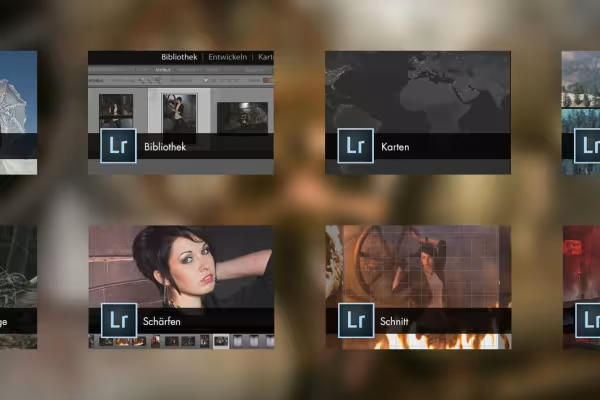 Start the Lightroom course with tips for an efficient photo workflow!
You might also like

Save time with artificial intelligence

Photo editing & image composition

Full power, more inspirations, maximum WOW effect!

More style, more power, more templates!
Comment now „Lightroom course with tips for an efficient photo workflow“