
With ZBrush2019, you can effectively turn creative ideas into 3D models. This guide shows you how to create an engaging door signmodel by utilizing the new features of ZBrush. Special highlights include the Snapshot 3D tool as well as Live Booleans and ZRemesher v3.0, which make modeling even easier to design.
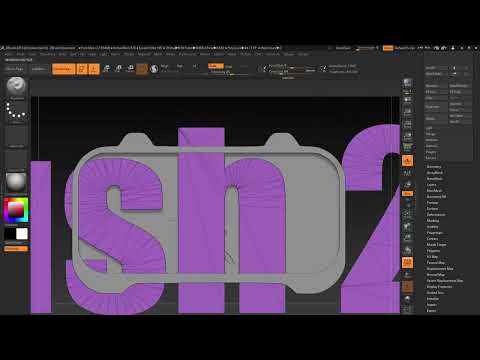
The video is only loaded from YouTube when you play it – data (including your IP address) is then transmitted to YouTube/Google. More in the privacy policy
Key Insights
- Effective use of the Snapshot 3D tool.
- Creation of 3D objects with Live Booleans.
- Optimization of models with ZRemesher v3.0.
- Working with Subtools for better model organization.
Step-by-Step Guide
Step1: Preparations and Start First, open ZBrush and load the project. You can start with the geometry of a star by clicking on “Edit.” Enable the ground fora clear view and ensure you have a clean view from the front.
Step 2: Create the Base Shape Go to the Lightbox and select the “hard surface set.” Enlarge the rounded square you want to use as a base. Duplicate it to make your changes and place it in the center. You can adjust the size if necessary to create a wider plaque.
Step 3: Add Brackets Add brackets by duplicating another object and positioning it accordingly. Use the “Mirror” function to place the brackets symmetrically. This ensures a tidy and professional design.

Step 4: Trim Geometry To perfect the inner part of your model, duplicate the square again and stretch it to the right shape. Use the “Boolean” function to subtract unwanted areas. Make sure Live Booleans are enabled to receive instant feedback.

Step 5: Create the Letters To create the text for the door sign, go to “Plugin > 3D Text” and select a suitable font such as Impact. Place the text in the center of your plate and adjust the depth. Make sure that the text is clearly legible.

Step 6: Refine Geometry Use the “ZRemesher” function to optimize your geometry. This will give you a clean topology. It not only improves the quality of your model but also enables better rendering. Adjust the polygon count to find the best balance between detail and performance.
Step 7: Apply Surface Noise Add “Surface Noise” to give your model character. Select an appropriate texture and adjust the strength and size so that it looks good and matches the material choice. This gives your model a more realistic appearance.
Step 8: Finalize the Brackets Model the brackets using the “Insert Curve Brushes.” Place them at the desired points of the model and ensure everything is centered. This function allows you to add additional details without affecting the base shape.

Step 9: Final Touches Ensure all parts fit together well and delete any unnecessary Subtools. The objects for your brackets can be synchronized using “Mirror and Weld” to ensure symmetry.

Step 10: Rendering Before finalizing your model, render it within ZBrush and in Keyshot. Adding deformations and playing with light sources can greatly enhance the image. Once the lighting conditions are optimal, export the final image.

Summary – Door Sign Modeling with ZBrush 2019
This guideshows you how to create an engaging door sign model using ZBrush 2019. You have learned how to effectively utilize the new features to bring your ideas to life and have gained an overview of the key steps in modeling.
FAQ
How do I activate the Live Booleans?Go to the tool palette and enable the function under the "Live Booleans" menu.
What is the ZRemesher?The ZRemesher is a new tool in ZBrush that simplifies geometry for optimal modeling and adjusts the polycount.
How can I cut geometry?Use the Booleans function to subtract specific parts of your geometry. Make sure to select the correct Subtool.

