
Is your inbox growing faster than you can empty it? Many inquiries repeat themselves: first contacts, follow-ups after a quote, appointment confirmations. A system of templates and prompts is worthwhile for exactly these cases. In this tutorial, you'll learn how to create such emails in a few seconds with ChatGPT, personalize them with placeholders, and save them so they're always at hand. At the end, you'll have five ready-to-use prompt examples and a basic framework that lets you respond quickly to almost any inquiry.
The video is only loaded from YouTube when you play it – data (including your IP address) is then transmitted to YouTube/Google. More in the privacy policy
Key Takeaways
- Every email template needs a clear purpose, for example first contact, follow-up, or appointment confirmation.
- Placeholders in square brackets like [Name] or [Datum] make sure every message feels personal and can be easily swapped out later.
- A good template consists of subject line, salutation, introduction, main body, closing, and signature.
- Context, goal, tone, and length belong in every prompt. Around 120 words is a sensible guideline for most emails.
- Templates saved in a note-taking app like Upnote save you valuable time with every new email.
Step-by-Step Guide
Step 1: Understanding the Basic Principles
Before you write prompts, you should know two principles. The first is: every template needs a clear framework. Ask yourself in advance what purpose the email should serve. Typical purposes are first contact, a follow-up after a quote, or confirming an appointment. The second principle is personalization. Use placeholders such as name, date, or topic for this. This way, the template stays the same for all recipients but feels individual.

Step 2: Getting to Know the Structure of a Good Template
An efficient email template follows a fixed structure. The subject line should be short and concise and spark interest. The salutation is kept personal, for example with "Hallo [Name]" or "Guten Tag [Name]". In the introduction, you state the reason for the message precisely, so that the recipient immediately recognizes what it is about. The main body picks up the introduction and provides all the information needed for understanding, clearly structured. At the end comes a closing with a call to action, such as a request for a reply by a certain date, or a thank-you. The signature contains your name, your position, and contact details, ideally also a phone number for urgent questions.

Step 3: Defining Context, Goal, Tone, and Length
A good prompt tells the language model exactly what role it is writing in. So formulate something like "You are a friendly customer advisor" or "You are an ambitious project manager". Then you state the goal of the email, for example confirming an appointment. Tone is another decisive point. You can choose between clear, formal, and warm, or set a middle path that suits your company. Placeholders such as name, appointment date, or topic also belong in the prompt. In addition, specify a length, for example around 120 words. Long emails are often only skimmed today, so the most important information should be quickly graspable.

Step 4: Using the First-Contact Prompt
The first example prompt is used to establish a first contact. You introduce yourself, briefly explain your offer, and ask for an introductory meeting. Copy the following text and adapt the placeholders to your situation:
You are a friendly customer advisor. Write a first-contact email to [Name] in which you introduce yourself, briefly explain your offer, and ask for a non-binding introductory meeting. Subject: Kurze Vorstellung und Vorstellung unseres Angebots. Maximum 120 words. My details: [Dein Name], [Position], [Unternehmen], [Angebot in einem Satz].
The output then contains a salutation, introduction, offer description, and appointment suggestion. If you like the result, save the prompt so you can reuse it at any time.

Step 5: Automating the Follow-up After a Quote
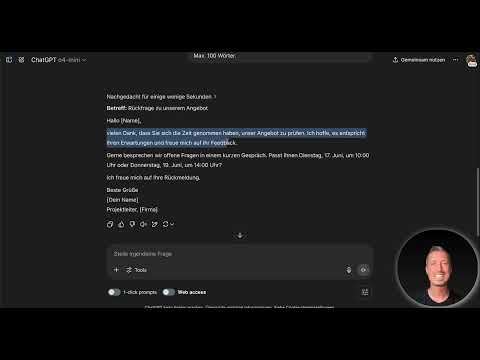
After a quote, you often follow up without wanting to seem pushy. This prompt generates a short message that says thank you, asks for feedback, and makes two appointment suggestions. The length is a maximum of 100 words:
You are an experienced project manager. Create a follow-up email to [Name], who received a quote three days ago. Say thank you, ask for feedback, and suggest two dates for a short conversation: [Termin 1] or [Termin 2]. Maximum 100 words.
Include the specific dates directly in the prompt, for example "Tuesday, June 17, 10 a.m.". That way you won't have to correct the text by hand later.

Step 6: Create an appointment confirmation
An appointment confirmation should be brief and state the planned agenda. The following prompt delivers a friendly, focused message with details on the agenda and next steps:
You are a professional assistant. Write a short appointment confirmation to [Name] for the appointment on [Date] at [Time]. Thank them for their time, describe the planned agenda in a few bullet points, and state the next steps. Maximum 80 words.
The result is polite, concrete, and can be reused for any appointment without much effort.

Step 7: Write a thank-you email after the meeting
After a meeting, it's worth sending a short message that summarizes the points discussed and states the next steps. This shows professionalism and ensures clarity. The prompt for this looks like this:
You are a courteous project manager. Write a thank-you email to [Name] after today's meeting. Briefly summarize the points discussed: [Point 1], [Point 2], [Point 3]. State the next steps and close with a friendly closing phrase. Maximum 100 words.
You simply fill in the placeholders for the points after the meeting.

Step 8: Formulate a feedback request
Getting feedback is often tricky. The tone determines whether the recipient feels appreciated or pressured. That's why the prompt should explicitly specify the tone:
You are a service-oriented customer account manager. Write an email to [Name] in which you politely and without pressure ask for feedback on the collaboration. Phrase it so that a short reply is enough, for example a few bullet points. Maximum 90 words.
With this instruction, you avoid wording that could be misunderstood.

Step 9: Save templates and keep them within reach
So that you don't have to search for the prompts every time, store them in a central place. A document or a chat history is enough to start with. A note-taking app like Upnote, which syncs across all devices, is more practical. Store your five or more standard templates there and mark the placeholders in square brackets. That way you can see right away what you need to replace. The process then always stays the same: open the template, paste it into ChatGPT via copy and paste, adjust the placeholders, and check the response.
Step 10: Consider the path to full automation
The process described is the manual route, and it already saves a lot of time. If you want to automate even more, you can use tools like Make or n8n. They monitor your email inbox, recognize the appropriate template based on the content, take over information such as the salutation or names from the message, and fill in the placeholders automatically. This step requires some familiarization. However, according to the instructor, even the manual approach can save at least 20 to 30 percent of the working time spent on emails. So start with the templates first and expand the automation step by step.
Summary ??? Automating emails with ChatGPT: Templates for quick replies
You have learned how to prepare emails with a clear purpose, a fixed structure, and placeholders. With prompts that define role, goal, tone, and length, you create initial contacts, follow-ups, appointment confirmations, thank-you emails, and feedback requests in seconds. Save your templates in a central place so you always have them within reach. Try out the examples, adapt them to your everyday work, and observe how much time you gain. In the next step, the principle can be extended to meetings, reports, and summaries.
FAQ
What is a placeholder in an email template?A placeholder is a substitute word in square brackets, for example [Name] or [Appointment date]. When using it, you replace it with the appropriate information.
How long should an automatically generated email be?As a guideline, around 120 words is appropriate for an initial contact email. Shorter messages are generally read more quickly.
Do I have to use Make or n8n to automate emails?No. To get started, it's enough to paste templates into ChatGPT via copy and paste. Make or n8n are worthwhile if you want to process emails fully automatically.
Why should I save my prompts in a note-taking app?That way you always have your templates within reach and don't have to rewrite them. Apps like Upnote sync the content across all devices.
Can I adapt the prompts to my industry?Yes, the examples are starting points. Adjust the role, tone, placeholders, and length to your target audience and your company.

