

Imagine the start of a shift where 300 open alerts are waiting for you, and by noon there are over 500. Half of them are probably noise, but which half? In a situation like this, the biggest danger is often not the attacker themselves, but the sheer volume of notifications. At some point you just keep clicking through, and that is exactly when a real attack slips through.
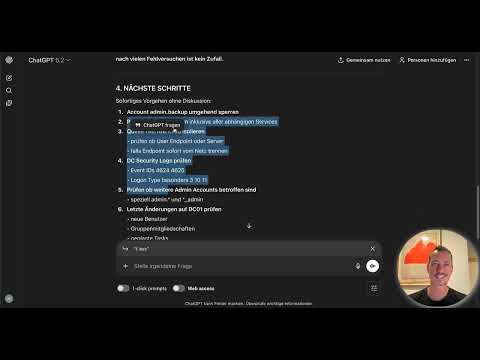
The video is only loaded from YouTube when you play it – data (including your IP address) is then transmitted to YouTube/Google. More in the privacy policy
In this guide, you turn ChatGPT into a triage assistant. You create a prompt template that describes the role, environment, working hours, and critical assets. You then use it to assess alerts from Splunk, Microsoft Sentinel, and Elastic. In the end, you get a decision for each alert (True Positive, False Positive, or Needs Investigation), a priority from P1 to P4, and a comprehensible justification.
Key Takeaways
- A template with context about your environment helps the AI distinguish normal behavior from suspicious behavior.
- The output follows fixed categories: triage decision, priority, justification, next steps, and false-positive probability.
- A failed login attempt followed by a successful hit on an admin account should be treated immediately as P1.
- Context beats technique: A suspicious PowerShell call can be a perfectly normal deployment process in your environment.
- The AI provides a starting point. You make the final judgment and the final prioritization yourself.
Step-by-Step Guide
Step 1: Understand the Common SIEM Alert Formats
Before you write the prompt, you should know how your alerts are structured. Splunk often delivers alerts in JSON format, while Microsoft Sentinel and Elastic each use their own field structures. The details differ, but the core question always remains the same: How critical is this, and what do I need to do next? This is exactly the question your template should answer.

Step 2: Define the Role and Environment in the Template
Begin the prompt with a clear role. In the example, the AI is meant to act as an experienced Tier 2 Security Analyst with a focus on AI triage. Then you describe your environment. The lesson uses a mid-sized company with 500 employees, working hours from 8 am to 6 pm, and critical assets such as the domain controllers DC01 and DC02 as well as the file server FS01. Adapt these details to your organization. The better the AI knows your environment, the more reliably it can assess what is normal.

Step 3: Store the Naming Formats of Privileged Accounts
Add the naming formats of your admin accounts to the template. In the example, the pattern is described using terms like "admin". Enter your own variants here. Otherwise, the AI may overlook an attack on an account that follows a different naming convention. This section is important because incidents involving privileged accounts should almost always be given a high priority.
Step 4: Define the Task and Output Format
The next part of the template gives the AI a clear task. It should make a triage decision: True Positive, False Positive, or Needs Investigation. It also requests a priority. P1 means immediately, that is, within one hour. P2 is to be handled promptly within four hours, and P4 goes to the backlog. P3 lies in between and depends on your internal guidelines. In addition, the template requires a justification with the relevant factors, concrete steps for validation or escalation, and a false-positive probability of high, medium, or low. This fixed structure ensures that you can compare results quickly.
Step 5: Test the First Alert
Insert the alert according to the template and submit the prompt. The lesson first tests a classic brute-force suspicion: 47 failed logins within 36 seconds on the domain controller DC01, immediately followed by a successful login on the "admin" account. The AI rates this as a True Positive with priority P1. Its justification cites the critical target host, the privileged account, the accumulation of failed attempts in a short time, and the timing shortly after the start of work. It also maps the incident to the MITRE ATT&CK technique T1110.001 (Password Guessing). The principle behind this is: A hit after many failed attempts is no coincidence.

Step 6: Review the Justification and Action Steps
Don't just read the justification, but also check the proposed measures. For a confirmed incident in the admin area, the AI lists immediate measures and an escalation. Check whether these steps fit your internal processes and responsibilities. The advantage is that the decision, justification, and next step are together in one response. You would proceed similarly in the end, except that the AI has taken over the preliminary work of gathering the log data for you.

Step 7: Classifying Inconspicuous Alerts as False Positives
Not every alert is an attack. In the next test, a PowerShell execution with the parameter "ExecutionPolicy Bypass" triggers a warning. Such alerts are often false positives, but sometimes they are not. The AI classifies this case as a false positive with priority P4 and moves it to the backlog. The reasoning is based on context: the system belongs to a typical working environment for scripts, and the behavior fits a software deployment. Remember the principle from the lesson: PowerShell is not an attack, ExecutionPolicy Bypass is not proof, and context beats technique.

Step 8: Handling the Gray Area with Needs Investigation
The most difficult case is the one where neither an attack nor a false alarm can be clearly demonstrated. In the example, a log at 2:34 a.m. shows an outbound data stream of 808 MB from a finance workstation to an external cloud storage domain. The AI chooses Needs Investigation with priority P2. As red flags, it names the time of day, far outside working hours, the significant amount of data, the sensitivity of the finance department, and the unknown destination domain. On the other hand, mitigating factors include that the user has no admin rights, the transfer runs over HTTPS, there is no indication of a C2 channel, and no series of similar events is visible. In such a case, the approach is: proceed in a structured way, observe and clarify before you act. Haste achieves nothing here, but you should not lose sight of the case either.

Step 9: Evaluating Multiple Alerts in a Batch
If there are 50 alerts in the morning, don't analyze them one by one. Copy the alerts together beneath the prompt and ask the AI for a triage table with alert name, priority, assessment, and reasoning, sorted by priority. In the example, five alerts from the previous night become a clear table in which you can immediately see what you need to start with.

Step 10: Saving the Template and Using It Long-Term
Save the finished template as a text snippet so you don't have to rewrite it every time. Adjust the context regularly, for example when working hours, critical assets, or naming formats change. The AI does not replace your judgment. It speeds up the preparatory work, while the final decision and the ultimate classification of priorities remain your responsibility.

Summary – SIEM Alert Triage with ChatGPT: Prompt Template for Faster Analyses
You have seen how a prompt template with a role, environment context, naming formats for admin accounts, and fixed decision categories turns ChatGPT into a triage assistant. The AI makes clear decisions for true positives, false positives, and gray areas, justifies them comprehensibly, and names the next steps. For batches, it sorts many alerts into a clear table. The template serves as a starting point and should be adapted to your environment. The final assessment remains your task.
FAQ
Which SIEM systems are covered in the lesson?The lesson uses alert examples from Splunk, Microsoft Sentinel, and Elastic.
Do I have to adapt the template to my environment?Yes. Context, working hours, critical assets, and naming formats of admin accounts must match your company, otherwise the AI cannot properly classify normal behavior.
Can the AI make the final decision?No. The AI provides an assessment as a starting point. You make the final decision and the classification of priorities yourself.
What data should I attach to the prompt?Insert the alert exactly as it is output from your system. The more complete the data, the better the reasoning will be.
What does the category Needs Investigation mean?Needs Investigation indicates that an alert cannot be clearly classified as a true or false positive. In that case, you clarify the case in a structured way instead of acting prematurely.
How do I deal with many alerts at the same time?Bundle the alerts in a batch and have a triage table sorted by priority output.

