

Imagine a language model answering your questions, and not a single line ever leaves your computer. That is exactly what Ollama is built for. The open-source tool runs on Mac, Windows and Linux and brings modern models such as Llama, Mistral or Phi directly to your device. In this guide, I walk you through installation, the interface, model selection and first prompts. I will also show you why Ollama is particularly well suited for sensitive data.
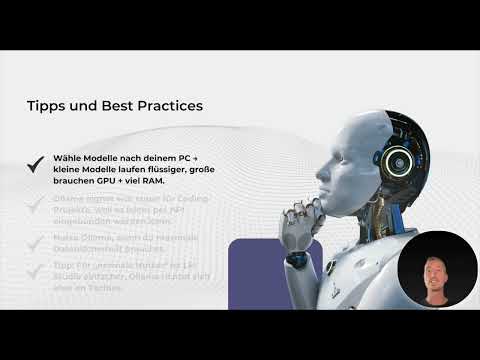
The video is only loaded from YouTube when you play it – data (including your IP address) is then transmitted to YouTube/Google. More in the privacy policy
Key Takeaways
- Ollama is free, open source and requires neither a subscription nor hidden costs.
- The models run locally. After the download, you work offline, and your inputs are not transmitted to external servers.
- The interface is kept simple: choose a model, enter a prompt, receive an answer.
- Smaller models run much more smoothly on ordinary hardware than large ones.
- For regular users, LM Studio is often easier to use, while Ollama is aimed more at developers and the privacy-conscious.
Step 1: Finding the Website and the Download
The first step takes you to the official Ollama website. The home page offers the download for Mac, Windows and Linux directly. Choose the installation package for your operating system. Make sure to download the software only from the official site, because with a security topic like this, the source is crucial.

Step 2: Installing Ollama
After the download, you start the downloaded file. The installation of Ollama is straightforward and requires no special prior knowledge. On Windows and Mac, a double-click is usually enough, after which the program sets itself up. Then you start Ollama once so that the background service is running.

Step 3: Getting to Know the Interface
After launching, a clear chat interface opens. On the left you find your previous conversations, the chat history runs in the middle, and the input field is at the bottom. At the top you can select the desired model. The interface has no complicated settings menus, and that is exactly what makes getting started so quick.

Step 4: Choosing a Model
Ollama provides a wide range of models, including GPT-OSS, DeepSeek R1, Gemma 3, Qwen 3, Llama 3.1 or Mistral. Each model has different strengths, for example in programming, text comprehension or multilingual capability. On the model page you will find descriptions and size information. First choose a model that fits your task, and always keep the memory requirements in mind.

Step 5: Understanding the First Download
It is important to know that a model is downloaded the first time it is used. As soon as you submit the prompt, the download begins in the background. In the video's practical example, it is GPT-OSS 20B with around 12.1 GB. The download there took over half an hour because the server responded slowly. So plan enough time and storage space. After the download, the model also works without an internet connection.
Step 6: Submitting the First Prompt
Now it gets practical. Click on "New Chat", choose your model and enter your question. In the video, the test question was what an LLM is. The answer came in a structured form, with a table, explanation and examples such as GPT-4, Claude or Gemini. You get feedback relatively quickly. No preparation is necessary, because you can simply paste texts into the field.

Step 7: Managing Chats
Every conversation is saved in the sidebar on the left. You can switch between earlier chats at any time and continue working on an existing conversation. In addition, you can start a fresh history via the button for a new chat. This helps you keep topics neatly separated, such as projects, analyses or code questions.
Step 8: Switching and Managing Models
If you want to use a different model, you simply select it via the quick selection and download it. Installed models remain local on the computer, so you can call them up again at any time. Ollama also offers an extensive model library from which you can add new models with a click. The installation is quick, and thanks to the model management, your system stays organized.

Step 9: Adjust the model size to your hardware
Here is a point that many people underestimate. Large models require a lot of RAM and graphics performance. If your computer is rather average in terms of specs or you need it for other tasks at the same time, choose a smaller model. These run much more smoothly. The 20B model from the video is a good example of a compromise between performance and resource requirements.

Step 10: Understand offline operation and data protection
The key advantage of Ollama is local operation. After downloading the model, you work offline, and your data stays on your device. Even with an existing internet connection, according to the video, no inputs are sent via Ollama. For confidential analyses, this means: invoices, contracts, or version data can be checked, compared, and evaluated without them ending up in someone else's cloud. A practical tip: The first model download of course requires an internet connection. Only after that do you work completely locally.
Step 11: Put Ollama into perspective through comparison
Ollama is not automatically the right tool for everyone. If you are looking for a comfortable user interface with more settings options, LM Studio is often the easier entry point. Ollama, on the other hand, scores points with compatibility, API integration, and plugins, which is why it is particularly suitable for developers. Cloud services such as ChatGPT or Claude are more powerful, but they do not burden your hardware and offer less control over data protection.
Step 12: Your own challenge
To conclude, I recommend a small experiment. Install Ollama, download a small model such as Phi, and ask a simple question. Consciously make sure that you are working offline. This way you will quickly notice what an AI feels like that runs entirely on your own computer.

Summary – Installing Ollama: Using open-source AI locally for confidential analyses
Ollama brings powerful language models to your computer for free. You install the program, choose a model, download it once, and can then work offline. The interface is simple, and model management is easy. For data protection and full control over your data, Ollama is a strong choice, as long as you keep hardware limits in mind and choose the appropriate model size.
FAQ
Is Ollama really free?Yes, Ollama is open source and free to use. There is no subscription, nor hidden costs or fees per request.
Which systems does Ollama run on?Ollama is available for Mac, Windows, and Linux.
Do I need an internet connection for Ollama?You need a connection for the installation and for downloading a model. After that, you can use the models offline.
Does my data leave my computer?According to the video, no inputs are sent via Ollama during local use. Your data therefore stays on your device.
Which model should I choose?Choose a model that fits your task. On weaker computers, smaller models run more smoothly than large ones.
Why does the first prompt take so long?When a model is used for the first time, it is downloaded. Large models such as GPT-OSS 20B require several gigabytes of storage space.
Which models are available?Among others, GPT-OSS, DeepSeek R1, Gemma 3, Qwen 3, Llama 3.1, and Mistral are available.
Is Ollama also suitable for programming?Yes, Ollama can be connected via an API and supports coding, debugging, and optimization.
How does Ollama differ from LM Studio?LM Studio offers a more comfortable interface and is often easier for beginners. Ollama is more geared toward developers and scores points with API integration and compatibility.
Can I combine Ollama with other tools?Yes, Ollama can be combined with tools such as LM Studio as well as via API integrations and plugins.

