

Imagine you open your server's Event Viewer on Monday morning and find thousands of entries from the last 24 hours. Somewhere in there is a brute-force attack, but you will hardly find it by hand. This is exactly where this guide comes in. You will learn how to filter the most important Windows event IDs, export the data as CSV or via PowerShell, and then have ChatGPT analyze it. The scenario is a classic credential attack, as it occurs in many corporate networks.
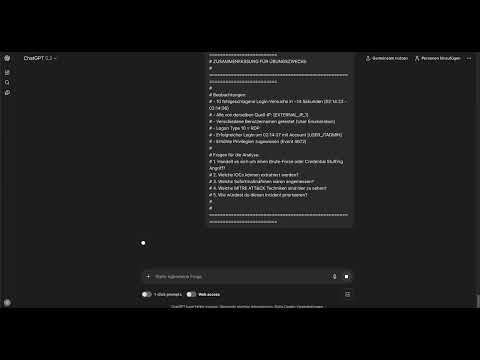
The video is only loaded from YouTube when you play it – data (including your IP address) is then transmitted to YouTube/Google. More in the privacy policy
Key Takeaways
Analyzing security logs only works if you know the relevant event IDs and narrow down the data in a targeted way. Failed logons (event ID 4625) are the most important starting point. Before you hand log data to an AI tool, you must anonymize sensitive information such as IP addresses, usernames, and hostnames. Based on structured prompts, ChatGPT quickly delivers pattern recognition, assessments, and recommendations for action. However, you must always verify the results yourself, because AI models can make mistakes.
Step-by-Step Guide
Step 1: Understanding the Most Important Event IDs
Before you filter logs, you should know which events you are actually looking for. Event ID 4624 stands for a successful logon, 4625 for a failed one. 4634 marks a logoff. Account events such as 4720 (user created), 4722 (user enabled), 4724 (password reset attempt), and 4728 or 4732 (user added to a group) help you trace privilege escalations. For processes, 4688 (new process started) and 4689 (process ended) are relevant. You should be familiar with some of these IDs, because you will need them in almost every investigation.

Step 2: Filtering Failed Logons
In the Windows Event Viewer, open the Security log and create a filter. Enter 4625 as the event ID and limit the time range to the last 24 hours. This significantly reduces the amount of data and lets you focus on the logon attempts that could justify suspicion. The filter only works on a Windows system. If you are working with a Mac as in the video, you use a prepared log file instead.

Step 3: Exporting the Data as CSV
For ChatGPT to analyze the events, you need a readable, tabular format. In the Event Viewer, you can save the filtered entries directly as a CSV file. The CSV file can be opened in Excel, checked, and cleaned up before you use it further.
Step 4: Exporting via PowerShell
Alternatively, you can export the data with PowerShell. This is especially practical if you want to repeat or automate the process. One possible command looks like this:
The command reads all failed logons from the last 24 hours from the Security log and saves them as a CSV file. You need administrator rights to run it.

Step 5: Anonymizing Data Before Uploading
Before you upload the CSV file to an external system, check it for sensitive information. This includes IP addresses, usernames, hostnames, and anything that can be traced back to your company. Replace these values with neutral placeholders, such as "IP_A", "User_01", or "Host_X". The patterns are preserved, and the analysis still works. This step is not a mere formality, but part of handling data responsibly.

Step 6: Writing a Structured Prompt
The quality of the analysis depends heavily on your prompt. Give the AI a role, a context, and a clear task. A proven structure is: You are an experienced Windows security specialist for login forensics. You receive exported events with ID 4625. Analyze the data for brute-force patterns, identify suspicious sources, IPs, and usernames, assess the criticality (critical, high, medium, low), and give concrete recommendations for action. Structure the answer as a table. Then attach the anonymized CSV file and send the prompt.

Step 7: Reading and Interpreting the Analysis
ChatGPT detects typical patterns in the analysis. In the example, several failed attempts within a few seconds could be seen from one source IP and one workstation. Several usernames were tested, including both existing and non-existing accounts. This mix points to credential stuffing. This was followed by a successful login with a real account, followed by special privileges. So don't just read the analysis superficially, but check whether the sequence fits your suspicion.

Step 8: Ask specifically about status codes
The analysis often mentions status codes such as 0xC000006A or 0xC0000064. The code 0xC000006A means that the username exists but the password is wrong. For the attacker, this is a hint that the account is valid. The code 0xC0000064, on the other hand, indicates that the username does not exist. Ask the AI about every code you cannot assign with certainty. This way you understand the course of the attack better.

Step 9: Dig deeper with follow-up questions
A single answer is rarely enough. Ask follow-up questions, for example about the logon type. Type 3 stands for a network logon, for example via SMB or a network share. Type 10 stands for an interactive logon via RDP. If the pattern uses type 3, this points to an attack via network services. This way you narrow down the attack surface further.
Step 10: Derive immediate measures
In the next step, you ask for concrete measures. Phrase it, for example, like this: Which immediate measures do you recommend? The AI typically structures its answer into technical and organizational immediate measures. These include locking affected accounts, blocking the source IP, and preserving the evidence. Stick to the order: first secure, then harden. Anyone who loses logs loses the basis for the investigation.

Step 11: Have a detection rule created
So that the pattern is reported automatically in the future, you can ask ChatGPT for a SIEM rule. The answer usually contains logic in plain text and a pseudo-query, for example in an SQL-like form. You adapt this template to your environment before putting it into operation. A rule that checks a threshold of several failed attempts within a few minutes is a typical starting point.

Step 12: Verify and document results
Finally, you check every critical statement. AI models can misinterpret events or invent details, so you compare the results with the original data. For your documentation, also have the appropriate MITRE ATT&CK mapping provided, for example for brute-force techniques. This keeps your investigation traceable.

Summary – Windows Event Log Analysis with ChatGPT: Detecting Brute-Force Attacks in Minutes
You have learned to filter failed logons with Event ID 4625, export the data as CSV or via PowerShell, and anonymize it before uploading. With a structured prompt, you have ChatGPT recognize patterns, explain status codes, and derive immediate measures as well as detection rules. Always pay attention to data protection and review critical results before you base decisions on them. The next step deals with firewall and proxy logs, with which you track down C2 communication and reconnaissance patterns.
FAQ
Which Event ID shows failed logons?Event ID 4625 shows failed logons in the Windows Security log.
Why should I anonymize log data before uploading it to ChatGPT?Logs often contain IP addresses, usernames, and hostnames that can be traced back to your company. This data must not enter external systems unchecked.
What does the status code 0xC000006A mean?The code means that the username exists but the entered password was wrong. For an attacker, this is a hint that the account is valid.
What does logon type 3 mean?Logon type 3 stands for a network logon, for example via SMB or a network share.
Can I trust the AI analysis?You should always verify the results. AI models can be wrong or invent details, so you compare critical findings with the original data.
Do I have to use Windows to carry out the analysis?For filtering directly in the event log, you need a Windows system. However, you can also analyze an already exported log file on another system.

