

An incident is only truly closed once the findings have been documented and passed on to the right places. This very step is often underestimated in practice. In this guide, you will learn how to use ChatGPT to extract Indicators of Compromise (IOCs) from raw data, assess them, map them to MITRE ATT&CK, and export them as import files for SIEM, Trade-Intel platform, and firewall. An anonymized phishing case in which an employee opened a manipulated email serves as the example.
The video is only loaded from YouTube when you play it – data (including your IP address) is then transmitted to YouTube/Google. More in the privacy policy
Introduction
Imagine you have the logs of an incident in front of you: hundreds of lines, process calls, network connections, and file events. The art lies in filtering out the few artifacts that actually have an attack character. This is exactly where ChatGPT supports you, if you build the prompt cleanly and critically review the results. What used to cost hours of manual work, you can now accomplish in a few minutes.
Key Takeaways
- IOCs are divided into network, host, and behavioral indicators. Only some of them are truly usable for detection and blocking.
- A structured prompt with role, task, format, and context delivers significantly better results than a vague request.
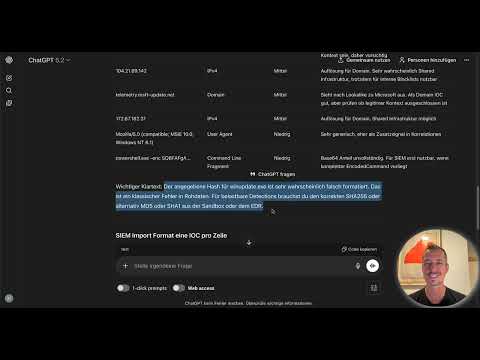
- The reliability of each IOC must be assessed. An incorrectly formatted hash is a classic error in raw data.
- MITRE ATT&CK techniques create a shared vocabulary with which your report is understood worldwide.
- The export formats CSV, STIX, and simple blocklists make the results immediately usable.
Step-by-Step Guide
Step 1: Understand IOC Categories
Before you even start working with ChatGPT, you should know what you are looking for. Network IOCs include IP addresses, domains, URLs, user agents, JA3 and JA3S fingerprints, and TLS signatures. Host IOCs are file hashes such as MD5, SHA1, and SHA256, file names, paths, registry keys, as well as scheduled tasks and services. Behavioral IOCs describe process relationships, that is, which parent process starts which child process, as well as command-line arguments and unusual network connections. This basic understanding determines whether you can later distinguish noise from genuine traces of an attack.

Step 2: Start a Clean Chat
Open a new ChatGPT window. Old conversations may contain context that does not belong to this incident, and that distorts the results. A fresh chat ensures that only your current data is analyzed.

Step 3: Build the Prompt
The prompt is the heart of the analysis. First give ChatGPT a role, for example that of a threat intelligence analyst with a focus on IOC extraction. Then formulate four clear tasks: extract and categorize all IOCs, rate each indicator by reliability as high, medium, or low, create an import structure with one IOC per line, and flag suitability for Trade-Intel sharing. Also define the output format, such as a table with the columns IOC value, type, reliability, and context. The more precise these specifications are, the more usable the result.

Step 4: Paste in the Raw Data
Now paste the anonymized log data into the chat. The data is often messy, so ChatGPT needs a moment to analyze it. Wait for the processing to finish instead of aborting prematurely. You can quickly tell from the progress whether a usable extraction is emerging.

Step 5: Review the Results Table
After the analysis, you receive a table with the extracted indicators. In the example analysis, it contains, among other things, the suspicious sender address, its type, the reliability rating, and a short context explaining where the value comes from. Read through each row critically. For each entry, ask yourself whether it really proves an attack or is just a normal system operation.

Step 6: Critically Assess Reliability and Data Quality
This is where the difference between automation and professional analysis becomes apparent. In the example, a hash is incorrectly formatted, so it is not suitable for robust detections. For reliable detection rules, you need the complete SHA256 value or alternatively MD5 or SHA1 from the sandbox or the endpoint solution. Therefore, always check hashes for length and character format before passing them on. A faulty indicator can cause blocking rules to go nowhere or, in the worst case, hit legitimate files.

Step 7: Ensure the import format
The results must be importable for platforms such as SIEM or threat intel systems. Make sure that each IOC is on its own line. This allows the list to be taken directly into import routines without you having to separate values by hand.

Step 8: Map the attack techniques to MITRE ATT&CK
Now it's about classifying them in a globally understood model. Write a second prompt that asks ChatGPT to identify all MITRE ATT&CK techniques visible in the data. Request the mapping to tactics such as Initial Access, Execution or Persistence, the complete technique ID including sub-technique, and a brief explanation of the observed behavior. Also ask for a table sorted by the kill chain. The justification in particular is valuable, because it shows why a technique applies.

Step 9: Read the attack chain
The table tells the story of the attack. Starting with the phishing attempt, through the execution of a macro or a PowerShell command line, to persistence, it shows how the attacker wanted to gain a foothold in the system. For your report, this chain is worth its weight in gold, because every reader immediately understands what happened, even if they were not part of the team.

Step 10: Open the ATT&CK Navigator
The MITRE ATT&CK Navigator is a free web tool for visualizing techniques. Open it in your browser and create a new layer. There you can mark the identified techniques and highlight them with color. This turns a table into a picture that management and colleagues can grasp at a glance.

Step 11: Generate a layer file from ChatGPT
Instead of entering each technique manually, you can ask ChatGPT to create a JSON file for the Navigator. It contains all identified techniques and their coloring. Then upload the file in the Navigator. You can adjust colors via the layer controls, look at individual techniques more closely, or hide areas.
Step 12: Review the results and check them off
In the Navigator, each technique can be opened and checked individually. Once you have confirmed a mapping, you mark it as reviewed. This is a simple but important step, because ChatGPT provides suggestions, not final judgments. The professional responsibility remains with you.

Step 13: Request export formats specifically
The results need to get into your systems. So open the last chat again and ask for the network IOCs in three formats: as CSV for import into the SIEM, as STIX 2.1 for exchange via threat intel platforms, and as a simple blocklist with one IP or domain per line for the firewall.

Step 14: Check the CSV file
ChatGPT delivers the CSV file with clean column headers. Open it and check whether all fields are filled correctly. A clean structure saves you a lot of time during import and avoids error messages.

Step 15: Understand the STIX format
STIX 2.1 is a standardized format for exchanging threat intelligence in JSON. The file contains objects such as indicators with a bundle ID and relationships. You will see the advantage when you share information with other organizations, because the format is understood directly by many platforms.

Step 16: Load the firewall blocklist
The blocklist is a simple text file with IPs or domains. Copy it into your firewall or your SIEM, and the indicators will be blocked. Especially with phishing attacks involving command-and-control communication, a connection can be quickly interrupted this way.

Step 17: Establishing the Entire Process as a Routine
What used to take hours can be done within minutes with this workflow. The key is to incorporate the process into your incident response as a fixed routine: save the prompt, paste in the data, review the results, create the mapping, export. You also generate the JSON export for reuse with a single command. Therefore, save your prompt as a template so you can use it immediately during the next incident.

Summary ??? IOC Extraction and MITRE ATT&CK Mapping with ChatGPT
You have learned how to divide IOCs into the categories network, host, and behavior and to assess their reliability. With a clearly structured prompt, you extract them from anonymized log data, critically review the results, and assign the attack techniques to the tactics of MITRE ATT&CK. With the Navigator, you make the attack chain visible, and via CSV, STIX, and blocklists, you bring the findings directly into your systems. This turns the step that many like to skip into a structured and easily shareable conclusion of your incident.
FAQ
Why should I open a new ChatGPT window for each analysis?Old chats may contain context that does not belong to the current incident and can distort the results.
What IOC categories are there?There are network IOCs such as IP addresses and domains, host IOCs such as file hashes and registry keys, and behavioral IOCs such as process relationships and command-line arguments.
How do I recognize an incorrect hash?Check the length and character format. SHA256 has 64 hexadecimal characters, MD5 has 32, and SHA1 has 40. If a value deviates from this, it is not reliable for detections.
Is ChatGPT's mapping to MITRE ATT&CK always correct?No. ChatGPT provides suggestions with justification. You must perform the technical review and approval yourself, for example in the ATT&CK Navigator.
What is the MITRE ATT&CK Navigator?The Navigator is a free web tool with which you can highlight attack techniques in color and visualize them as a layer file.
Which format is suitable for exchange with other organizations?STIX 2.1 is a standardized format that is supported by many threat intelligence platforms and is well suited for exchange.
What do I use the firewall blocklist for?The blocklist contains IPs or domains that you can import directly into your firewall or SIEM to block known attack infrastructure.

