

Imagine letting a powerful language model analyze what you must not hand over: contracts, internal notes, or confidential documents. And all of that without a single byte leaving your computer. That's exactly what LM Studio is designed for. The free desktop application for Windows, Mac, and Linux loads AI models like GPT-OSS or Qwen onto your own computer and makes them directly usable. No subscription, no cloud, no limit on the number of requests.
The video is only loaded from YouTube when you play it – data (including your IP address) is then transmitted to YouTube/Google. More in the privacy policy
In this guide, you'll learn how to install LM Studio, find and download suitable models, use the interface safely, and make your first request offline. You'll also learn what to look for in terms of hardware and why beginners are better off starting with smaller models.
Key Takeaways
- LM Studio is free, runs on Windows, Mac, and Linux, and requires no subscription.
- The language models work entirely locally. Data is not transferred into training data or third-party clouds.
- Models are several gigabytes in size. Before downloading, check your storage space, internet connection, and your computer's performance.
- Smaller models with 7 or 13 billion parameters are particularly well suited for beginners.
- After the download, you can turn off the internet and still keep working.
Step-by-Step Guide
Step 1: Download and Install LM Studio
Getting started is simple. Go to the official LM Studio website and download the version for your operating system. Windows users get an installation file, Mac users a DMG file, which usually opens and installs without any further configuration. Make sure to obtain the software only from the official source. The installation itself is straightforward, and the instructions for it usually come with the download.

Step 2: Get to Know the Interface
After launching, you'll see a clean user interface. On the left side, you'll find the sections Chat, Developer, and My Models. In the Chat section, you ask your questions and see the history of all previous requests. You can also create folders to organize chats into projects. Using the file attachment button, you can upload documents, and plugins as well as MCP servers can also be integrated.

Step 3: Choose a Suitable Model
Before you can chat, you need a language model. To do this, open the Discover section. There you'll find a large selection, such as Qwen, LFM, Gemma, or GPT-OSS in various sizes. The name often tells you how many parameters the model works with. The larger the model, the more knowledge it contains, but the more memory and computing power it also requires. Use the sorting and filter functions to get to the model you want more quickly.

Step 4: Check Model Size and Storage Requirements
File sizes vary greatly. A compact model may take up only about 2 GB, while a larger one can easily reach 12 GB or more. With a fast fiber-optic connection, this is usually not a problem. Nevertheless, you should check beforehand whether there is enough free storage and whether your computer can run the model smoothly. The Developer section shows you the system requirements of the respective model as well as the current load.

Step 5: Download the Model
Once you've decided, click the download button for the desired model. The Download Manager shows the progress. As soon as the file has been completely transferred, the model is available locally on your computer. A stable internet connection is required during the download, but not afterward.

Step 6: Manage the Downloaded Models
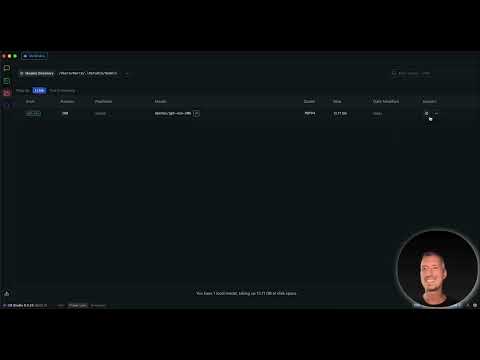
Under My Models, you'll find all the models you've already installed. Remember the storage location, because that's where the files are. If you want to remove a model again, you have to delete the associated files at the storage location, as they will otherwise continue to take up space. With many models, this lets you quickly keep track, and with the filter function you can find every model again.

Step 7: Start your first chat
Switch to the chat area and select your installed model. Then enter your prompt and send it. A simple task is suitable as a test, such as a short text on a historical topic. You will see that even a small model responds quickly and delivers useful information. With file attachments, you can also have your own documents analyzed directly.

Step 8: Keep an eye on system load
While the AI is working, it uses your hardware. In the Developer area, you can see how heavily the processor, graphics card, and RAM are being used. Processing runs noticeably smoothly, especially on Macs with Apple chips and on Windows computers with a good graphics card. If the load is permanently at its limit, switch to a smaller model.
Step 9: Work offline and ensure data protection
The decisive advantage becomes apparent when you turn off the internet. The request is processed entirely on your computer, and the model needs no outside connection for this. Your data therefore ends up neither in training data nor in third-party data centers. For sensitive content such as contracts or internal policies, this is exactly the key point. You can upload these documents and have them checked for weaknesses, improved linguistically, or analyzed in terms of content.

Step 10: Start with small models
To get started, I recommend a model with 7B or 13B parameters. Less has to be downloaded, it puts less strain on your computer, and it is usually completely sufficient for tests, text analyses, and normal tasks. Large models require a lot of RAM and a powerful graphics card. Test different models to find out which delivers the best results for your tasks, whether for texts, logic, or code.

Step 11: Your own mini challenge
To finish, try out what you have learned. Download LM Studio, install a small model such as Mistral 7B or a 13B model, ask a question, and check the answer. Feel free to also compare an offline model with an online model. You will find that local models deliver surprisingly good results, even though they cannot look things up on the internet. You therefore have to rely entirely on the knowledge from the training data and on the documents you provide.

Summary – LM Studio: Analyze sensitive data locally and offline with AI
LM Studio brings powerful language models directly to your computer. You install the free application, choose a suitable model, download it, and can start chatting right away. Confidential documents stay on your device, and you can even work offline. Pay attention to the model size and the performance of your system, start with a smaller model, and experiment until you have found the right AI for your tasks.
FAQ
Question: Does LM Studio cost anything?Answer: No, LM Studio is free to use and requires no subscription. You can use it as long and as often as you like.
Question: Which operating systems are supported?Answer: LM Studio runs on Windows, Mac, and Linux.
Question: Does my data end up in the cloud when I use it?Answer: No, requests are processed locally on your computer. You can even turn off the internet after the download.
Question: Which model should I choose as a beginner?Answer: Smaller models with 7B or 13B parameters are ideal for tests and normal analyses. They require less memory and run more smoothly.
Question: How much storage space do the models need?Answer: The size varies greatly. Smaller models need a few gigabytes, while larger ones can take up 12 GB or more.
Question: What is the difference from Ollama?Answer: Ollama is aimed more at developers and is suitable, for example, as a coding assistant. LM Studio scores with a clear user interface that even beginners can use without configuration.
Question: Do I have to configure anything before I can get started?Answer: No, after installing and downloading a model, you can chat right away. An API integration or similar settings are not necessary.

