
Imagine you have a document or a technical article and want to turn it into a podcast without sitting in front of the camera yourself or setting up a microphone. HeyGen offers a feature for exactly this, where you upload a PDF file or a website link. The software automatically creates a video podcast from it with an avatar of your choice. You can determine the duration and format yourself.
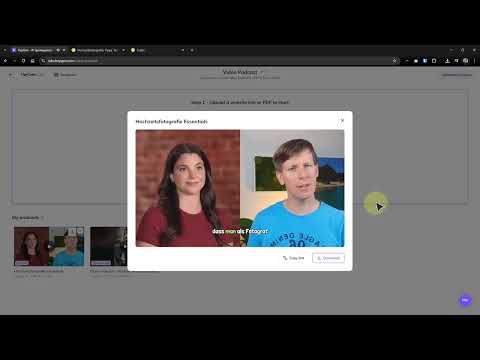
The video is only loaded from YouTube when you play it – data (including your IP address) is then transmitted to YouTube/Google. More in the privacy policy
In this tutorial, I will guide you through the process step by step. You will learn where to find the feature, how to set the source, select avatars, and adjust settings. I will also show you what to watch out for with the free version and the paid plans.
Key Takeaways
- You can find the video podcast on the HeyGen home page via "See all".
- As a source, you use either a PDF file with a maximum of 20 MB or a website link.
- You determine the avatar, conversation partner, duration, format (landscape or portrait), and subtitles.
- The free version is suitable for trying things out, but it contains a watermark and other limitations.
Step-by-Step Guide
Step 1: Open the Video Podcast Feature
The entry point is quickly found. On the HeyGen home page, click on "See all". There you get an overview of various video formats. Select the "Video Podcast" entry. This opens the area where you configure your podcast step by step.

Step 2: Set the Source
Next, you decide where the content for your podcast comes from. For a PDF file, you choose the upload option and look for the document on your computer. Make sure the file is no larger than 20 MB. In the video's example, part of a tutorial on wedding photography was uploaded. The speaker had downloaded this part beforehand.
Alternatively, you can enter a website link instead of a file. This is useful if the text is already summarized online. The video also hints that processing videos as a source should be possible in the future as well.

Step 3: Select the Avatar
Now you choose the avatar that hosts your podcast. HeyGen offers you a selection of people, including women and men. For each person, there are also different variations you can switch between. Take your time looking through the options and decide on the style that suits your topic.

Step 4: Set Duration and Format
Now you decide how long the episode should be. If the conversation partners are supposed to talk in detail, you choose a longer duration. If, on the other hand, you plan to upload the video as a YouTube Short, portrait format is the better choice. Short clips in portrait format are usually shorter as well. So you can tailor the duration and format specifically to the publication channel.
Step 5: Enable Subtitles
Then you decide whether the podcast should include subtitles. Subtitles are especially helpful when viewers watch the video without sound, for example on the go or on social networks. Enable the option if you need it, and otherwise leave it switched off.
Step 6: Set the Second Conversation Partner
A podcast thrives on dialogue. That's why you now select the second avatar. You can take another person from the library, for example one of the women offered. Alternatively, you use your own avatar that you have previously created in HeyGen. In the video, this creates a conversation between a female host and the speaker himself. This is a good way to present your own content in a question-and-answer format.
Step 7: Wait for Processing and Check the Result
Once all settings are made, you start the creation. HeyGen calculates the video in the background, and the progress is displayed to you. Depending on the length, this may take a while. As soon as the video is ready, you play it and review it carefully.
During the review, pay particular attention to the following points. The volume should be pleasant, because in the example video the sound seemed a bit quiet in places. The avatar's gestures can also seem restless. The speaker in the video found his own avatar too fidgety. So the result is not perfect, but it gives you a solid foundation for your podcast.
Step 8: Keeping Track of the Versions and Features
Before you dive deeper, it's worth taking a look at the plans. In the free version, you can already try out quite a bit. Videos are up to about three minutes long, the standard resolution is 720p, and the videos get a watermark. There are also other limitations. If you want to create videos without a watermark, you need a paid version. The speaker tested the Creator version for a month and was very impressed with it.

There is also the "Labs" section. There you'll find features that are still in development. That's why they aren't visible on the home page. Check in there regularly if you want to try out new possibilities.
If you want to involve more people on your team, the Team version is an option. According to the video, the features hardly differ; the main difference lies in the number of users. For companies with special requirements, there is also the Enterprise version, which you have to arrange directly with the provider.

Summary – Creating a HeyGen Video Podcast from PDF: Step-by-Step Guide
You now have an overview of the entire process. You open the video podcast feature via "See all," choose a PDF file of up to 20 MB or a website link as the source, and set the avatar. Then you determine the duration, format, and subtitles and choose a second conversation partner. After the calculation, you check the result for volume and gestures. If you want to use the feature regularly, start with the free version and then decide based on your requirements whether a paid plan is worthwhile.
FAQ
Can I also upload files larger than 20 MB?No, according to the video, the PDF file may not be larger than 20 MB.
Which sources can I use for my video podcast?You can upload a PDF file or provide a website link where the text is already summarized.
Can I use my own avatar as a conversation partner?Yes, you can create your own avatar and select it as the second conversation partner.
Which format is suitable for a YouTube Short?Portrait format is better suited for a YouTube Short. This format is generally also a good choice for shorter videos.
Is there a watermark in the free version?Yes, a watermark is displayed in the free version. In addition, videos are limited to about three minutes and the standard resolution to 720p.
How can I create a video without a watermark?You need a paid version for this, for example the Creator version.
What are Labs in HeyGen?Labs is a section with new features that are still in development.

