
Imagine you have a few product images and a short clip, but no desire to open a video editing program. That's exactly what the Smart Video template in TikTok Ads Manager is for. It automatically combines your images and videos into a finished ad clip that you can refine with texts, a logo, music, and subtitles. In this guide, I'll walk you through the process step by step, show you typical pitfalls, and explain where you can find the finished video later.
The video is only loaded from YouTube when you play it – data (including your IP address) is then transmitted to YouTube/Google. More in the privacy policy
Key Takeaways
- Smart Video automatically combines images and video clips into an ad video. You don't need any prior knowledge of video editing.
- Select "Other" as the industry so you can set the video ratio and duration yourself. For vertical feeds, 9:16 is the best choice.
- Keep texts short and observe the character limit. Long sentences get cut off or look cluttered.
- Don't use periods in text fields, because a period splits the text into a new text field. This also applies to domains like "tobalk.at", which you should write without the period.
- Don't select all generated variants, only the ones you really like. Saved videos end up in the library and can then be used in ads.
Step 1: Select Smart Video as a template
In Ads Manager, open the assets section and switch to the Creative tab. There you'll find the Create button. After you click it, a selection of templates opens. Choose Smart Video here, because this template allows you to upload images and videos and merge them into one clip.

Step 2: Set industry, video ratio, and duration
After opening the template, you can select an industry, such as E-commerce or Other. In most cases, I recommend Other. Only then can you freely determine the video ratio and video duration. With E-commerce, you are offered different ratios, but your choices are more limited.
Set the ratio to 9:16. This vertical format makes the most sense for smartphones because it uses the entire screen. You can set the duration to 30 seconds. Shorter clips often work better for advertising because attention drops quickly.

Step 3: Upload images and videos
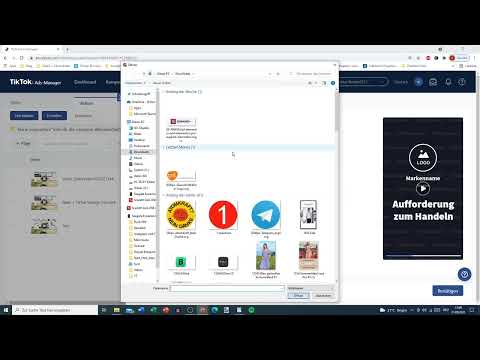
Under the Material section, you'll find the Creativity option. This is where you upload your files. You can select videos and images at the same time and confirm with Open. Smart Video then uses both in the clip.
Be patient while uploading. Videos take significantly longer than images because they contain more data. Wait until the upload is completely finished before continuing. Also make sure that your image is in portrait format if possible, so that it fits the selected ratio.

Step 4: Design the opening and closing frames
At the top and bottom of the clip, you can set an opening frame and a closing frame. For the opening frame, you have two options: You upload your own image or you choose a frame from the suggestions. For the closing frame, you can also upload an image or use the last frame of your video. This is practical because it lets you connect seamlessly to the end of your clip.
For the opening frame, a short, eye-catching text that immediately grabs attention works well. An example would be: "Do you know what you could buy for just €0.01?" Stick to the character limit here. A sentence like "Do you believe in love at first sight?" is too long in the video and won't be displayed completely.
Step 5: Write texts short and concise
Texts in Smart Video should be short and clear. An example from the tutorial is a toothpaste ad with the text "Do you want beautiful teeth?" in the closing section. The question is short enough to be easy to read, and it directly prompts the viewer to keep watching.
Make sure you always stick to the character limit. The text fields only accept a limited number of characters. Long sentences also quickly look overloaded on a smartphone. It's better to split your message into several short lines of text that appear one after another.

Step 6: Add Logo
In the next step, you can insert your logo. Upload an image file for this. Make sure the logo is round and small. Square, very wide, or large logos are difficult to adjust in the editor and can visually overload the clip. A circular logo with a transparent background usually fits best.

Step 7: Set Brand Name, Slogan, and Call-to-Action
Then you add your brand name, a slogan, and a call to action. In the tutorial, "Weiße Zähne im Nu" ("White teeth in no time") is used as the slogan, and "Jetzt einkaufen" ("Shop now") as the call to action. Alternatives such as "Jetzt ansehen" ("Watch now") or "Jetzt installieren" ("Install now") are also available. Choose the call to action that suits your goal, because it determines how the user should respond to your ad.

Step 8: Select Color Template
Smart Video offers several color templates, for example a black and a yellowish variant. Choose the template that suits your brand. In the tutorial, black was chosen because it looks classic and combines well with the logo and text. You can also use the same texts later in a different color template and compare which variant looks better.
Step 9: Assign a Title and Avoid Periods
Now you assign a title to your video. Here you should be aware of an important note from the tutorial: A period in the text is treated by the system as a separator. This automatically creates a new text field. This happened in the video with the domain "tobalk.at", which then appeared in two separate fields. Therefore, write domains without a period, for example "tobalk at", and avoid periods in all text fields if you do not want to change the structure.

Step 10: Set Stickers and Background Music
A sticker, such as a smiley, is optional. If you want to use one, select the Sticker option in the menu and add it. In the tutorial, this was skipped.
For the background music, you have three options: a dynamic one, a calm one, or a custom music that you select yourself. If you choose no option, music is created automatically. In the example, "Dynamic" was kept. Later, however, it turned out that a different music style fits better with a clip containing an image and video, such as hip-hop or rap.
Step 11: Generate and Evaluate Videos
Then click on Generate Video. After a while, several variants of your clip appear on the right side. Take your time to look at each variant. The results differ, because the system combines your elements slightly differently each time.

Step 12: Fix Problems with Separators
In the tutorial, it was noticeable that texts were not displayed as they should be. The cause was once again the period in the text. If you get a new text field after a period, adjust your text and then generate the video again. You may have to recreate the clip several times until all elements appear correctly.

Step 13: Choose Shorter Content and Suitable Music
Another tip from the tutorial concerns length. For clips that contain both a video and an image, shorter content often feels more coherent. It is also worth adjusting the music based on the result. Hip-hop or rap fit significantly better in the example than the music chosen first. So choose the music that fits the mood and target audience of your clip, and then generate the video again.

Step 14: Adjust Subtitles and Effects
With the Effect Settings option below the video, you can refine the design. Here you set the subtitle style, for example font, color, and font size. In the tutorial, font size 40 was chosen. You can also select special effects. Simply click through the options until you like the result, and then confirm with Confirm. The video will then be revised accordingly.

Step 15: Save your selection and find it in the library
Finally, you choose the variants you like and save them. Don't just look at all of them and select them indiscriminately, because when generating, all variants are automatically selected. Once you have decided on individual clips, click Confirm. The saved videos end up in your Library. From there, you can use them in an ad.

Summary – Creating a TikTok Smart Video: How to Make Your Ad Video in Ads Manager
With Smart Video, you can create an ad video from images and clips in TikTok Ads Manager without any prior knowledge. Select the template via Design and Create, set the industry, the 9:16 ratio and the duration, and upload your material. Add opening and closing frames, short texts, a round logo, brand name, slogan and call to action. Avoid periods in text fields, as they act as separators. Adjust the music and subtitles, generate the variants and save only the ones you really like. You can then find the finished videos in the Library.
FAQ
Which video ratio should I choose for Smart Video?For smartphones, the vertical 9:16 format makes the most sense because it fills the entire screen.
Why should I select "Other" for the industry?With "Other", you can freely set the video ratio and video duration. With E-Commerce, the selection is more limited.
Can I upload images and videos at the same time?Yes, you can select both in one step. The Smart Video will then use both images and videos in the clip.
Why is my text split into several fields?A period in the text is recognized as a separator and creates a new text field. Avoid periods, even in domains, and write, for example, "tobalk at" instead of "tobalk.at".
Can I use my own music for my video?Yes, for the background music you can select custom music instead of dynamic or calm and decide for yourself which music suits your clip.
Where do I find my saved Smart Videos?Saved videos end up in the Library. From there, you can use them in an ad.
Do I have to save all generated variants?No. When generating, all variants are automatically selected. Therefore, select only the ones you like and confirm only those.


