
Anyone who comes across the audiences menu item in the Ads Manager of ChatGPT Ads quickly wonders whether they should already invest time there. The short answer is: for now, you can safely set this menu aside. Still, it is worth a look, because you can already create audiences from email lists there. This guide shows you where to find the feature, why it is restricted in Europe and Switzerland, and how to upload lists and use them for exclusions.
The video is only loaded from YouTube when you play it – data (including your IP address) is then transmitted to YouTube/Google. More in the privacy policy
Key Takeaways
Key Takeaways
- There are currently two audience types in the Ads Manager. The section is located under Tools and then Audiences.
- Custom audiences currently cannot be used for campaigns targeting regions in the European Economic Area (EEA) or Switzerland, because personalized ads are not yet being served.
- You can still create lists already, for example customer lists or newsletter distribution lists as a CSV or TXT file.
- Uploaded lists can currently only be used for exclusions, not for inclusion targeting or bid adjustments.
- To get started, you should focus on Context Hints, as recommended in the video.
Step-by-Step Guide
Step 1: Open the Audiences menu in the Ads Manager
The path to audiences leads through the Tools section. There you will find the Audiences entry. If you look around in the Ads Manager, you will notice that two audience types are currently available. They are not yet fully developed, but the foundation for future campaigns is already in place.

Step 2: Understand the regional restriction
Before you put time into an audience, you should know where it can be used. Custom audiences are not supported for campaigns targeting regions in the EEA or Switzerland. The reason is that ChatGPT Ads does not yet deliver personalized ads there and therefore no user data is collected for advertising purposes. In the video, the instructor demonstrates this using a test ad in Austria, i.e. within the EEA. Therefore, plan your campaigns so that you do not factor in audiences as an inclusion criterion for the time being.

Step 3: Create a new audience
The good news: creating one works anyway. At the top right you will find the button for creating a new audience. Click on it and then assign a meaningful name. In the video, the example audience is called "All Shop Customers". A clear name will help you later when you manage multiple lists, such as one for customers and one for newsletter subscribers.

Step 4: Upload the email list
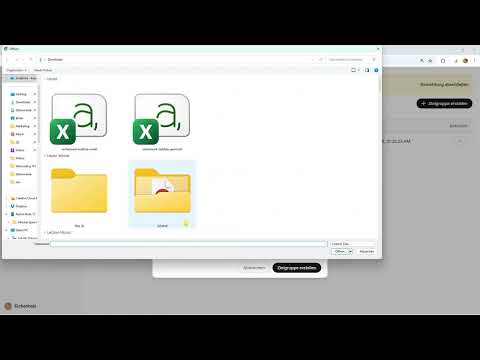
In the next step, you select the file that contains your contacts. The Ads Manager accepts CSV and TXT files. In the example, a file with a single column, namely the email addresses, is sufficient. Ideally, you would also provide first name, last name, and address, since more information makes matching easier later. If you only have email addresses, though, that is enough too. Make sure you only upload contacts for whom you have a valid legal basis, such as customers or newsletter subscribers who have consented to the processing of their data.

Step 5: Create the audience and check the status
Once the file is selected, click on Create. Processing may take some time. Afterwards, the list appears in the Audiences section with a status and a user count. In the example, the list is under 25,000 users and is marked as "ready". The status gives you an indication of what you can use the list for. The instructor emphasizes that such lists are currently only available for exclusion.

Step 6: Set the audience as an exclusion
When setting up the campaign, you can specify that the audience should be excluded. So you want to run the campaign, but certain people should not see the ads. A typical example is existing customers who have already bought a product, and you do not want to show them ads for the same offer. The option is available for exclusions, while inclusions and bid adjustments are not yet available for these lists.
Step 7: Filter Out Duplicate Contacts
Many lists contain duplicates, for example when the same person has registered with two email addresses or appears on several mailing lists. To make sure you don't reach anyone two or three times with ads, you should clean your lists before uploading them. The video recommends filtering the data again after uploading. This step is especially important if you are working with multiple lists.
Step 8: Realistically Assess the Effort
Whether cleaning is worthwhile depends on the size of your customer list. For a small shop with around 1,000 users, it hardly matters whether individual contacts appear twice. With a large list, however, the work can be significantly more worthwhile. Plan your time accordingly and, with small amounts of data, rather focus on the campaign itself.
Summary – ChatGPT Ads Audiences: Uploading Email Lists in Ads Manager
The audiences menu in Ads Manager is currently still limited, but you can already prepare it. Create lists of email addresses so you can use them later. For campaigns in the EEA and Switzerland, the following currently applies: the lists are used exclusively for exclusion. If you are planning your launch, focus on Context Hints and keep an eye on the audiences menu, because the restrictions are expected to change in the coming weeks and months.
FAQ
Why can't I use audiences for inclusion in campaigns for the EEA?Custom audiences are currently not supported in campaigns targeting regions in the European Economic Area or Switzerland, because personalized ads are not yet served there and therefore no user data is collected for advertising.
Can I still create audiences already?Yes. You can already upload lists now, for example customer lists or newsletter mailing lists as a CSV or TXT file.
What data do I need for an audience file?In the video, a file with email addresses is sufficient. Additional details such as first name, last name, and address are useful, but not mandatory.
What can I currently use the uploaded lists for?The lists can currently only be used for exclusions. Inclusion targeting and bid adjustments are not yet available.
Do I have to remove duplicates from my list?It is recommended, especially for large lists. For small lists with around 1,000 users, the effect is estimated to be minor in the video.
When will the restriction change?The video states that the situation will change in the coming weeks and months. The current rules should therefore be checked regularly.
What should I do to get started?For now, focus on Context Hints, as recommended in the video, and set up the audiences in parallel as preparation for later campaigns.


