
You have finished building your ad and the budget is set, and yet nothing is happening in Ads Manager. This is exactly how many problems begin, and the good news is: the cause can almost always be narrowed down if you proceed methodically. In this guide, I will show you an error checklist that takes you step by step from the preliminary check to the landing page.
The video is only loaded from YouTube when you play it – data (including your IP address) is then transmitted to YouTube/Google. More in the privacy policy
A preliminary note: according to the speaker, the checklist dates from September 2026. Interfaces, policies, and review times may have changed since then. The logic of troubleshooting remains the same, however.
Key Takeaways
- Check the basics first, before you touch bids or texts. Most failures are due to the account, payment, or identity verification.
- Distinguish carefully between the status messages. "Greyed out" means something different from "Not Serving", and "Serving without impressions" is yet another problem.
- Only change one thing at a time. This is the only way to tell which measure actually helped.
- Give new settings time. Some reviews take several days, and the ad needs a learning phase.
Step-by-Step Guide
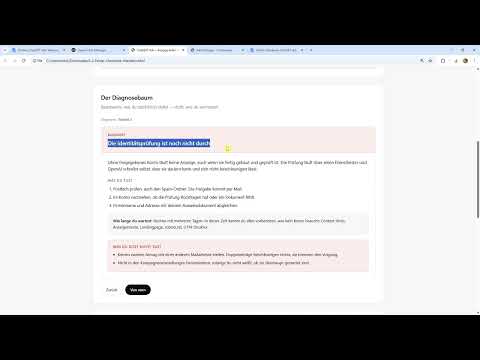
Work through the following points in this order. The diagnostic tree leads you from top to bottom: the higher up a problem sits, the more fundamental it is.
Step 1: The 60-Second Preliminary Check of Account and Payment Method
Start with a look at your account status. Is the account approved and is a payment method on file? Then check whether campaigns, ad groups, and ads are active. In our experience, this is exactly where things most often stall, especially when a lot of time has passed since the ad was submitted without a review being completed.

Step 2: Campaigns Are Greyed Out or Inaccessible
If you cannot access the campaigns in Ads Manager because they are greyed out or nothing is displayed at all, this is usually due to the identity verification. You may have registered, but not yet completely filled in the company address, company data, and other details. As long as this information is missing, the system does not allow ads. So first complete your profile and check that all required fields have been saved.

Step 3: Wait for the Website Review
During the identity verification, your website is crawled automatically. The system checks which site is behind it, what the company's name is, and whether the presence looks trustworthy before you are listed. If your industry is not permitted, you may even be blocked permanently. This process can take several days. Use the waiting time wisely: you can prepare texts, set up UTM parameters, and take care of other preparatory work.

Step 4: The "Not Serving" Status and Payment Details
If your ad is set to "Not Serving", meaning it cannot be delivered, Ads Manager usually shows you an orange notice that the ad will only be delivered once the account setup is complete. If the payment details are missing, that is the first point you need to fix. If the payment details already exist, "Not Serving" can still appear, for example due to a policy violation, an unsuitable budget, or because the payment details were rejected. Check these three points one after the other, not simultaneously.

Step 5: The Ad Is Running, but Nothing Happens
If the ad is set to "Serving" but no impressions come in, your bid may be too low. In the video, a click price of one euro or 50 cents is given as an example. If the bid is too low for the market, the ad is theoretically served, but there are no impressions and no clicks, because you are not willing to pay the required price. So check whether your bid is competitive. If the bid is right, move on to the next point.

Step 6: Check Context Hints and Target Area
If you have entered fewer than eight Context Hints, the ad often lacks a connection to the conversations. The system recommends uploading at least eight conversation guides. A second stumbling block is a target area that is too small. If you have selected only a single Berlin district, there may be too little demand there. Expand the area before you make changes elsewhere.

Step 7: Patience and the learning phase
If none of the previous points apply, it is probably simply too early. The account may first need to be activated, and the system also needs time to learn. A quick look after about ten minutes will show you whether the first clicks have already come in. However, a single evaluation after such a short time is not a reliable basis for decisions. Therefore, plan for a realistic time window.

Step 8: Impressions without clicks
If you get impressions but nobody clicks, the ads usually don't fit the course of the conversation. Check whether your Context Hints make any sense for your product at all. Very complex or quirky hints mean that hardly anyone searches for them. In some industries it is also more difficult to generate clicks. If you see impressions without clicks after 14 days, you should fundamentally rethink your approach. In this case, the bid is probably not the main problem, but rather the conversation relevance.

Step 9: Clicks without conversions
If clicks come in but no conversions, there are two possible causes. Either your tracking is not set up correctly or the landing page does not fulfill its purpose. Without a pixel there is no conversion tracking, even if you have set UTM parameters. UTM parameters help you with analysis in Google Analytics, but they do not replace the pixel. Therefore, first check whether the pixel is integrated correctly.

Step 10: Checking the landing page
If clicks and tracking run cleanly but the numbers remain low, the landing page is the next candidate. Many visits come from mobile devices, so the page must work flawlessly on a smartphone. In addition, the offer should be clearly recognizable on the specific page. If too many clicks are needed for a conversion, it is worth shortening the path to the goal.

Summary – ChatGPT Ads: Ad not being served, error diagnosis in ten steps
Troubleshooting ads that are not being served follows a clear logic. You start with the basics such as account, payment and identity verification, and work your way through bid, Context Hints and target area to the landing page. Stick to the order, give the checks time, and change only a single point per round. This way you find the cause faster, and you later know exactly which measure worked. The complete error checklist with all cases is included as accompanying material and is worth keeping as a reference.
FAQ
Question: Why is my ad not being served despite having a budget?Answer: Most of the time the cause lies in the account setup, missing payment details, or an identity verification that is still in progress. Check these points first before working on the bid or the texts.
Question: How long does the review of my website take?Answer: The review can take several days. During this time you can create texts and set up UTM parameters.
Question: What does the status "Not Serving" mean?Answer: The ad exists in principle but cannot be displayed. Common reasons are an incomplete account setup, policy violations, an unsuitable budget, or rejected payment details.
Question: How many Context Hints should I provide?Answer: The system recommends at least eight Context Hints. Additionally, upload suitable conversation guides so that the ad fits the course of the conversation.
Question: When should I fundamentally review my approach?Answer: If after 14 days you have impressions but no clicks, it is worth taking a close look at the conversation relevance and the Context Hints.
Question: Why shouldn't I change several settings at the same time?Answer: If you change several things at once, you won't know afterwards which measure caused the change. Therefore, always change only one point and check the result before you continue.


