
Before you build your first ad, your ad account must be fully set up. Many mistakes don't happen when creating the ad itself, but in the basic settings: a missing billing profile, an unsuitable logo, or a company name that looks different than expected. That is exactly what this guide is about. You will learn how to set up language and billing, invite team members with the appropriate roles, and add your logo and company name. You will also see why these two details later appear in the ad exactly as you enter them here.
The video is only loaded from YouTube when you play it – data (including your IP address) is then transmitted to YouTube/Google. More in the privacy policy
Key Takeaways
The most important points at a glance:
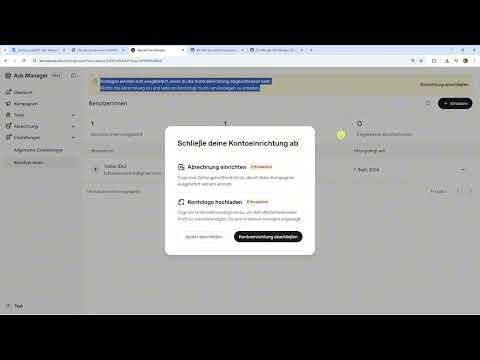
- The setup is complete as soon as the billing profile, logo, and company name are entered. An orange banner in Ads Manager alerts you to this as long as something is missing.
- The billing profile includes payment details and the email address to which invoices are sent.
- Team members can be invited as Viewer, Member, or Admin. The role determines what someone is allowed to do in the account.
- Logo and company name are displayed directly next to your ad. Check both before launch.
- Logo and company name can be changed at any time later in the settings.
Step-by-Step Guide
Step 1: Switch the Interface to German
Open Ads Manager. At the bottom left you will find your account name. There, in addition to the light/dark mode, you can also change the language. Select German (Germany) and apply the setting. Using the interface will be much easier afterwards, especially when you later look for technical terms such as campaign or ad group.

Step 2: Enter the Billing Profile
The next step takes you to the Billing section. Here you enter your billing profile. This includes the payment details, such as the card details, as well as the email address to which invoices should be sent. In a test account, you can leave out the card details. In a real account, you should enter them completely and correctly, because otherwise no ad will be delivered.
Step 3: Overview of Activities and Invoices
After saving, an overview appears. There you will find your account's activities and all invoices. Take a look at this view regularly so that you can trace charges and costs at any time.

Step 4: Invite Team Members and Assign Roles
Under Settings you will find the Users section. There you can add people by email address. Plan this step as early as possible. If, for example, IT is supposed to set up conversion tracking, they need access early on. The same applies to a marketing manager who supports you.
Choose the role to match the task. A Viewer can only view the account. This is well suited if you want to present results to an agency or customers. A Member can create and manage campaigns. An Admin has the most extensive access and may also add other people. An Admin has the same rights as you. Therefore, only assign the Admin role to people you fully trust.

Step 5: Pay Attention to the Orange Banner
In the upper area you will see an orange banner. It indicates that the setup is not yet complete. It only disappears once all required information is present. Click on it to go directly to the missing item.

Step 6: Upload Business Logo
In the Business Logo section you can add a logo. This step is mandatory, because the logo is displayed next to your ad. In the example, a test logo has already been uploaded, which you can confirm. However, you can replace it at any time later.

Step 7: Enter Ad Account Name and Company Name
Next, enter the name of the ad account. This name serves you internally for management. The company name, on the other hand, becomes visible in the ad. Write it exactly as it should appear publicly, with correct capitalization, spaces, and legal form, if you want to show it. A typo in the company name would otherwise appear in every ad.

Step 8: Use the logo from the URL or upload an image
You have two options for the logo. You can enter a URL of your website. The system will then try to automatically pull the logo from it. Alternatively, you can upload an image file directly. In the example, the URL test.de was first entered, which caused a logo to be detected automatically. Afterwards, an image file was uploaded. Make sure the image is recognizable and fits your brand. You should not use placeholders or third-party logos.
Step 9: Save and check the status
Click Save. The Ads Manager will then show you the status. There you can see whether the logo and company name have been entered correctly. The logo is visible in the status and can be changed again if needed via the user or settings areas. At this point, check carefully whether the name and logo are correct. Only then should you continue with the campaign.
Summary – Setting up a ChatGPT Ads advertising account: payment, logo, and team
You have now completed the basic setup of your advertising account. You switched the interface to German, set up a billing profile with payment details and an invoice email, and invited team members with appropriate roles. You have also entered the logo and company name, which will later appear directly in your ad. Check these two details before the start of every campaign. The orange banner should have disappeared. After that, you can begin building your first campaign.
FAQ
Do I absolutely have to upload a logo?Yes. The logo is displayed next to the ad, so it is mandatory in order to complete the setup.
Can I change the logo and company name after the setup?Yes. Both details can be adjusted later in the settings. After every change, make sure that the new version is delivered correctly.
What is the difference between the advertising account name and the company name?The advertising account name is used for your internal management. The company name is visible to users in the ad.
Which role should I give to a marketing manager?If the person is supposed to create and manage campaigns, the Member role is suitable. For view-only access, the Viewer role is appropriate.
What happens if I give someone the Admin role?The admin receives the same rights as you and can also add other people. Therefore, only assign this role to trustworthy people.
Why should I involve IT early?IT often needs access to set up conversion tracking. It measures goals such as link clicks or purchases and should ideally work before the campaign starts.


