
Before your ad goes live in ChatGPT, it's worth taking a close look at two things: the image users see first, and the page they land on afterward. That is exactly what this guide is about. You will learn how to evaluate ad images in terms of subject, contrast, and legibility in the small ad card. In addition, you will check in just a few minutes whether OpenAI's crawlers are even allowed to read your landing page. Both factors determine whether your ad gets approved and whether your page also shows up organically in ChatGPT.
The video is only loaded from YouTube when you play it – data (including your IP address) is then transmitted to YouTube/Google. More in the privacy policy
Key Takeaways
- An ad image needs a clearly recognizable main subject, sufficient contrast, and ideally no text, because the card offers very little space on a smartphone.
- An AI can help you evaluate images. However, you should cross-check the result with your own eye and a second AI.
- The robots.txt helps determine whether the crawlers OAI-AdsBot and OAI-SearchBot are allowed to read your page. An incorrectly set Disallow can prevent approval.
- The source code shows whether important content is directly visible to crawlers.
Step-by-Step Guide
Step 1: Define Evaluation Criteria
Before you ask an AI for help, define what makes a good ad image. Three questions are central here. Is the main subject clearly recognizable when displayed small? Is the contrast sufficient for the image to stand out from the background? Are there text elements in the image? In addition, you should check whether the product can be recognized without reading the ad text. Since most users are on the go with their smartphones, you should always evaluate each image in the small card view.

Step 2: Have Images Evaluated in a New Chat
Open a new chat for the evaluation so that older conversations do not influence the result. Then upload two to five photos, depending on how many your plan allows. In the free plan, the number of uploads is limited, so you simply check the images in several rounds. In the context, you describe the conditions: a small ad card, a short text response, and predominantly smartphone users. Then you ask your questions about subject, contrast, and text share for each individual photo.

Step 3: Check the Results and Compare with a Second AI
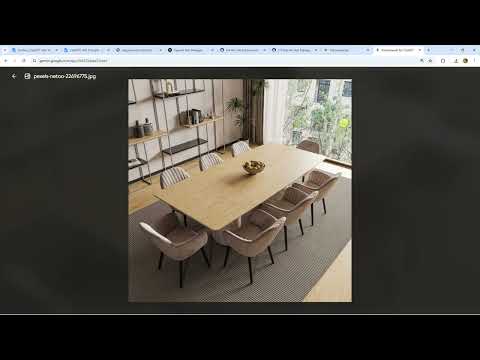
An AI's answer is an assessment, not the truth. Therefore, read it critically and compare it with your own impression. In the example in the video, ChatGPT reported for one photo that no subject was clearly recognizable, the contrast was only medium, and there was no text. This matched the impression that the product can hardly be categorized without the ad text.

Then you repeat the same prompt with a second AI, such as Gemini or Claude. Different models often provide different reasoning, and it is precisely this comparison that reveals weaknesses. In the video, Gemini largely confirmed ChatGPT's assessment. A wooden image with a uniform pattern was considered hard to categorize, whereas a third image with a clearly recognizable subject, good contrast, and no text was immediately understandable.

Step 4: Select an Image and Back Up the Decision
The image with a clear subject, good contrast, and no text is the recommendation that results from both evaluations. However, also make sure that the subject fits the offer. In the video, a photo with bar stools was rejected because it does not make sense for a table advertisement. You should not base the decision on theory alone. Keep one or two alternatives in mind and let the actual performance decide later, that is, which image achieves better click rates.

Step 5: Open Your Landing Page's robots.txt
Now comes the technical part. The robots.txt is a text file in the root directory of your domain that tells crawlers which areas they may visit. You can reach it by entering your website's address and appending /robots.txt. Typically, you will find there the references to your sitemap and the lines with Disallow, that is, the blocked areas.

Step 6: Check the page's source code
The source code shows what is actually in the HTML of your page. To view it, right-click on the website and select the option to view the source code. On Windows, this also works with the keyboard shortcut Ctrl and U. On a Mac in the Chrome browser, you use the combination of Command key, Option key and U. You can copy the entire code and give it to an AI for review. This way you can tell whether key content such as headings and product descriptions appears directly in the source code.

Step 7: Have an AI check the landing page and robots.txt
Paste the address of your landing page and the contents of the robots.txt into the chat. Ask specifically whether the crawlers OAI-AdsBot and OAI-SearchBot are allowed to access the page. In the video, an example page of a furniture retailer served as a template, whose robots.txt contained several Disallow rules. What matters is that no rule excludes the two OpenAI crawlers, either by name or through a blanket block for all bots. The AI should evaluate the rules line by line and explain to you which areas are affected.

Step 8: Check the result and close gaps
An unremarkable robots.txt usually only blocks areas that are not relevant for advertising, such as internal administration pages. It becomes critical as soon as a rule affects the OpenAI crawlers. Some platforms deliberately block crawlers from their content, and exactly such rules can also appear on your page by accident. In this case, adjust the robots.txt or ask your web developer for a correction. Once the check comes out clean, your page is ready for ad approval. The effort takes only a few minutes, but it prevents later rejections.

Summary – ChatGPT Ads: Choosing an ad image and approving the landing page
A good ad image for ChatGPT is characterized by a clear subject, sufficient contrast, and little or no text. With an AI as a second pair of eyes, ideally with a model comparison, you will find the right image faster. At the same time, you check the robots.txt and the source code of your landing page. Only when the crawlers OAI-AdsBot and OAI-SearchBot are allowed to read the page is the technical basis for approval in place.
FAQ
Do I have to carry out the image evaluation with an AI?No. You can assess all the criteria yourself. The AI serves as an additional perspective and helps above all when comparing several images.
Can I upload several images at once with the free plan?The number of uploads is limited in the free plan. You can then check the images in several chats or rounds.
Which crawlers must be allowed in the robots.txt?OAI-AdsBot and OAI-SearchBot are relevant for the ads. Both must be allowed to access your landing page.
What happens if my robots.txt blocks the crawlers?The ad cannot be approved. In addition, the organic visibility of your page in ChatGPT suffers.
Is looking at the source code enough to check visibility?The source code shows you whether important content is in the HTML. Whether crawlers are allowed to access it is additionally determined by the robots.txt.


