
You want to correctly display the length of a video in your React project? In the following tutorial, I'll show you how to determine the video length using an event after the necessary metadata has been loaded. It is crucial to access the video duration at the right time to ensure you provide accurate information.
The video is only loaded from YouTube when you play it – data (including your IP address) is then transmitted to YouTube/Google. More in the privacy policy
Key Takeaways
- The loadedmetadata event ensures that the video length is available.
- The state must be updated to display the length.
- You can query the duration property of the video element to get the duration.
Step-by-Step Guide
To display the video length, follow these steps:
Step 1: Initialize Video with State
First, you need to create a video element in your React component. Make sure to initialize the state for the duration.

Here, you set the initial value of the duration to zero or 0. This is important as you will later want to update this value once the video metadata is available.
Step 2: Integrate loadedmetadata Event
The next step is to use the loadedmetadata event to fetch the video length. You add an event listener for this event.

Once the video is loaded and the metadata is available, this event will be triggered, allowing you to access the duration property of the video.
Step 3: Update State with Video Duration
Now you can update the state with the newly determined video length.
Use the setDuration function to set the value of the duration. This typically happens in the callback function that responds to the event.
Step 4: Display the State of Duration
You must ensure that you display the final duration in the render part of the component. At this point, you make sure that the duration is correctly shown.

It is important to adjust the rendering accordingly so that the user always sees the current duration obtained from the video element.
Step 5: Test and Optimize Changes
Testing and optimizing are important aspects. Reload your application and test if the video length is displayed correctly.

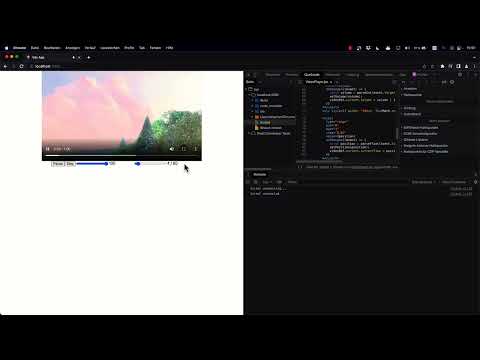
Here, you can see that the duration of 60 seconds is correctly displayed. If there are issues, check if the listener is set up correctly and if the state is updated as expected.
Step 6: Player Enhancements
If the basic functions for the video length work well, you can consider adding further functionalities. This includes fullscreen mode or volume control.
These optimizations allow the user to enjoy a more comprehensive experience.
Summary
In this tutorial, you learned how to display the video length in a React application by using the loadedmetadata event. The state is updated to ensure the correct video duration is displayed. By implementing improvements, your video player becomes even more user-friendly.
Frequently Asked Questions
How can I display the video length?You can query the video duration using the loadedmetadata event after the video has been loaded.
What happens if the duration is not displayed?Check if the event listener is set up correctly and ensure that the state is updated.
Can I use other video events as well?Yes, you can use other events as well, but loadedmetadata is optimal for obtaining the video length.


