
The goal of this tutorial is to create a Play/Pause button in React that combines the two functions. This combination is particularly useful because in an application, you often need either the Play or the Pause state, not both at the same time. You will learn how to manage the state of the button using the useState hook and control the corresponding actions.
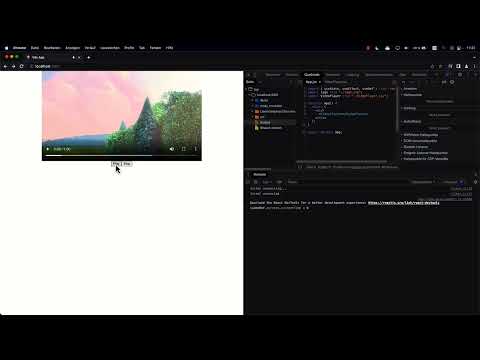
The video is only loaded from YouTube when you play it – data (including your IP address) is then transmitted to YouTube/Google. More in the privacy policy
Key Takeaways
- Using useState to manage the state
- Combining the Play and Pause functions into one button
- Simple implementation and testing of functionality
Step-by-Step Guide
Step 1: Initial Setup of Buttons
You start by creating two separate buttons for Play and Pause. The goal is to combine these two buttons into a single button. First, remove the original buttons.

Step 2: Saving State
To manage the state for Play and Pause, you import useState. The state should indicate whether the video is currently playing or not. This is done by creating a variable isPlaying and a setter function setIsPlaying.

Step 3: Setting Initial Value
Set the initial value for isPlaying. The value should be false as the video should not start playing automatically. This setting allows you to initialize the application correctly.

Step 4: Dynamically Styling Button Label
Now you need to dynamically adjust the label of the button. If isPlaying is true, the button should display "Pause." Otherwise, it should display "Play." For this, you use a simple condition to set the two strings accordingly.
Step 5: Toggling State
Add a function that toggles the state of isPlaying. You achieve this by calling setIsPlaying with the negation of the current value. This toggle function should be assigned to the button.
Step 6: Implementing Actions for Play and Pause
Now it's time to implement the functions for playing and pausing the video. By using an if condition, you can determine what should happen when the button is clicked. If isPlaying is true, the video will pause, and vice versa.
Step 7: Implementing Stop Function
In addition, you should integrate a stop function into the button. When this state is reached, set isPlaying to false. This way, the button is always updated, and the label is set to "Play."

Step 8: Testing User Interface
After completing all implementations, test the user interface. Remember to check if the button behaves correctly and displays the right texts while switching between the different states.

Step 9: Refinement and Optimization
To enhance the user experience, you could consider adding additional states. For example, a state for "Loading" could be useful to indicate that the video is still loading.
Step 10: Conclusion
After implementing the basic functionality, you can also control the browser player. The button should now be able to control playback, and you have laid a solid foundation to add more features in the future.
Summary
In this tutorial, you learned how to create a combined Play/Pause button with React. You practiced using useState to manage the state, and how to dynamically update the button according to user actions.
Frequently Asked Questions
What is useState in React?useState is a hook in React that allows you to manage states in functional components.
How can I customize the button text?The button text is dynamically adjusted based on the state of the variable isPlaying.
Can I have more states than just Play and Pause?Yes, you can add additional states, such as "Stop" or "Loading".
How do I test the functionality?You can start the application locally and test the button functionality live to ensure everything works as expected.


