
Creating interactive applications with React is an exciting challenge. This tutorial focuses on implementing functions that seamlessly control the playback and pause of videos. If you have worked with a video element in React before, you may have noticed that the browser's native controls are not always synchronized with custom controls. In this post, you will learn how to effectively use event handlers to enhance the user experience.
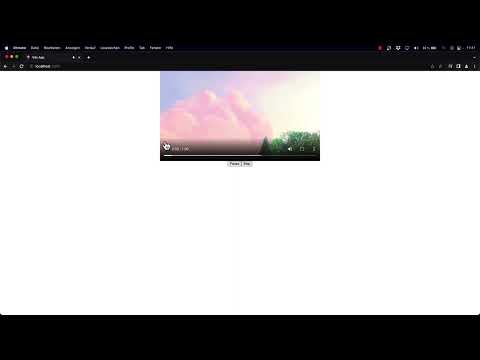
The video is only loaded from YouTube when you play it – data (including your IP address) is then transmitted to YouTube/Google. More in the privacy policy
Key Takeaways
- Using event handlers to display the play and pause status.
- Synchronizing native video controls with custom buttons.
- Practical implementation with onPause and onPlay events.
Step-by-Step Guide
Insert Video Element and Set Initial State
First, you insert a video element into your React component. Make sure to define a state for isPlaying that controls the video playback. This allows you to toggle the button status between Play and Pause.

Add Event Handlers for Play and Pause
Now it's time to add the event handlers. You should listen to the native onPause and onPlay events of the video element. These events allow you to capture changes in the video status. When the video is paused, set the isPlaying state to false.
Implement the onPause Event
When the video is paused by the native controls, your event handler for onPause is triggered. Here, you set the setIsPlaying state to false, indicating that the video is now paused. This will display the button correctly – it should now show the Play symbol.
Implement the onPlay Event
Next, you add the functionality for the onPlay event. When the video resumes playing, update the state with setIsPlaying set to true. This will also change the appearance of your button to "Pause".
Testing Video Controls
To ensure everything works smoothly, test the application by using the native Play and Pause controls. Make sure the button text changes accordingly and is always displayed correctly based on the video status. Use your own Play and Pause buttons within your application for testing.

Checking Synchronization
After implementing and testing the event handlers, check if the synchronization between the video element and your custom button is successful. Click alternately on the browser's native controls and observe your button's reaction.

Future Features Preview
In the upcoming tutorials, we also plan to implement features such as volume control for the video element. This will further enhance the interactivity of your application and provide you with the opportunity to create an even more effective user experience.
Summary
In this guide, you have learned how to use the onPlay and onPause events in React to synchronize your video controls and the status of your custom controls. This not only improves user-friendliness but also provides clearer feedback on the video playback status.
Frequently Asked Questions
How can I integrate the video element into my React component?You can easily place the video element in your render method by using the <video> tag and specifying the source.
What should I do if the events are not triggered correctly?Make sure you have correctly added the event handlers to the video element and that your state is being updated properly.
Can I also control the volume of the video?Yes, volume control can be implemented through additional event handlers and state management functions.


