
The video is only loaded from YouTube when you play it – data (including your IP address) is then transmitted to YouTube/Google. More in the privacy policy
When I create my compositions, it often happens that I don't yet know what I'm going to do in them or what size they should be in the end.
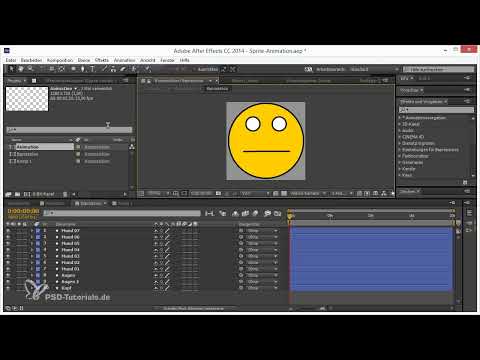
In this example, I have a smiley composition in a larger composition. But unfortunately there is a lot of empty space around the smiley - which means that it is more difficult to animate the smiley itself in the larger composition.
Unfortunately, After Effects does not have the practical option of simply selecting the relevant area and cropping it automatically.
But we have another function that helps us with this: we can select the relevant area manually. This is actually there to render only a certain pixel area in render-intensive scenes, but it allows us to make a selection here.
This tool works in a similar way to the clipping tool in Photoshop and we can only select the important area.

Finally, we confirm the relevant area by going to Composition>Crop composition to relevant area..avif?tutkfid=85502 "Tips and tricks for animating in After Effects: Trimming compositions")
Now we can animate our smiley in the larger composition without any problems and without an unnecessarily large border.
If the smiley would now move and I would like to find out in which area it is moving - for example by expressing the position with wiggle(5,100), I can first create a new adjustment layer with Ctrl+Alt+Y. Then I can right-click on the effect settings and go to Time>CC Time Blender.
In CC Time Blend, we then go to Composite Over or Composite Under and set the Accumulation to 100.
Using this method, we can make all the frames of the smiley visible on top of or underneath each other.
Now we can select the relevant area again and use Composition to crop the relevant area. And now we have perfectly cropped everything relevant, including the movements, and can edit it further without any problems.


