

The right lighting can make a significant difference in the quality of your 3Dvisualizations in AdobeDimensionCC. This tutorial shows you how to achieve impressive lighting effects with preset light setups. You will learn how to integrate light into your scenesand how to adjust the various lighting settings to achieve the best results.
The video is only loaded from YouTube when you play it – data (including your IP address) is then transmitted to YouTube/Google. More in the privacy policy
Key insights
- Adobe Dimension CC offers preset light setups that illuminate scenes from all angles.
- Light sources can be chosen from various materials and settings.
- Adjusting light intensity, direction, and color has a major impact on the appearance of a 3D scene.
- Ambient lights are panorama images that simulate realistic lighting.
Step-by-Step Guide
Step 1: Select Light Setup First, open Adobe Dimension CC and navigate to the third icon at the top of the lighting section. Here, you will find a selection of preset light setups that will serve as your starter kit. You can directly select and apply these light setups to create a pleasant foundation for your 3D scene.

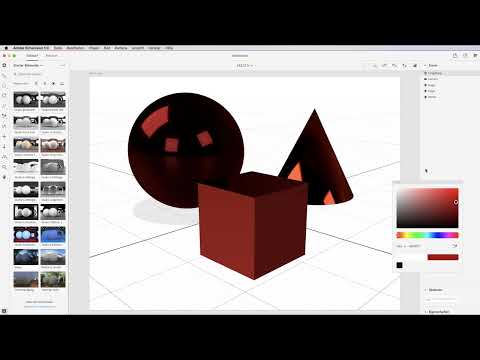
Step 2: Add Objects To demonstrate the effect of light, add three different objects to your scene: a sphere, a metal cube, and a cone-shaped body made of gold. These materials have different reflective properties, which you will observe in the following steps.
Step 3: Understand Materials Each of the added objects has specific properties. The plastic sphere reflects light very well, while the metal cube has weaker reflections, and the golden cone exhibits an interesting texture. Pay attention to how the light behaves depending on the material.

Step 4: Adjust Lighting Settings Now switch back to the lighting settings. Here you can choose a simple light setup. The entire perception of your scene will change depending on which light setup you apply. Experiment with different settings to see how they affect the objects.

Step 5: Adjust Light Intensity and Direction You are now at a point where you can control the intensity of the light. This setting affects how strongly the light enters the scene. Play with the slider and observe how the perception of your objects changes. The rotation of the light is also important, as it indicates where the light is coming from.

Step 6: Change Light Color Additionally, you can adjust the color of the light. Want to add a reddish light? Here you have the opportunity to try out different light colors and see how they affect your image.

Step 7: Use Sunlight In addition to preset light sources, there are other options such as sunlight. These settings offer you a natural light simulation and allow you to create different lighting conditions.
Step 8: Adobe Stock Light Setups If you are not satisfied with the preset light sources, you can download more light setups from Adobe Stock. These provide you with a wide range of new lighting effects that you can integrate into your projects.

Step 9: Utilize Light Variation Try different light sources and discover how they can influence the mood of your scenes. The selection of light sources in Adobe Dimension CC is impressive and allows you creative freedom.

Step 10: Photography and Light If you already have experience in photography, you will be familiar with the importance of light in your design work. For designers, it is advantageous to have knowledge in photography as light plays a central role. Practice how different light arrangements highlight your objects.
Step 11: Experiment and Learn Use different light setups to develop a feel for the differences and their impact on your scenes. With practice, you will become better over time at strategically utilizing light and optimizing your 3D scenes.

Summary – Lighting Design in Adobe Dimension CC: How to Make Your 3D Scenes Shine
By using lighting options in Adobe Dimension CC, you can achieve impressive results and take your 3D projects to a new level. With the right settings and a creative approach, you will be able to unlock the full potential of your designs.
FAQ
How do I select a light setup?Navigate to the preset light setups at the top of Adobe Dimension CC and select one.
How can I change the light intensity?Use the slider in the light settings to control the intensity of the light.
Can I upload my own light setups?Yes, you can upload your own light setups to Adobe Stock and make them available.
How do materials differ in light regulation?Different materials reflect light differently, which affects the visual impact of the objects.
What role does light play in the design process?Light is crucial for determining the mood and character of your 3D scenes.

