
Windows Turbo Boost: From Crawler to Racer

I'm putting an end to loading bars and Microsoft bloatware. With my hacks, you'll turn your lame duck into a greased lightning bolt. Get your power back and finally step on the gas!
17 Videos, 97 minutes
01 - Speeding up Windows using only built-in tools
10 minIn this video, I'll show you why external cleaning tools are often unnecessary. I'll explain performance myths and present Windows' built-in features as well as hardware tips for a faster PC. By the way, you can find the script I mentioned here: https://github.com/Raphire/Win11Debloat
02 - Extend Windows with super useful features using PowerToys
10 minIn this video, I'll show you Microsoft PowerToys. I explain the installation and present helpful features such as window management or image resizing to make your everyday Windows use significantly more efficient.
03 - Speeding up Windows by removing all advertising
4 minIn this video, I'll show you how to set up AdGuard DNS to block ads on all your devices. I'll explain the configuration for Android, Windows, and your router.
04 - Speeding up Windows with current drivers: Tooltips
5 minIn this video, I'll show you how to keep your Windows drivers up to date with helpful tools like Snappy Driver Installer or Drive Booster. You'll also learn how to back up your drivers using a command.
05 - Speed up Windows through memory tuning
5 minIn this video, I'll show you how to unlock the full performance of your RAM through BIOS settings. I'll also explain how to use XMP profiles and fix errors when overclocking.
06 - Disabling bloatware and AI features in Windows with FlyOOBE
9 minI'll show you FlyOOBE 2.4 for optimizing Windows 11. I'll explain how to bypass hardware checks, disable AI features, and remove bloatware to get a clean and fast system. You can find the download here: https://github.com/builtbybel/FlyOOBE
07 - Removing Ads, Bloatware, and AI Features in Windows with Winslop
5 minIn this video, I'll show you the tool Winslop. With it, you can remove bloatware, ads, and AI features from Windows 11 to easily make your system leaner and faster.
08 - Deep cleaning under Windows ... it hardly gets cleaner than this
6 minIn this video, I'll show you BleachBit, a free open-source tool for cleaning your system. I'll explain how to thoroughly remove digital junk and free up valuable storage space on your hard drive.
09 - Cleaning up Windows with CCleaner
10 minIn this video, I'll show you how to install and use CCleaner to clean your PC. I'll also introduce you to Windows Disk Cleanup as a useful alternative.
10 - Quickly install missing programs under Windows
2 minIn this video, I'll show you how to install multiple programs at the same time with Ninite. This saves you a lot of time when setting up your Windows system after a fresh installation.
11 - WinTune: Optimizing Windows Made Easy
2 minIn this video, I'll show you WinTune, a handy tool for optimizing Windows. You'll learn how to adjust settings, manage apps, and speed up and personalize your system with ease.
12 - Resetting Windows super easily (and keeping programs)
4 minIn this video, I'll show you how to reset your Windows 11 PC or repair it with an update. I'll explain the differences so that your important programs and settings are preserved.
13 - Running Windows whisper-quiet with Camomile
7 minIn this video, I'm introducing you to the app Camomile. I'll show you how the tool cools your PC, makes it quieter, and effectively extends battery life through CPU optimization.
14 - Quickly activate the best settings in Windows with Wintoys
4 minIn this video, I'll show you Wintoys from the Microsoft Store. I'll explain how you can easily optimize your Windows system, manage apps, and quickly adjust hidden settings for better performance.
15 - Make your Windows PC run faster in just 10 seconds
2 minIn this video, I'll show you how to boost Windows performance in seconds. By disabling visual effects and optimizing the performance settings, your system will become noticeably faster.
16 - Speed up Windows with PC Manager
4 minIn this video, I'm introducing you to the Microsoft PC Manager. I'll show you how to install it despite the Store restriction and optimize your system for free with just a few clicks.
17 - Quickly get rid of unnecessary bloat in Windows with CrapFixer
6 minI'll show you how to free your Windows system from unnecessary clutter with CrapFixer. Find out how to remove bloatware and make your computer noticeably faster with just a few clicks.
You might also like

7 template sets in 4 design lines – A4 PDF with crop marks, plotter SVG, JPG/PNG, PPTX, DOCX and XLSX
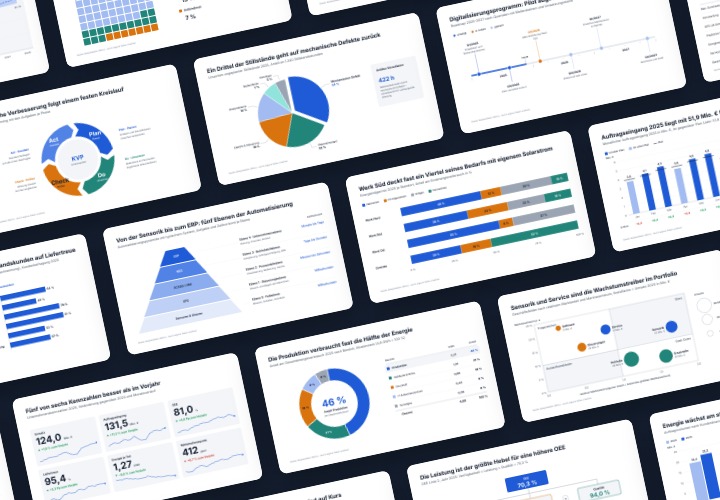
48 editable chart templates in SVG, PDF, EPS, PNG, and PowerPoint – in under a minute in the customer’s corporate identity
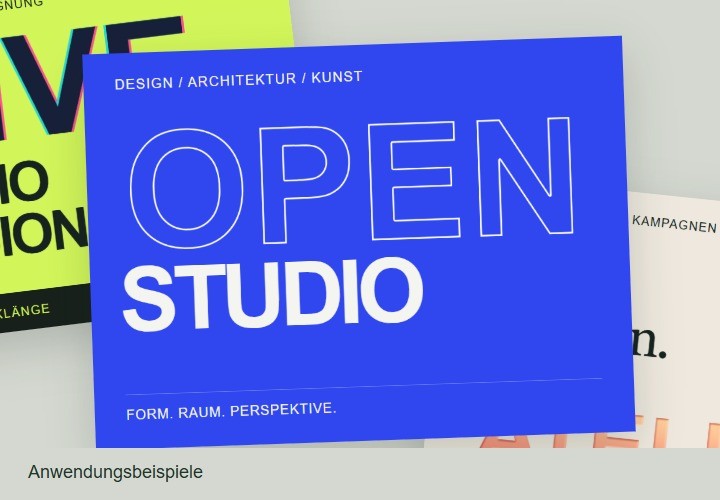
5 sets of 20 layer styles each · ASL and editable PSD samples
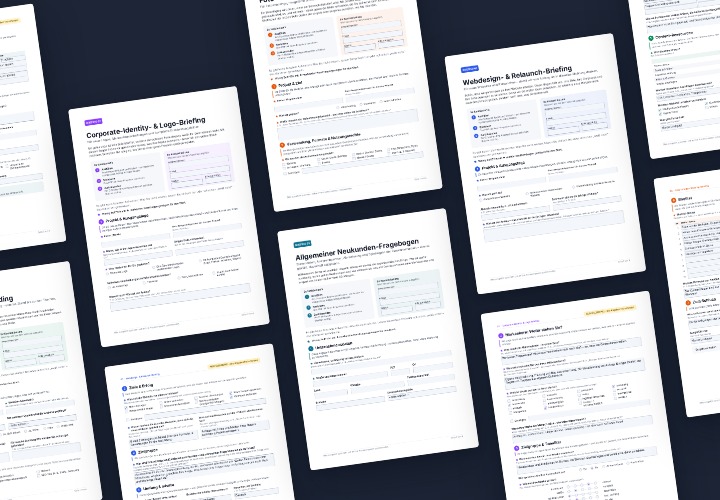
5 sheets of 4 A4 pages each as a fillable PDF – with filling examples and a guide for Acrobat and InDesign
Comment now „Windows Turbo Boost: From Crawler to Racer“