
Imagine you open Microsoft Project for the first time and start planning right away. After just a few minutes, you notice that working hours, currency, or the default view don't fit your project. This is exactly what you can avoid if you set the basic settings beforehand.
The video is only loaded from YouTube when you play it – data (including your IP address) is then transmitted to YouTube/Google. More in the privacy policy
This guide walks you through the most important options in Microsoft Project. You will learn where to find the settings, which of them are crucial for project plans, and which ones you can adjust according to your own preferences. Many areas, such as the Quick Access Toolbar, the add-ins, or the Trust Center, are incidentally structured similarly in all Office programs. Here we focus on what is especially important for Project.
Key Takeaways
You can find the basic settings via the start page, in the "Options" menu at the bottom left.
- For project plans, the default view should be set to Gantt with Timeline.
- Working hours, hours per day, and hours per week all affect all schedule calculations.
- Currency, date format, and decimal places are largely a matter of taste, but should be chosen consistently.
- You should set the calendar to the Gregorian calendar.
- You define the hourly rates for resources in the "Advanced" tab.
- A fixed save location and automatic saving protect your work from data loss.
Step-by-Step Guide
Step 1: Open the Options
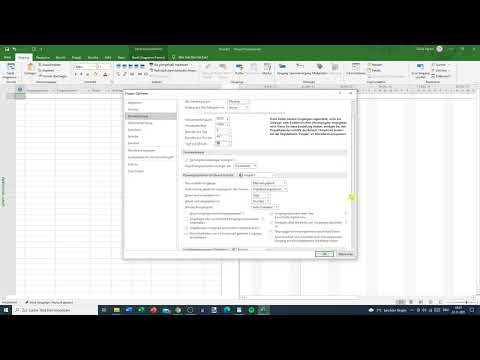
Start Microsoft Project and switch to the start page. At the very bottom left you will find the entry "Options". Clicking on it opens a window in which all basic settings are collected. In addition to the project-specific settings, it also contains general Office options that you will find again in every program of the suite.

Step 2: Set the Default View
In the "General" tab, the first thing you define is which view Project starts with. For project planning, the "Gantt with Timeline" view is the right choice. It shows tasks as bars on a timeline and makes dependencies immediately visible. You will also encounter Gantt tracking, calendar, resources, and tasks later on. For getting started, however, the Gantt view with timeline is completely sufficient.

Step 3: Configure Date and Calendar Settings
Under the "Display" category you will find the date format. In the German style, the date is displayed first and then the time. This is a personal preference; functionally it makes no big difference. However, make sure you use the format consistently.
In the same area, you also select the calendar. For projects in Germany and most European countries, the Gregorian calendar is the right choice. It is the standard on which the schedule calculations are also based.

Step 4: Set Currency and Number Format
If you work with costs, you should deliberately set the currency. In the currency settings area, you choose the currency symbol and its placement. If you want to calculate in dollars, for example, you choose the dollar sign instead of the euro sign. You can also determine how many decimal places are displayed. Two decimal places are common for monetary amounts.
For the placement, you can specify whether the symbol appears before or after the amount and whether a space is inserted. The decision is ultimately a matter of taste, but should remain the same for all projects.
Step 5: Set the Start Time and Start of the Week
In the "Scheduling" area, you determine when the working day begins and ends. By default, a working day from 6 a.m. to 7 p.m. is set. These times help Project distribute tasks correctly across calendar days.
Here you also define which weekday the week begins with. In many countries this is Monday, in other regions Sunday. The start of the fiscal year can also be set at this point. Adjust these values to your company's customs so that your scheduling matches the everyday working routine.

Step 6: Define Working Hours per Day, Week, and Month
Directly below are the default values for working time. The default is 8 hours per day, 40 hours per week, and 20 working days per month. With five working days per week and four weeks per month, this results in a value of 20 days.
This information is important because Project uses it to calculate the amount of work and the duration of tasks. If the values do not match your reality, the results of your planning will not be correct either.
Step 7: Check the scheduling and proofing options
In the "Schedule" section, you will also find the option to choose whether new tasks are scheduled automatically or manually. Automatic scheduling is convenient, but it can be switched for individual tasks at any time. You therefore do not have to commit to a choice at this point.
Under "Proofing," you will find settings for capitalization, AutoCorrect, and numbers. There is no fixed recommendation for the course here. If you want to prevent words in capital letters from being changed by AutoCorrect, for example, you set that here.

Step 8: Set the save location and AutoSave
In the "Save" section, you can set a default save location. Using the "Browse" button, you select a fixed folder where your project files should be stored. This saves you time later because you do not have to search for the storage location every time.
In addition, you can activate automatic saving. You can set an interval of, for example, 5 or 10 minutes. Especially with extensive project plans, this protects you from data loss due to a crash.
Step 9: Select the language
Under "Language," you determine which display and editing language Project uses. In this course, the interface stays in German. However, many users prefer English because formulas and instructions from the internet are easier to apply that way. If you switch the interface to English, you will need to get used to the terms. For getting started, however, it is advisable to stay with the German interface.

Step 10: Set hourly rates for resources
In the "Advanced" tab, you will find the options for resources and general settings for the project. Here you can set the standard hourly rate and the overtime rate. An example: the standard rate is 20 euros per hour per person, and one hour of overtime costs 30 euros. These values form the basis for your cost calculation, but can later be adjusted individually for each resource.
In the lower area of the tab, you also determine how hours are abbreviated, for example as "Std" or "h," and whether a period is added. These are fine details that do not play a major role in planning.

Step 11: Save the settings and finish
When all options are set to your liking, you confirm your entries by clicking "OK" at the bottom right. Project then applies the basic settings. Afterwards, you can start directly with your first project. The settings are retained and apply to all new project plans that you create.

Summary – Setting up Microsoft Project basic settings correctly
The basic settings in Microsoft Project form the foundation of every plan. You find them via the start page under "Options" and they are organized into areas such as General, Display, Schedule, Save, and Advanced. Particularly important are the default view, the working day with its times, the working hours per day and week, and the hourly rates of the resources. You can choose currency, date format, and language according to your preferences. Make sure you set the values properly once, because they influence all later calculations.
FAQ
Where do I find the basic settings in Microsoft Project?You find them on the start page at the very bottom left under the entry "Options."
Which default view makes sense for project plans?For project plans, the "Gantt with Timeline" view is suitable because it displays tasks and dependencies clearly.
Which working times are stored by default?By default, a working day runs from 6 a.m. to 7 p.m. with 8 hours per day, 40 hours per week, and 20 working days per month.
Which calendar should I use?For projects in Germany and most European countries, the Gregorian calendar is the right choice.
Can I still change the currency later?Yes, you can adjust the currency, symbol, placement, and decimal places at any time in the options.
How can I prevent losing my work?Activate automatic saving in the "Save" section and set a fixed default save location.
Can the hourly rate be set individually for each resource?Yes, the standard hourly rate in the options serves as a default; you can override it individually for each resource.


