
The ad set decides who sees your ad on Snapchat, where it appears, and what each click costs you. In the second part of the Ads Manager series, you work step by step through the second page of the wizard. You name the ad set, choose the format and placement, define location, audience, and device filters, and finally calculate budget and bid. Take your time with the numbers, because this is where an idea turns into a campaign whose profitability you can assess.
The video is only loaded from YouTube when you play it – data (including your IP address) is then transmitted to YouTube/Google. More in the privacy policy
Key Takeaways
- A meaningful name helps you quickly tell ad sets apart later.
- Location, age, and gender determine the size of your audience, which the Ads Manager displays on the right as the Target Audience Size.
- Device filters can be very precise, but they significantly reduce reach.
- A manually limited bid per click prevents your costs from rising uncontrollably.
- A simple calculation based on budget, cost per click, and purchase rate shows you whether the advertising can be worthwhile.
Step 1: Name the ad set
Start with the name of the ad set. Choose a label that shows the country, audience, and age range, for example "Österreich, all genders, all ages". At the top right you will find the three dots, which you can also use to save the ad set as a template. This is worthwhile if you want to set up similar campaigns later.

Step 2: Select the format
Next, you define the ad format. In the example, the choice was a Single Video, that is, a single video ad that leads users directly to your website. Alternatively, you can choose a single image or a Collection Ad. What matters is that the format fits your existing material, because a video must already be produced before you can select it here.

Step 3: Set the placement
In the Placement section, you determine where your ad is displayed. You can have it appear between other users' content in their Stories or show it only in the Story area. In the example, both options were activated to keep reach as high as possible.

Step 4: Check the categories
Under categories, you select the topic areas in which your ad should appear, such as Food, Sports, or Woman's Lifestyle. Make sure the selection fits your offer. The "Automatic" setting largely leaves the placement to Snapchat. For getting started, this usually makes sense, and you can refine the categories manually at any time later.
Step 5: Determine the location
The location is one of the most important settings. For Austria, the country is often set automatically; in other countries you have to add it yourself. You can also select all of Germany, individual federal states, or cities such as Berlin or Hamburg. In the example, Germany and Austria were combined. On the right you see the Target Audience Size. Austria alone yields around 1.3 million users; with Germany the number rises significantly. In addition, the Ads Manager estimates how many contacts and swipe-ups you could reach per day. These values are guidelines, but they immediately show you how your selection affects reach.


Step 6: Narrow down age and gender
In the Age field, you set the range. In the example, the audience starts at 14 years and ends at 20. A narrow age group reduces reach but makes targeting more precise. For gender, you decide whether you want to reach all users or only certain groups. If you want to address only women, you reduce the selection accordingly, which shrinks the audience by around 1.5 million users. You set the language to German.

Step 7: Activate the age restriction
With the Age Restriction option, you specify that Snapchat asks, before displaying the ad, whether the user has reached a certain minimum age. The choice between 14 and 18 years depends on your content. For content that is not intended for children, such as sexual or violent themes, you should set the age limit to 18. For clothing and lifestyle products, the lower limit is usually sufficient.

Step 8: Select Interests
Under the categories, you can also define interests. In the example, Lifestyle was selected automatically, supplemented by Fashion and Style Guru, Woman Lifestyle, and suitable beauty topics. This is challenging because not every option fits your product exactly. Search specifically for terms that actually describe your target audience, and leave out topics that have little relevance.

Step 9: Filter Devices and Operating Systems
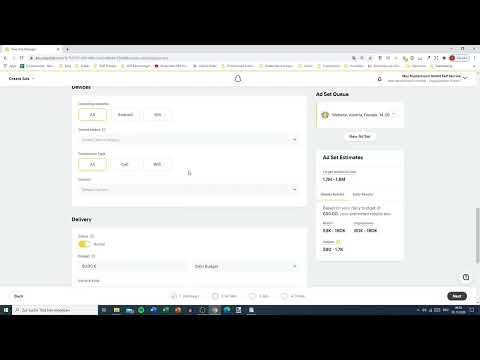
The Devices section is a special feature of Snapchat. Here you can select Android and iOS separately and even include or exclude individual device models. In the example, iOS was selected, and all iPhone models that are newer than or the same age as the advertised iPhone 10 were excluded. The idea behind this: anyone who already owns a newer model will probably no longer buy the product. What remains are users who don't have the product yet and are therefore potential buyers. Mini models were also removed. However, keep in mind that every filter shrinks the target audience. In the example, the Target Audience Size dropped to about 600,000 to 700,000 users, which was appropriate for this project.


Step 10: Define the Network
Under Network, you define whether the ad should be delivered only via Wi-Fi or also via mobile data. For advertising where the spoken word is important, Wi-Fi is recommended, because users at home usually have the sound turned on. On the go, for example on the subway, sound often isn't played. For a clip with only background music, you can allow both options. The mobile carrier can also be selected, but it isn't necessary for most campaigns.

Step 11: Set Budget and Duration
In the Delivery section, you first define the status. In the example, the campaign stayed paused because nothing was supposed to be started yet. Then you set the budget. You can set either a daily or a lifetime budget; both at the same time is not possible. In the example, 20 euros per day and 700 euros as a lifetime budget were available to choose from. A daily budget of 10 euros is often the safer option for getting started. You can also define a start and end date.

Step 12: Define the Goal
The goal determines which action you want to reward with the ad. For ads that lead to a website, you choose Swipe-Up. If, on the other hand, you want to promote an app, other goals are available, such as app installs. Choose the goal deliberately, because it influences how Snapchat delivers the ad and what costs arise.

Step 13: Bidding Strategy and Bid per Click
Snapchat charges according to the CPC model, i.e. Cost per Click. You pay per click, and a higher bid increases the chance of delivery. Automatic bids can quickly become expensive because they push themselves upward. Therefore, it is advisable to set a maximum bid manually. In the example, a bid of about 10 to 20 cents was suggested. 20 cents is already set high for this campaign, and the minimum was also there. However, the example shows that even 10 cents can bring in enough clicks in practice. The target value, i.e. the Target Cost, serves as a guideline and may fluctuate slightly.

Step 14: Check Pacing and Third-Party Tagging
Pacing determines how quickly the budget is spent. For most campaigns, the setting stays on Standard, which is usually sufficient. Third-party tagging makes it possible to integrate additional partners into the ad. If you don't want to tag a third party, leave the switch turned off.

Step 15: Calculate the Result
Before you save the Ad Set, it's worth taking a look at the numbers. In the example, the Target Audience Size was 600,000 to 700,000 users, which was rated as appropriate. With a daily budget of 10 euros, the weekly budget comes to 70 euros. Suppose you achieve 300 swipe-ups per week and 10 percent of them buy; that makes 30 buyers. If each brings in only 5 euros of profit, the result is a profit of 150 euros. Even with significantly fewer purchases, the advertising becomes profitable. The example was deliberately simplified, but it shows you how to set up your own calculation.
Summary – Setting Up a Snapchat Ad Set: Target Audience, Budget, and Bid in Ads Manager
The ad set determines who sees your ad, where it appears, and what it costs. You give it a meaningful name, choose the format and placement, narrow down location, age, gender, and devices, and set the budget, the goal, and a capped bid per click. Keep an eye on the Target Audience Size and calculate your campaign in advance. That way you can tell early on whether the audience is large enough and the costs are manageable.
FAQ
Why should I name an ad set if it is only visible internally?A clear name helps you quickly keep track when you have several ad sets and evaluate campaigns later.
Can I change the location and target audience afterwards?Yes, you can adjust the settings. However, keep in mind that this changes the reach and the estimated costs.
Why should I select only Wi-Fi for a video?If the spoken text is important, you are more likely to reach users at home, where the sound is usually turned on. On the go, the sound often isn't playing.
Should I choose an automatic bid or a manual bid?A manual bid with a clear upper limit prevents your costs from rising uncontrollably. Automatic bids can quickly creep upward.
Is a daily or a lifetime budget better?To get started, a daily budget is usually clearer because you keep track of your spending every day.


