
The design of advertisements can sometimes be a challenge, especially when it comes to the right formats and platforms. Snapchatoffers a dynamic environment for advertising, and Canvais an excellent tool for creating creative graphics. Here, I will show you how to create appealing adsfor Snapchat using Canva that are both visually appealing and informative.
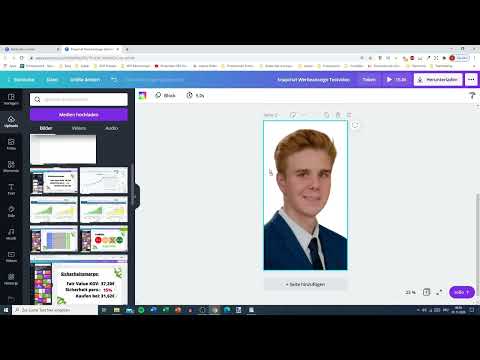
The video is only loaded from YouTube when you play it – data (including your IP address) is then transmitted to YouTube/Google. More in the privacy policy
Key Insights
- Canva is a user-friendly platform for creating graphics.
- The size for Snapchat ads should be 1080 x 1920 pixels.
- Creative effects and animations can enhance your ads.
- You can use both free and paid graphics.
- Music and text are essential elements for attractive ads.
Step-by-Step Guide
Step 1: Create a Canva Account
Before you can get started, you need a Canva account. Go to canva.comand click on "Sign Up." You can register with your first name, last name, email address, and a password. Creating a free account is the first step to gaining access to various design tools.

Step 2: Create a New Design
Once you are in your Canva account, you can create a new design. Click on the "Custom Dimensions" button and enter the dimensions 1080 x 1920 pixels so that your design is suitable for Snapchat ads in portrait format. Be sure to select pixels as the unit of measurement.

Step 3: Choose a Template
You can now browse various templates. If you find a suitable layout for your Snapchat ad, you can select that template. Canva offers numerous free templates that are optimized for advertisements.

Step 4: Customize Video Content
After selecting a template, you can customize the content. Canva allows you to add videos or create various graphic elements. You can adjust your text and colors to make your ad unique.

Step 5: Animation and Text Effects
You can also add animations to your text to make it visually appealing. Choose different animation effects like "fly in" or "swap" to make your text appear dynamic.

Step 6: Color and Image Settings
Adjust the colors of the elements in your ad to match your brand. You can easily change colors using the color picker function and apply specific filters to achieve the desired look.

Step 7: Add Music
If you want to use music in your video, you can do that as well. Canva offers some free music options that you can add to your video. Be sure to choose music that fits the mood of your ad.

Step 8: Download Your Design
Once you are satisfied with your design, you can download it. Decide whether you want to save the video as an MP4 file or as a JPEG image. For Snapchat ads, the MP4 format is recommended due to moving elements.

Step 9: Review and Test
Before uploading to Snapchat, you should review your downloaded video. Make sure everything runs smoothly and all elements, including text and animations, are displayed correctly.

Summary – Designing Snapchat Ads with Canva: A Step-by-Step Guide
Creating engaging Snapchat ads with Canva is easy when you follow the right steps. By using the platform to design creative graphics and videos, you can effectively reach your target audience. Be sure to experiment with different templates, graphics, and music to achieve the best results. Now it’s up to you to create the ads you want and share them on Snapchat!
FAQ
How do I create a free account on Canva?You can simply go to canva.com and register with your details.
Can I also use animations in my designs?Yes, Canva offers various animation options that you can use for text and elements.
Is there a way to add music to my video?Yes, you can add music from Canva's library or upload your own music.
How do I download my video?You can save your design as an MP4 file or as a JPEG, depending on your needs.
Is Canva free?Canva offers a free version that includes basic features, but there are also paid options for premium content.


