
If you want to run an ad on Snapchat quickly, you don't necessarily have to take the extensive route. With the Instant Create mode, you create a complete ad in about five minutes. In this guide, I walk you through all the steps, from choosing the mode to content, target audience, and budget. You will also learn where the limits of this quick route lie and when the Advanced mode is worthwhile.
The video is only loaded from YouTube when you play it – data (including your IP address) is then transmitted to YouTube/Google. More in the privacy policy
Key Takeaways
- You can access Instant Create via the Snapchat Ads Manager under "Manage Ads" and "Create Ads". There you choose the quick mode instead of the Advanced mode.
- First you choose an advertising goal, for example website visits, app installs, calls, or local visits.
- Snapchat can automatically generate an ad video from images on your website. However, you can also upload your own video material.
- You define the target audience by age, gender, language, and location. A traffic light indicator shows you whether the target audience is large enough.
- The Advanced mode offers more control and is usually the better choice for long-term campaigns.
Step-by-Step Guide
Step 1: Open the ad section
First, open your Snapchat Ads Manager. In the left menu you will find the "Manage Ads" section. There you select "Create Ads" to set up a new ad. This entry point is the same for all variants, regardless of which mode you use later.

Step 2: Choose Instant Create instead of Advanced
Snapchat offers you two routes. The Advanced mode is extensive and lets you define every setting in detail. For the quick route, you choose Instant Create instead. Here the process is significantly shortened, because many steps are prepared automatically.

Step 3: Set the advertising goal
In the next step, you decide what the ad should achieve. You can promote a website, encourage an app install, drive app visits, generate calls, or attract local visitors, for example for a restaurant. If you want to promote an online shop, you choose the goal for website visits. Make sure the goal fits your offer exactly, because it determines how Snapchat delivers your ad.
Step 4: Add the website
Now you enter the URL of your website. An example: for the test, I entered a well-known shop address, while you will of course use your own domain. If you include photos from your website, they are imported automatically. As a result, you usually don't have to record your own video, because Snapchat can put together an ad video from the images itself.

A tip from practice: the automatically generated suggestions are not always high quality. Don't let that put you off, but check whether the images are usable for your brand.

Step 5: Select the starting image
Snapchat suggests several images from your website. Choose the image that makes the biggest impression and shows your product most clearly. The selected starting image serves as the template for the automatically created video. So you should choose it carefully, even if the quick route leaves little time for fine-tuning.

Step 6: Set the call to action
The call to action is the prompt at the bottom of the ad. By default, it often says "More". For an online shop, a more specific wording fits better, for example "Shop now" or "Order now". A clear prompt increases the likelihood that users will actually click.
Step 7: Upload your own video
If you already have your own video, upload it at this point. A self-produced video often seems more authentic and can work better on Snapchat than an automatically assembled clip. So you can always prefer your own material over the automatically generated one.

Step 8: Write the headline and text
Now you write the headline. If you leave the field empty, the ad will have no meaningful text, which is generally not recommended. A short, punchy headline strengthens the message. Questions can also work well, for example "Lust zu shoppen?". Such playful wording often comes across as likeable on Snapchat, but it should always match the content of the ad. Users read the headline, and if it makes them curious, they take a look at the actual ad.

Step 9: Move on to the next step and check the goal
Click on "Next". Before you continue, check the selected Objective once more, that is, the goal of your campaign. A look at the settings is always worthwhile, because mistakes are easiest to fix this way at an early stage.

Step 10: Set the demographic characteristics
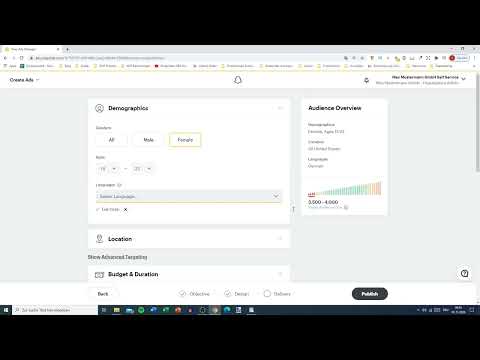
In the demographics section, you determine who should see your ad. This includes gender and age. As an example, I choose an age range of 14 to 22 years. While you adjust the values, a line with waves shows you how many participants will be reached. Pay attention to the color: green means a good audience size. Orange and red warn you that the audience is too small or too large.

Step 11: Set the language and location correctly
You set the language to German. Pay special attention to the location. If it still says "United States", you will barely reach any users with German-language content, and the ad will reach far too few people. Therefore, remove the location USA and select Germany. For the German-speaking region, you additionally add Austria and, if applicable, Switzerland. After that, the traffic light should turn green again.


Step 12: Fine-tune the target audience
Once the traffic light shows green, you can refine the settings further. It is important that you do not slip too far into the lower green range, because then the audience quickly becomes too small. It helps to slightly adjust the age range or gender and keep an eye on the traffic light. In this way, you find a balance between reach and relevance.

Step 13: Set the budget
Finally, you set the daily budget. In the example, I set 20 euros per day. That is completely sufficient for a test. If the reach is too low, you can increase the budget before you start tweaking the target audience.

Step 14: Enter billing details and finish
In the last step, you enter your business address and payment details. After that, the ad is finished and can be submitted. The entire process takes about five minutes if you are experienced.

Step 15: Shortcut or Advanced mode
Instant Create is ideal if you want to test quickly. However, if you want to learn more about the individual settings or achieve better results in the long term, you should use Advanced mode. There you can see exactly which steps are behind the ad and can adjust each option specifically. Especially for beginners, it is worthwhile to go through Advanced mode completely once to understand the logic behind Snapchat ads.


Summary ??? Snapchat Ads Instant Create: Create an ad in 5 minutes
With Instant Create, you create a Snapchat ad in just a few minutes. In the Ads Manager, you choose the quick mode, set an advertising goal, link your website, and select images or your own video. Then you formulate the call-to-action and headline, determine the target audience using the traffic light display, and set the budget. The shortcut is excellent for tests and getting started. For long-term and finely controlled campaigns, however, Advanced mode is worthwhile, because there you get more control and better insights.
FAQ
What is Instant Create in Snapchat Ads?Instant Create is the quick mode in the Snapchat Ads Manager that lets you create an ad in about five minutes.
Do I have to produce my own video for Instant Create?No, Snapchat can automatically create an ad video from images on your website. However, you can upload your own video at any time.
How do I know if my target audience is a good fit?The traffic light indicator shows you the size of the target audience. Green means a good size, while orange or red indicate that the target audience is too small or too large.
Why should I change the location to Germany?With the default setting of USA, you will hardly reach any users with German-language content. With Germany as the location, the reach becomes much more realistic.
When is Advanced mode worthwhile?Advanced mode is worthwhile if you want to understand and control all the settings in detail, especially for getting started and for long-term campaigns.


