
Your profile picture is often the first thing others see of you on Snapchat. Instead of a photo, you can use your own avatar, the so-called Bitmoji. This guide shows you how to create a Bitmoji from your own face, dress it up, and then set it as your profile picture. A note in advance: the Bitmoji is especially suitable for private individuals. If you represent a company, you should check whether an avatar fits your brand image.
The video is only loaded from YouTube when you play it – data (including your IP address) is then transmitted to YouTube/Google. More in the privacy policy
Key Takeaways
- You create the Bitmoji via the settings of the Snapchat app.
- A face scan serves as the basis, and you then do the fine-tuning yourself.
- Skin color, hairstyle, beard, eyes, nose, and glasses can each be adjusted individually.
- With a top, pants, shoes, and a jacket, the avatar becomes your personal style.
- After saving, the head of your avatar appears as your profile picture.
Step-by-Step Guide
Step 1: Open the Settings
Start the Snapchat app and open the settings. In the example, the path leads via the map view, and from there you get to the settings. Make sure you are in the right account, because the profile picture always belongs to a specific account.

Step 2: Create the Bitmoji
In the settings, look for the Bitmoji entry and tap on it. Then select the option Create Bitmoji. This starts the wizard, which guides you step by step through the design.

Step 3: Choose Gender and Scan Your Face
The wizard first asks for the gender of the avatar. For a private individual, this choice is entirely up to you; for a company profile, you should consider it carefully. In the example, the option Male is chosen. Then the camera opens and your face is scanned. For this, keep your face well lit and centered in front of the camera. The result serves as the basis for all further steps.

Step 4: Select a Suggestion
Based on the scan, Snapchat suggests several avatar variants. Choose the one that comes closest to your appearance. It doesn't have to be perfect, because you can still adjust all the features afterwards. In the example, the first suggestion is accepted.

Step 5: Adjust Skin Color and Hair
Now the actual fine-tuning begins. Using the design options, you first change the skin color until it seems right to you. Then it's the turn of the hair on your head. You can change the hair color, for example from blond to a darker shade, and try out different hairstyles. Feel free to try several variants before you decide.

Step 6: Design the Beard and Beard Color
If you want a beard, you'll find various shapes under the facial features, such as a full beard, stubble, or a mustache. Using the color selection icon, you can then change the beard color. Here too: compare the options calmly until the result suits you.

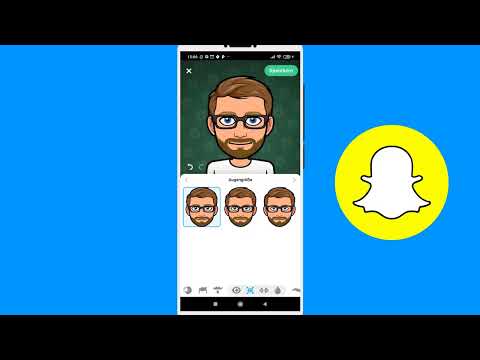
Step 7: Fine-Tune Eyes, Nose, Glasses, and Face Shape
In the next section, you take care of the details. For the eyes, you set shape, size, spacing, and color. If your eyes are actually different sizes, as is the case in the example, the Bitmoji doesn't necessarily reproduce that. You can then also simply choose a harmonious overall impression. Next come eyebrows, nose, glasses, and chin shape. If you were captured wearing glasses during the scan, they often remain automatically, but you can also remove or change them.

Step 8: Save the Face Area
When you are happy with the face, you leave the area and tap Save at the top. If you are not happy, you can discard all changes using the back arrow in the middle of the screen. By saving, you accept the current state and move on to the next step: clothing.

Step 9: Choose the top
Now it's time for the clothing. In addition to Halloween outfits, Snapchat offers you numerous other items of clothing, including designs from brand collaborations. You don't have to choose a classic costume. Choose a top that suits your style, such as a T-shirt or a shirt. A shirt generally looks more serious, while a T-shirt looks more casual.

Step 10: Combine pants and shoes
Next, choose matching pants and then shoes. Make sure the color combination is coherent. Shoes in a bold color, such as green, add an accent but don't always look fitting. Normal shoes are usually the safer choice. With a glance at the overall picture, you can quickly see whether everything goes together.
Step 11: Add a jacket
In the jackets section, you will also find various designs. A jacket quickly makes the look seem like a complete outfit. Simply try one on and check whether you like it. Once an item of clothing has been worn, it can also be found in the wardrobe. With a new account, however, the wardrobe is still empty, because it only contains outfits that have already been worn by your character.
Step 12: Save the finished avatar
When the head and clothing are right, you save the avatar. A confirmation then appears that your Bitmoji has been saved. This completes the design. Your avatar is now stored under your account and can be edited further at any time.

Step 13: Set the avatar as your profile picture
Now return to your profile. There, tap Save at the top or the option with which you adopt the avatar as your profile picture. You will then see your avatar at the top of your profile. As a rule, only the head appears in the profile picture, not the entire figure. Therefore, pay particular attention to the face and hairstyle when designing.

Step 14: Adjust the profile picture regularly
A Bitmoji is not a permanent decision. You can change it at any time, for example on special occasions. An avatar in costume for Halloween is a popular example. The only important thing is that your profile doesn't look empty, because a profile without a picture quickly appears untrustworthy. A small change on holidays or in different seasons keeps the profile lively and shows that you are active.

Summary – Setting a Snapchat profile picture: Create and save a Bitmoji
You have learned how to create a Bitmoji in the settings, design it using a face scan, equip it with clothing, and set it as your profile picture. Adjusting the face, hairstyle, and clothing is the most important part. Make sure your avatar suits you and your purpose, and update it if necessary.
FAQ
Can I also create the Bitmoji without a face scan?Yes, you can also do the design without a scan. However, the scan makes it easier to get started because it provides you with suitable suggestions.
Can I change my profile picture again later?Yes, you can edit the Bitmoji at any time or set a new profile picture.
Is a Bitmoji as a profile picture also suitable for businesses?That depends on the image you want to project. For private individuals, it usually makes sense. Businesses should check whether an avatar fits their brand or whether a logo works better.
Is the whole figure displayed in the profile picture?No, as a rule only the avatar's head is visible in the profile picture. That's why the face and hairstyle are especially important.
Do I have to use all the design options?No, you decide for yourself which features you adjust. You can limit yourself to a few details and still get a coherent result.


