
Affinity Photo - creative image editing with overlays

- Image editing: How to create artistic or realistic overlays in Affinity Photo.
- Inspiration: Explore the almost unlimited possibilities of using overlays.
- Picture ideas: Creative examples show what you can get out of your own pictures.
- Instructions: Learn the necessary techniques and turn your ideas into reality.
- Including: recreating the look of an old photo, lighting up hair with fire overlays
- Over 2.5 hours: a creatively powerful Affinity Photo training course by digital artist Marco Kolditz
- Bonus: 1 hour on the basic use of brushes in Affinity Photo and Affinity Designer
Take this rewarding time-out of over 150 video minutes to create convincing, exciting and artistic image overlays yourself at the end.
16 Videos, 223 minutes
Affinity Photo - creative image editing with overlays
Affinity Photo - creative image editing with overlays: 01 | Intro
1 minWelcome to this Affinity Photo training, in which you will gain inspiration and interesting facts about creative image editing using overlays. Your trainer Marco Kolditz explains what you can expect.
Affinity Photo - creative image editing with overlays: 02 | Presets
5 minBefore the video training, you should make some settings in Affinity Photo that will make it easier for you to use the program and follow this video training.
Affinity Photo - creative image editing with overlays: 03 | Old image look
25 minIn this video, video trainer Marco Kolditz explains in a clear way how you can give a modern, detailed and colorful photo the impression of a very old, noisy, faded, analog image with the help of various overlays.
Affinity Photo - creative image editing with overlays: 04 | Color play
22 minWith the help of photo overlays, you can not only transfer detailed structures to images, but also create specific plays of color to make an image more interesting. Watch this video to learn how to create color effects in Affinity Photo.
Affinity Photo - creative image editing with overlays: 05 | Fire overlays (Girl on Fire)
21 minIn this video, video trainer Marco Kolditz shows you how to turn a portrait of a red-haired woman into an exciting image of a woman with burning hair using various fire overlays and sparks.
Affinity Photo - creative image editing with overlays: 06 | The man of the forest
33 minIn this video, learn how to use different photo overlays to turn a black and white portrait into a colorful and imaginative portrait of a "man of the forest".
Affinity Photo - creative image editing with overlays: 07 | Fireworks
11 minWatch this video to find out how you can use layer blending modes to easily and convincingly incorporate fireworks into the night sky of a large city and create a suitable reflection of the fireworks on water.
Affinity Photo - creative image editing with overlays: 08 | Pattern on shirt
18 minAffinity Photo makes it possible to transfer patterns, symbols and textures to uneven surfaces in a very realistic way. In this video, symbols are offset against a wrinkled shirt so that the symbols are based on the folds of the shirt.
Affinity Photo - creative image editing with overlays: 09 | Photo on poster canvas
23 minOverlays can be used to create exciting image compositions. In this video, video trainer Marco Kolditz shows you how to prepare an image of a poster canvas so that you can easily and realistically place photos of your choice on the detailed canvas.
Affinity Photo - creative image editing with overlays: 10 | Text as overlay
6 minTexts can also be used in Affinity Photo in the form of overlays - while still remaining editable. It is also possible to combine different overlay techniques on just one text at the same time. Get to know these techniques in this video.
Bonus: Brushes in Affinity Photo and Affinity Designer
Affinity Photo - Apply brushes: 11.1 | Basic settings
16 minIn Affinity Photo, you can use brushes not only to create individual drawings. Brushes are often also needed in the area of masks and selections. The standard options offer initial setting options for user-defined use.
Affinity Photo - Apply brushes: 11.2 | Advanced settings
18 minEach brush can be customized. The standard behavior can be adjusted and textures can be added, for example. I will introduce these functions in this part of the training.
Affinity Photo - Apply Brushes: 11.3 | Import and Organization
6 minOrganizing brushes is very easy in Affinity Photo. I'll also show you how to add and organize additional brush tips.
Affinity Photo - Apply brushes: 11.4 | Create your own brushes
12 minYou can't always find the right brush and are inclined to create your own. This can be very helpful in the area of signatures or watermarks, for example. Find out which steps are necessary in this part of the training.
Affinity Photo - Apply Brush: 11.5 | Special Brush Color Mixer
1 minA special brush is the paint mixing brush, which can be used to blend colors together. I will briefly introduce it.
Affinity Designer - Apply Brushes: 11.6 | The Vector Brush
4 minAffinity Designer also has a simple brush settings dialog for the vector brush. You can use this to influence how the drawn lines look.
Examples of use
-
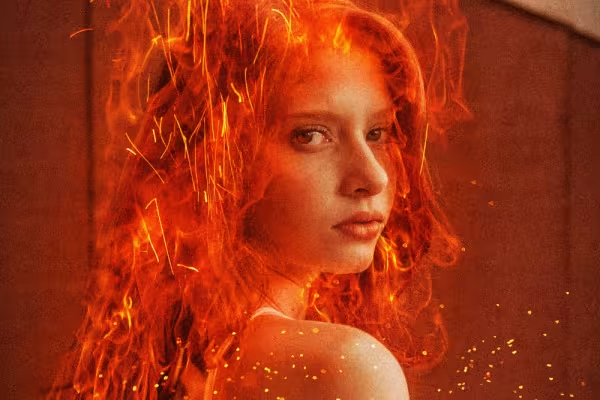 Example: Burning hot - how to use fire overlays to make your pictures flare up.
 -
 Example: Use overlays to set the scene for lettering!
You might also like
Full power, more inspirations, maximum WOW effect!

100 presets in 5 themes · each look in .xmp, .dng, and .costyle · for desktop and smartphone
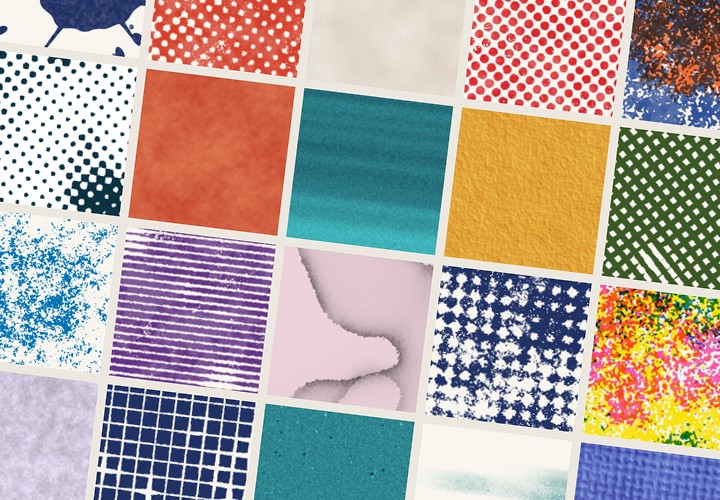
20 sets in 4K (4096 × 4096 px, 300 DPI) as JPG plus Photoshop patterns, calibrated to the fill method
More style, more power, more templates!
Comment now „Affinity Photo - creative image editing with overlays“