
Ready to give your creativity a new expression? In this tutorial, you'll learn how to create a grungebrushfrom a photo in just a few steps. With this brush, you can achieve exciting typography effects that add a unique look to your design. Let's dive straight into the practical implementation!
The video is only loaded from YouTube when you play it – data (including your IP address) is then transmitted to YouTube/Google. More in the privacy policy
Key Insights
- You can effectively create a grunge brush from photographs.
- The image correction "Threshold" is crucial for extracting structures.
- The brush can be creatively used in typographic projects to achieve interesting effects.
Step-by-Step Guide
Step 1: Choose an Image
Start by selecting a suitable image. In this tutorial, we will use an elephant photo from Pixelbay that is excellent for creating a grunge brush. Make sure the image features various structures and textures that you can later use for your brush.

Step 2: Image Correction
Now it's time to extract the desired structures from the image. Go to the "Image" menu and select "Corrections". There you will find the option "Threshold". This correction converts the image to black and white and allows for the targeted selection of dirty or grunge-like textures.
Adjust the slider to highlight the desired black parts of the image. A suitable value might be around 150, but feel free to experiment to find the best result.

Step 3: Select Structures
After applying the threshold correction, you need to select the black areas in your image. Switch to "Select" and then to "Color Range". Disable localized color groups and click on the black area in the image. Confirm your selection to filter out all black elements.

Step 4: Create a New Layer
Copy the selected black areas of the image into a new layer. You can do this by pressing Ctrl + C (Copy) and Ctrl + V (Paste). Now you have your black structures in their own layer.

Step 5: Set Brush Preset
To createthe brush, go to "Edit" and select "Define Brush Preset". Give it a name like "Grunge Brush from Photo" and set the size of the brush to about 1000 pixels. Larger images allow for higher resolution, so take advantage of this option if the image permits.

Step 6: Applying the Grunge Brush
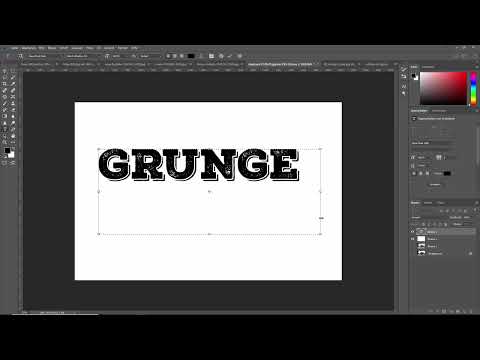
Now comes the creativepart! Create a new text layer and choose a font that you like. Here we use "NEX slap" and write, for example, "Grunge". Activate your new brush to apply the texture to your text.
Change the opacity of the brush to achieve different effects, and experiment with different colors to find the best look for your project.

Step 7: Fine Adjustments
To optimize the final look, you can enlarge the area with your brush or adjust the opacity. Consider which areas of your text should be more or less visible and play with the options until you are satisfied.

Step 8: Save Your Project
Don't forget to save your work regularly! Once you are satisfied with the effects of your text layer, save your image in the desired format for future use.

Summary - Creating Grunge Brushes from Photographs
Creating a grunge brush from a photo is an elegant method to add more depth and character to your designs. With just a few steps, you can achieve creative typography effects. Experiment with different photographs and brush settings to find the look that fits your project.
FAQ
How do I create a grunge brush?You select an image, use the threshold correction to extract structures, and save it as a brush preset.
Which image is best suited?Images with different textures and structures are ideal, such as photographs of animals or nature.
Can I use the grunge brush in other programs?The brush you create in Photoshop is specific to that program, but you can apply similar methods in other graphic programs.
Can I adjust the size of the brush?Yes, when creating the brush preset, you can select the size. This affects the detail of the brush stroke.
How does color opacity work with the brush?You can adjust the brush's opacity to vary the effect from solid color to transparent structures.


