
Especially in image editing, creative expression and individual style are crucial. Grunge-brushesgive you the opportunity to give your imagesa special touch and present them in style. In this guide, you will learn how to easily create your own Grunge brushes and use them to ageimages. You do not need any in-depth prior knowledge, just a little patience and curiosity.
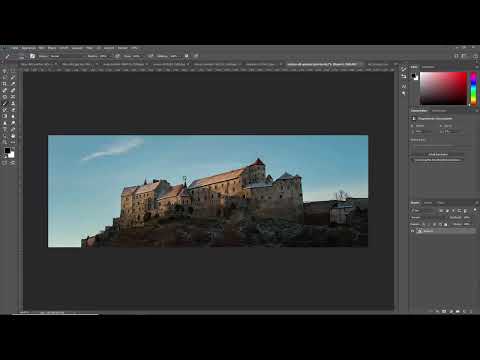
The video is only loaded from YouTube when you play it – data (including your IP address) is then transmitted to YouTube/Google. More in the privacy policy
Key Insights
- You can create your own Grunge brushes from textures to achieve unique effects in your images.
- The process of creating and applying these brushes is simple and quick.
- The final result can be greatly improved by fine-tuning and choosing the right settings.
Step-by-Step Guide
1. Image Preparation
First, you need a suitable texture that you want to use as the basis for your Grunge brush. Make sure that this texture offers interesting structures and is black and white. To extract the dirt particles from your image, use a color desaturation adjustment layer. Set the saturation to -100% and adjust the brightness if necessary.

2. Levels Correction
To emphasize the contrasts of your texture, apply a levels correction. Move the outer sliders to optimize the light-dark ratios and highlight the necessary details more strongly.

3. Merge Layers
Select all your layers and merge them. Then you need to convert your background layer into a transparency layer. To do this, just double-click on the layer.

4. Apply Blending Options
Go to the blending options and remove the white areas of your image. You can do this by moving the corresponding slider to the left. Make sure to adjust this multiple times to achieve the desired effect.

5. Selecting Elements
To save specific elements of your texture as Grunge brushes, select the areas you like. Use the lasso tool to outline the desired part. Copy this area and paste it as a new layer.

6. Create Brush Preset
Now it's time to save your texture as a brush preset. Go to "Edit" -> "Define Brush Preset" and name your brush. Give it an appropriate size; we suggest around 1100 pixels. Confirm your entries.

7. Apply the Grunge Brush
Once you have created your brush, you can use it immediately. Create a new layer and select your Grunge brush from the brush palette. Be sure to adjust the opacity of your brush. Experiment with the size and opacity to achieve the effects you desire.

8. Image Design
Now start applying your brush to the image. You can use the brush wherever you want to create a stronger weathered appearance. To enhance the effect, use different blending modes and play with the opacity.

9. Fine-Tuning
Once you’ve made all the desired brush strokes, consider making additional fine-tuning adjustments to optimize the overall image. Experiment with filters and effect plugins to give your image the optimal aged look.
Summary - Aging with Grunge Brushes: The Final Touch for Your Images
Creating and using Grunge brushes is an effective way to give your images a special, vintage touch. With the steps described above, you can quickly and easily create and apply your own brushes to achieve impressive effects. Use this technique to unleash your creativity and create striking designs in image editing. Enjoy experimenting!
FAQ
How do you create a Grunge brush from a texture?You need to select a suitable texture, convert it to black and white, and choose the desired elements to save them as a brush.
Can I use the Grunge brush in other projects?Yes, once created, you can use the brush in any future project.
Are there specific textures that work better for Grunge brushes?Textures with interesting structures and contrasts work particularly well to achieve appealing effects.


