

Do you know this? You have drawn several lines, and none of them ends exactly level with the others. That looks untidy, and correcting it by hand is tedious. Illustrator offers two functions for this that many users overlook: aligning paths using the alignment options and calculating an average. With them, you can bring lines of unequal length into shape in just a few steps. In this tutorial, I will show you how to implement this step by step, and add some tips for working with open paths.
The video is only loaded from YouTube when you play it – data (including your IP address) is then transmitted to YouTube/Google. More in the privacy policy
Key Takeaways
Using the alignment options in the options bar, you can bring multiple paths to the shortest, the longest, or a medium length. With "Average" (Ctrl+Alt+J or Cmd+Alt+J on macOS), you merge anchor points horizontally, vertically, or in both directions to their mean value. You close open paths with the "Join selected endpoints" command.
Step-by-Step Guide
Step 1: Draw Lines and Adjust Stroke Weight
First, create a few lines of different lengths with the Line tool. Set the stroke weight to, for example, 0.25 pt. Thicker lines are much easier to see later when you check the alignment. Feel free to deliberately draw the lines with unequal lengths, because that is exactly what the function is intended for.

Step 2: Select Multiple Paths Together
To edit the lines together, select them all. To do this, hold down the Shift key and click on each line in turn, or drag a selection marquee over all the objects. You will then find the alignment commands in the options bar at the top. There you can specify what the objects should be aligned to.
Step 3: Align Lines to the Shortest Line
If you want to bring all lines to the length of the shortest line, first select only the area that extends beyond the target. You can do this with the Direct Selection tool or the Lasso. Then choose the option in the options bar that aligns to the left object or the shortest path. All lines then receive the same length without you having to move each point individually. With "Undo" you can reverse the action at any time if the result doesn't fit.
Step 4: Align the Average of the Lines
Instead of aligning to the shortest line, you can also use the mean value. To do this, select all lines and click "Horizontal Align Center" in the options bar. The lines then meet at the midpoint of their lengths. This approach is especially suitable when none of the lines should serve as a template.
Step 5: Align to the Right Side
If the alignment should be based on the right edge, choose "Align Right" instead. The lines keep their position at the right end, while the left ends adjust. This way you decide for yourself which side serves as the reference. This is particularly worthwhile for dimension lines or table lines that should be aligned to a fixed edge.

Step 6: Calculate Average via the Menu
In addition to alignment, you can also merge anchor points mathematically. Select the paths and open the "Object" menu, then "Path", and then "Average". In the dialog box, you choose between "Horizontal", "Vertical", or "Both". With "Both", all anchor points are placed at a common center point. The "Horizontal" option is suitable when only the width should be matched.
If you want it to go faster, press Ctrl+Alt+J on Windows or Cmd+Alt+J on macOS. The command directly applies the most recently chosen setting.
Step 7: Practical Example with a Star
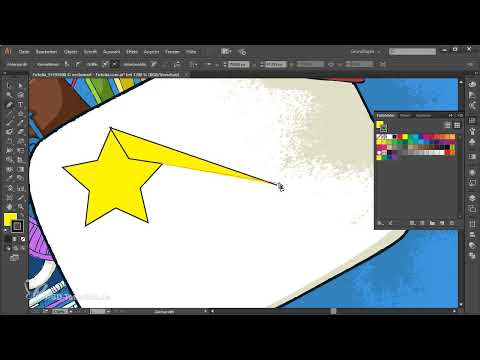
A clear example is a star. Draw it with the Star tool, move it to a suitable spot, and give it a fill color, such as yellow. You can keep the outline subtle with a weight of 0.25 pt. When you combine several paths in a motif like this, the average function quickly shows you where structures can be aligned.

Step 8: Refining Freehand Lines with the Pen Tool
Lines made with the Pen tool often don't end up exactly where you want them. Here, set a few points, for example at the top and bottom, and close the line with further lines as needed. Afterward, it is helpful to adjust the color of a group so that you can better assess the arrangement. If you spot deviations, select the affected area and apply the alignment or the average again.

Step 9: Background Lines and Fine-Tuning
Create an additional line and send it to the background if it is meant to serve as a grid or guide line. Then select all the paths involved and perform the Average command with Ctrl+Alt+J or Cmd+Alt+J. After that, the lines lie neatly on top of each other, and you have full control over the design.

Step 10: Closing Open Paths
Sometimes you draw a shape whose start and end do not lie exactly on top of each other. In that case, select the two endpoints with the Lasso or the Direct Selection tool. Then click "Connect selected end points" in the options bar. Illustrator turns this into a closed path that can be filled like a complete shape.

Step 11: Speeding Up Your Workflow
If you work with these functions often, the keyboard shortcut is worthwhile. Select the paths and press Ctrl+Alt+J on Windows or Cmd+Alt+J on macOS. This saves you the trip through the menu every time. Make sure you have chosen the right setting in the dialog box beforehand, as the command applies it.
Summary – Aligning Paths and Calculating the Average in Illustrator
In Illustrator, you can equalize lines of unequal length with just a few clicks by aligning them to the shortest, right, or middle position via the options bar. With "Average" you merge anchor points horizontally, vertically, or in both directions, and the keyboard shortcut speeds up this process considerably. You close open paths with "Connect selected end points". If you combine these tools, you save a lot of rework and get clean results.
FAQ
Question: How do I select multiple paths at the same time?Answer: Hold down the Shift key and click the paths one after another, or drag a selection marquee over all the objects.
Question: What do I use to select only the ends of a line?Answer: Use the Direct Selection tool or the Lasso and select the endpoints you want to align.
Question: What is the difference between aligning and calculating the average?Answer: When aligning, you move objects to an edge or center; when calculating the average, the anchor points merge to their mean value.
Question: Which keyboard shortcut calculates the average?Answer: On Windows you press Ctrl+Alt+J, on macOS Cmd+Alt+J.
Question: How do I close an open path?Answer: Select the two endpoints and click "Connect selected end points" in the options bar.
Question: Can I undo a step?Answer: Yes, with Ctrl+Z on Windows or Cmd+Z on macOS you undo the last action.

