

You have a map or a CAD drawing in front of you, and Illustrator refuses to fill the areas between the lines. This isn't due to a faulty file, but to the structure of the paths. With the "Live Paint" tool, you can get around this problem without laboriously closing every line or performing Pathfinder operations. In this tutorial, I'll show you step by step how to color open paths, account for gaps and strokes, and flexibly recolor entire illustrations.
The video is only loaded from YouTube when you play it – data (including your IP address) is then transmitted to YouTube/Google. More in the privacy policy
Key Takeaways
- Live Paint recognizes areas enclosed by open paths and fills them like closed shapes.
- The resulting Live Paint group is a live object. You can adjust it at any time in Isolation Mode, even after reopening the file.
- Gaps and strokes can be controlled specifically, so even incomplete drawings can be filled cleanly.
- With the Live Paint Selection tool, you can recolor individual areas or all areas of the same color in a single step.
Step-by-Step Guide
Step 1: Apply a Fill to Closed Shapes
Start with the familiar. Select an object, open the Swatches panel, and bring the fill to the front. Then click on a swatch. For closed shapes, this is the usual approach, and it's how most illustrations are built: you stack many differently colored shapes on top of each other. With a straight line, on the other hand, you can hardly see any of the fill, which is why this approach only makes sense for closed objects.

Step 2: Recognize the Problem with Open Paths
As soon as you draw a curve from an open path, Illustrator connects the two endpoints by the shortest route. This does create a visible fill, but only for that specific path. It becomes more difficult with shapes made up of several open paths. They look closed but can't be filled, because Illustrator doesn't recognize them as a unit. Normally, you would have to join the paths or perform a Pathfinder operation. There is a more elegant solution for exactly this.
Step 3: Activate the Live Paint Tool
You'll find the tool in the toolbar below the Shape Builder tool. Activate it, choose a color in the Swatches panel, and then click in the desired area. Illustrator recognizes the enclosed area and fills it, even though the paths are still open. You then see the fill, and the object is set up as a Live Paint group.

Step 4: Edit the Live Paint Group in Isolation Mode
Double-clicking the Live Paint group takes you into Isolation Mode. There you can edit the individual original objects. If you move a line, the fill disappears because the area is no longer completely enclosed. In this case, you undo the step and exit again with a double-click. It gets interesting when you deliberately change a line: the areas adapt to the new shape. This very flexibility is what makes the tool so valuable.

Step 5: Color Complex Maps
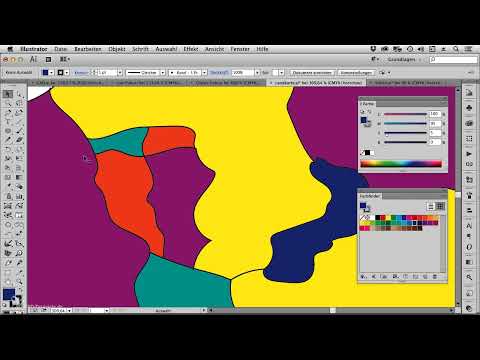
With maps, you generally don't draw borders twice, but use shared lines for neighboring countries. To do this, select the entire map. Usually there is a closed path around the outside and open paths in the middle. Then activate the Live Paint tool and click in the individual countries one after another. For each country, you choose its own color so that the regions stand out from one another. A country that still needs a fourth color can be colored just as quickly.
Step 6: Color Several Areas in One Stroke
If you want to fill many small areas at once, such as a body of water made up of several pieces, you don't have to click on each one individually. Hold down the mouse button and drag over the areas with the Live Paint tool. All the areas you sweep over are filled at once. This saves a lot of time, especially with highly detailed maps.

Step 7: Account for Gaps in the Paths
With Live Paint, Illustrator also recognizes gaps between paths. This is practical because you don't have to worry about every small gap. You can control the detection via the Object menu, then Live Paint and Gap Options. There you choose between small, large, or custom gaps. With custom gaps, you enter a value yourself. This way you decide how large a gap may be before it opens up an area.

Step 8: Coloring Strokes Selectively
With the same function, you can also color strokes that are interrupted in places. To do this, open the options of the Live Paint tool by double-clicking and activate the option that allows coloring strokes. If you then move the mouse pointer over a stroke, the tool's icon changes. With a click, you apply the selected color, and the stroke is now colored as well.

Step 9: Editing Individual Areas with the Selection Tool
The Live Paint Selection tool is located in the same tool group. With it, you select individual areas within the Live Paint group. You can then assign them a pattern or change the gradient. In addition, areas can be copied and pasted elsewhere. This method is especially helpful when you want to design an area specifically without touching the entire graphic.

Step 10: Converting CAD Drawings into Real Areas
CAD drawings from AutoCAD often consist of many individual path segments. Select these segments, activate the Live Paint tool, choose a color, and click in the areas you want to fill. If you then convert the Live Paint group using the button in the Control bar, actual area objects are created. You can then keep working with these like regular shapes.

Step 11: Building Low-Poly Graphics from Open Segments
The method is also ideal for low-poly illustrations. First, you draw the edges as loose, open path segments. Then you color the resulting triangles with the Live Paint tool. Gradient swatches that you created beforehand can be applied directly to the areas. If you want to change individual edges later, you edit the path in Isolation Mode, and the fills adjust automatically.

Step 12: Quickly Recoloring Clip Art
Existing illustrations can also be recolored with this method. Select the entire clip art and apply the Live Paint tool, for example with a neutral color like yellow. This creates a Live Paint group. If you now want to change all orange areas to a brighter orange, you select the color and click once with a triple-click on an area. All areas with exactly this color are recolored at the same time. The same applies to the blue feathers, which you turn pink with three clicks.

Step 13: Detecting Color Deviations
Make sure that all areas that are to be recolored together really have the same color. Sometimes a small area is left out because it has a slightly different shade. If that is the case, check the color values of the affected area and correct them if necessary. After that, the entire group can be recolored again with a single triple-click.

Summary ??? Live Paint in Illustrator: Filling Open Paths Safely and Flexibly
With the Live Paint tool, you fill areas made up of open paths without detours. You can color maps, CAD drawings, and low-poly graphics, account for gaps and strokes, and recolor existing illustrations in just a few clicks. The Live Paint group remains a live object that you can still adjust in Isolation Mode weeks later. Try out the steps on a simple shape before tackling complex maps. This way, you quickly get a feel for how flexibly this tool works.
FAQ
Why can't an open path normally be filled?An area is only created when the lines form a closed shape. Open paths have endpoints that are not connected.
Do I have to connect the paths before using Live Paint?No. The tool recognizes the enclosed areas on its own, even if lines merely touch or have small gaps.
Is the fill retained if I close the file and reopen it later?Yes. The Live Paint group is a live object and remains editable even after reopening.
What do I do if an area is not filled?Check under Object, Live Paint, Gap Options whether the gap is larger than the set value. Adjust the option if necessary.
How do I recolor all areas with the same color at once?Select the Live Paint Selection tool, triple-click an area with the desired color, and all areas with exactly this color will be recolored.

