
More productive in Google Mail - The best shortcuts, tricks and help

- 16 lessons in over an hour of video training for optimized and time-saving use of Google Mail
- Increase your productivity and keep an overview at all times with more order and structure
- Use the full functionality of Gmail and expand it with helpful apps
- From Stefan Petri, who has been able to keep his daily flood of emails in check for over ten years
More productive in Gmail - right from the start! Help, tricks and shortcuts.
17 Videos, 71 minutes
Intro to the video training
This is what you can expect in the video training "More productive in Google Mail - The best shortcuts, tricks and help"
2 minYou can expect a video tutorial on how to be more productive in Google Mail.
The best tricks
More productive in Google Mail - The best tricks - 01 Retrieving sent emails
4 minIt often happens that an email has been sent and only a few seconds later you think of something to add. This video explains how you can quickly retrieve emails after sending them.
More productive in Google Mail - The best tricks - 02 Only show emails with attachments
2 minI often want to quickly retrieve an older invoice that was sent to me as a PDF by email a long time ago. This video shows how I can retrieve such emails super quickly.
More productive in Google Mail - The best tricks - 03 Create email templates and use them cleverly
5 minWe usually receive similar questions by email on a daily basis. To save time, I use e-mail templates. How to create these and even send them automatically to the sender is explained here.
More productive in Google Mail - The best tricks - 04 Optimize interface and see unread mails faster
5 minThe interface can be configured very easily to suit your own needs. For example, I can set my own photos in the background or define the display of important or unread messages. This video shows you why this is important.
More productive in Google Mail - The best tricks - 05 Better display of unread messages in the browser tab
2 minIt only takes a few clicks to see the number of unread messages in the browser tab at any time. But that's not all: I'm also going to give you a really ingenious trick for using Google Chrome in connection with unread messages. Stay tuned!
More productive in Google Mail - The best tricks - 06 Better than folders: Labels with different colors
9 minThere are no folders in Google Mail. Instead, there's something much better: labels. In this video, I'll show you why this is the case and, above all, how you can use it to quickly organize your inbox. Everyone should know this!
More productive in Google Mail - The best tricks - 07 Sending delayed emails - how to do it
3 minThere are situations where it sometimes makes sense to send an email with a time delay, e.g. the next day (e.g. if it's a public holiday). In this video, I show you how this works simply and easily thanks to an extension(http://www.boomeranggmail.com).
More productive in Gmail - The best tricks - 08 Make unread emails reappear later
4 minI like to have a tidy inbox. At the end of the day, I want all my emails to have been answered and no unread messages left. But sometimes that's not possible. I'll show you how to do it anyway with a very exciting extension(https://www.streak.com/). This allows me to have certain unread messages only appear at a time of my choice.
More productive in Google Mail - The best tricks - 09 Set tasks for specific emails
3 minWith the Taskforce extension, I can quickly add specific task notes to an e-mail and also be reminded of them on a fixed date. There is also the option of creating your own task list.
More productive in Google Mail - The best tricks - 10 newsletters to get rid of faster/send when it suits me
3 minDo you feel the same way? I receive newsletters every day, but I just don't have time to read them because they arrive exactly when I have enough on my plate at work. So it would be great if there was an extension that either listed all the newsletters I receive or bundled them together as a daily mail at a certain time of day. Doesn't exist? Yes, there is. https://unroll.me works and I explain what you need to bear in mind in this video.
More productive in Google Mail - The best tricks - 11 Manage/collection of other email addresses
6 minWhen I switched to Gmail back then, I was visibly happy to have my old GMX addresses picked up by Google and even to be able to send emails via Gmail on behalf of GMX. I explain exactly how this works in this video.
More productive in Google Mail - The best tricks - 12 signatures for every email address on file
3 minAs I now have five email addresses in Google Mail, it's incredibly practical to set up a separate signature for each one. It's incredible how quickly this works.
More productive in Google Mail - The best tricks - 13 ways to skillfully remove text formatting + insert photos better
3 minI keep copying content from emails and pasting it into a new or existing email. The problem is the formatting. In this video, I show you how I adjust it and give you tips on how to quickly insert photos using drag & drop (and why the position is crucial).
More productive in Gmail - The best tricks - 14 Save time by sending emails to me + Use task manager
7 minSometimes I'm out and about and ideas come to me that I can't forget. That's why I always send myself an email. However, this is much easier and quicker with an app. If you want to make it a little more professional, you should use the tasks in Google Mail or, even better, Google Keep (https://keep.google.com).
More productive in Google Mail - The best tricks - 15 Speak emails instead of writing them
7 minIf you are not blessed with the ten-finger typing method, you can also dictate emails. For this purpose, there is the extension Dictation or you can use forms like Web Speech API or Email Dictation. However, everything that should be considered in the process is shown in detail in this video. Watch it!
More productive in Google Mail - The best tricks - 16 Improved email overview
3 minDo you get as many emails as I do? Then it's handy to change the overview of all emails and see the content of the email immediately with a click, without losing sight of the overview of emails. Watch this very short video to find out all about this ingenious settings trick. It's worth it!
You might also like
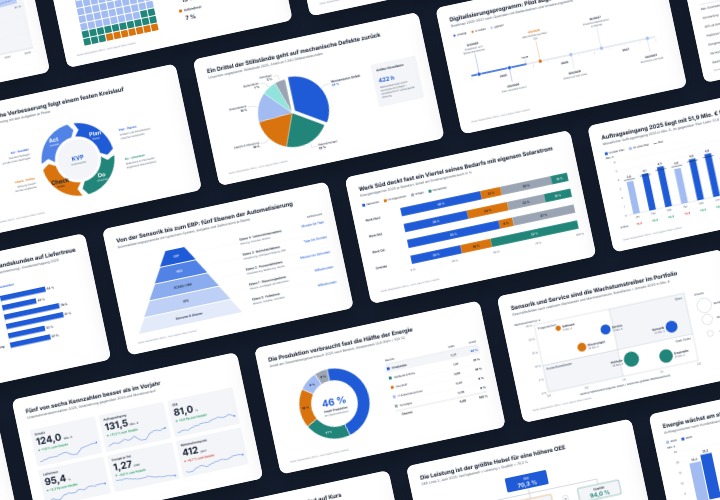
48 editable chart templates in SVG, PDF, EPS, PNG, and PowerPoint – in under a minute in the customer’s corporate identity
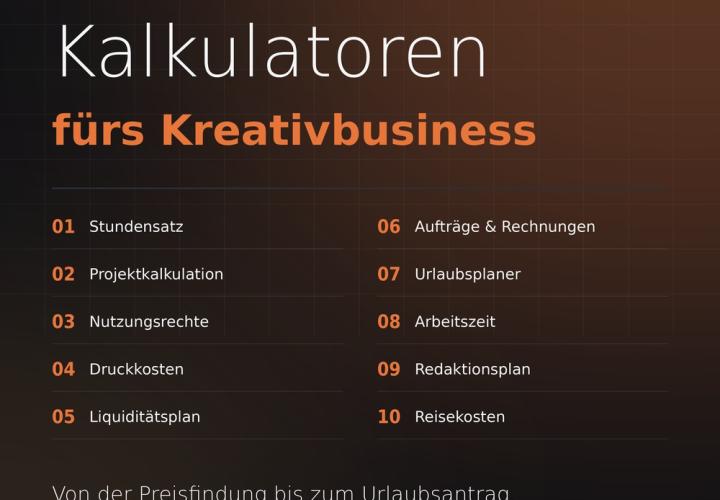
Prices, projects, vacation, working hours, and travel expenses
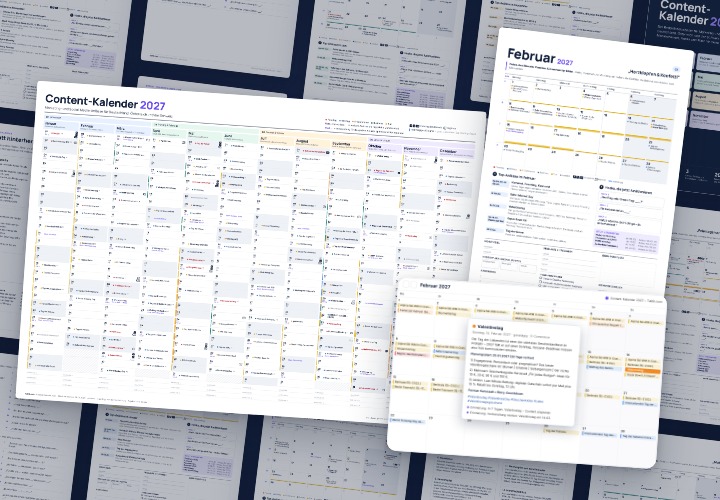
277 occasions with 3 post ideas each, wall planner A2/A1, monthly calendar A4, Excel database, calendar file, and bonus tools

10 sets of 50 vector icons in line and duotone, available in SVG, EPS, and PNG
Comment now „More productive in Google Mail - The best shortcuts, tricks and help“