
Capture One Pro - Tutorial for image editing and image management

- Capture One Pro: How to use the program for image editing and image management
- Work effectively: Find your way around the interface quickly and use useful shortcuts
- Image management: How to make the most of catalogs, sessions, projects, metadata and search filters
- Image editing: Learn how to use the tools and filters to optimize your photos
- Bonus: What's new in Capture One Pro 20 - where to find the new features and what they bring you
Keep track of your photos, edit your raw files, optimize your images! This tutorial will show you how to do all of this with ease using Capture One Pro.
32 Videos, 267 minutes
Intro
Capture One Pro Tutorial: Intro
1 minWelcome to the course! In the intro to the Capture One Pro tutorial, you will learn what to expect in the course. In addition to these explanations, you will also receive a comprehensive insight into the new features of Capture One Pro 20 at the end of the course.
Fundamentals
Capture One Pro Tutorial: 1.1 | User Interface
13 minIn this video, video trainer Marco Kolditz shows you the customizable user interface of Capture One Pro and how to set it up optimally according to your wishes.
Capture One Pro Tutorial: 1.2 | Custom Workspace
6 minIn Capture One Pro, it is possible to customize the user interface according to your own workflow and save it as a workspace. In this video, you will learn how to create your own workspaces and access them at any time.
Capture One Pro Tutorial: 1.3 | Preferences
11 minThere are many useful settings in the Capture One Pro presets that make it easier for you to work with the software. In this video, video trainer Marco Kolditz shows you which settings are possible.
Capture One Pro Tutorial: 1.4 | Navigation
10 minTo use Capture One Pro smoothly, it is important to know how to navigate through the individual files in your image collection, but also how to view individual images as effectively as possible. In this video you will learn many helpful tips and tricks regarding navigation in Capture One Pro.
Capture One Pro Tutorial: 1.5 | Keyboard Shortcuts
9 minKeyboard shortcuts support you in your day-to-day work with Capture One Pro and speed up your individual editing steps: Navigate through your image collection, rate images with a single keystroke, assign color markers, quickly zoom in and out of images and much more!
Organize images
Capture One Pro Tutorial: 2.1 | Catalogs and Sessions
9 minWhat are the differences between catalogs and sessions in Capture One Pro? In this video, video trainer Kolditz uses practical examples to explain when catalogs are useful and when you should use sessions.
Capture One Pro Tutorial: 2.2 | Importing photos
18 minImage management and raw development software is nothing without images. In this video, video trainer Kolditz shows you the best way to import your images into Capture One Pro and explains what you should look out for.
Capture One Pro Tutorial: 2.3 | Metadata
14 minWith the help of metadata, you can add valuable additional information to your images, such as ratings, keywords, contact details, GPS information and much more. Watch this video to learn how to use Capture One Pro to read the metadata of your images and add the information you want.
Capture One Pro Tutorial: 2.4 | The Library
12 minIn this video, video trainer Kolditz once again goes into detail about the Capture One Pro photo library and gives you valuable tips and tricks to help you manage your images in the best possible way.
Capture One Pro Tutorial: 2.5 | Create Projects
7 minFor a better overview and targeted project-based editing of images, video trainer Marco Kolditz shows you in this video how to create a project within a catalog in Capture One Pro and how to use it optimally.
Capture One Pro Tutorial: 2.6 | Organizing Photos I
11 minIn this video, video trainer Kolditz explains how to organize your images within Capture One Pro, how to rate them, add color tags and keywords and much more! - Part 1 on organizing photos.
Capture One Pro Tutorial: 2.7 | Organizing Photos II
14 minThe second part on organizing photos: In this video, video trainer Kolditz explains how to best organize your images within Capture One Pro, rate them, add color tags and keywords, and much more!
Capture One Pro Tutorial: 2.8 | Using search filters
7 minWith the help of helpful search filters in Capture One Pro, it is very easy to filter images according to your individually defined specifications and thus find and organize photos in a targeted manner. Watch this video to find out how to make the most of the search filter in Capture One Pro.
Capture One Pro Tutorial: 2.9 | Edit images offline
5 minCapture One Pro offers the great option of being able to edit imported images or add metadata to them even if the storage devices on which the original images are stored are not currently connected to the computer. In this video you will learn how to edit such images "offline".
Tools and filters
Capture One Pro Tutorial: 3.1 | Histogram
7 minThe histogram is a very helpful tool for assessing the tonal value distribution of images and, based on this, for estimating the appropriate editing steps. Get to know the histogram in this video.
Capture One Pro Tutorial: 3.2 | Layers
6 minIn Capture One Pro, it is possible to distribute individual editing steps to different individual layers, making it possible to adjust the opacity of individual editing steps at any time or to switch filters on and off or delete them completely with a single click.
Capture One Pro Tutorial: 3.3 | Masks
15 minWith the help of masks, it is possible to make local adjustments in Capture One Pro. In this way, individual tools and filters can be applied not only to an entire image, but only to specific areas of the image. Learn how to use masks in this video.
Capture One Pro Tutorial: 3.4 | Lens Tools
9 minIn this video, you will learn about various tools in the Lens tab group and how to use these filters optimally in Capture One Pro.
Capture One Pro Tutorial: 3.5 | Color Tools
7 minIn this video, you will learn about various tools in the Color tab group and how to use these filters optimally in Capture One Pro.
Capture One Pro Tutorial: 3.6 | Exposure Tools
6 minIn this video you will learn about various tools in the Exposure tab group and how to use these filters optimally in Capture One Pro.
Capture One Pro Tutorial: 3.7 | Details Tools
8 minIn this video, you will learn about various tools in the Details tab group and how to use these filters optimally in Capture One Pro.
Capture One Pro Tutorial: 3.8 | Repair Areas
5 minIn this video, video trainer Marco Kolditz shows you how to use clone or repair layers to cover certain image areas with other image areas and thus remove distracting image elements.
Capture One Pro Tutorial: 3.9 | Create and use styles
15 minCapture One Pro offers the great option of saving all your adjustments applied to an image in a style file and applying them to other images in the future with just one click. In this video, video trainer Marco Kolditz explains how to save your own styles, import styles and fine-tune them afterwards depending on the image.
Output
Capture One Pro Tutorial: 4 | Export files
8 minOnce raw images have been successfully processed, they are usually exported. Watch this video to learn how to export your images to different file formats using Capture One Pro, using helpful presets or creating your own presets for easy future exports.
New features in Capture One Pro 20
Capture One Pro 20 Tutorial: 5.1 | User Interface Customizations
7 minIn this video, video trainer Marco Kolditz presents the new features of the Capture One Pro 20 user interface.
Capture One Pro 20-Tutorial: 5.2 | More convenient image management
5 minCapture One Pro 20 also offers a convenient new feature in terms of image management, which video trainer Marco Kolditz presents to you in this video.
Capture One Pro 20 Tutorial: 5.3 | Copy layers selectively
4 minThe handling of layers and transferring them to other images in your catalog has been optimized in Capture One Pro 20, so that a selective choice of layers to be transferred is now finally possible. In this video, video trainer Marco Kolditz shows you how this works.
Capture One Pro 20 Tutorial: 5.4 | Improved Basic Color Editor
5 minThe Basic Color Editor has been redesigned for Capture One Pro 20 and now offers new convenience features to edit colors in an image more intuitively. Get to know the new features in this video.
Capture One Pro 20 Tutorial: 5.5 | Revised Crop Tool
3 minThe cropping tool in Capture One Pro 20 is now easier to use and offers new convenience functions, which video trainer Marco Kolditz explains to you in this video.
Capture One Pro 20 Tutorial: 5.6 | Revised High Dynamic Range filter
6 minThe High Dynamic Range filter (HDR) has been optimized and expanded for Capture One Pro 20. Get to know the new features of the tool in this video.
Capture One Pro 20 Tutorial: 5.7 | Improved Noise Reduction
4 minThe noise reduction filter has been completely redesigned for Capture One Pro 20 and now works much more accurately and preserves details in the image better than in previous versions of the program.
Examples of use
-
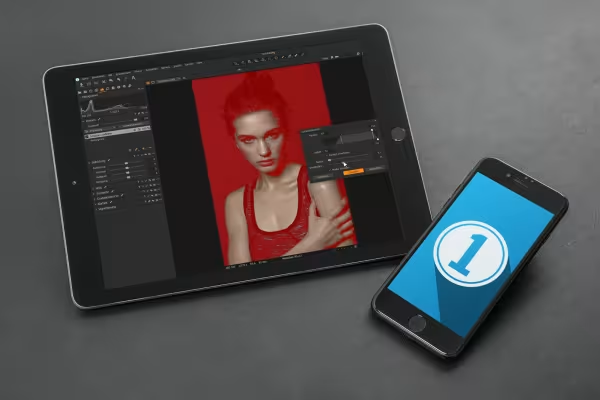 Example: Basics, image management and image editing with Capture One Pro in one tutorial!
 -
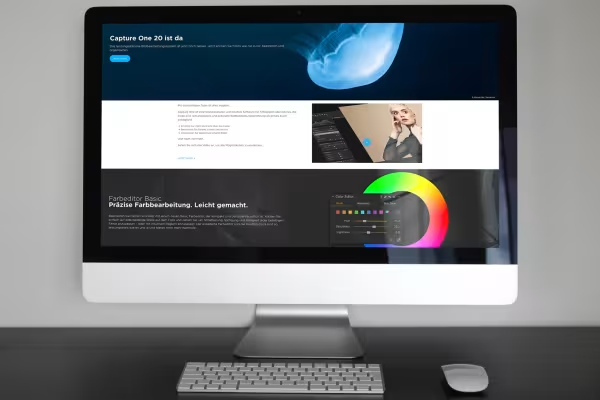 Example: In the tutorial, you will also learn about the new features in Capture One Pro 20.
You might also like
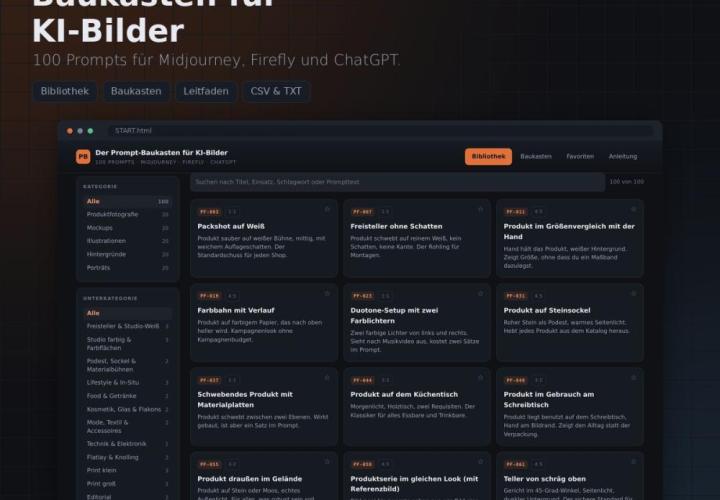
For Midjourney, Adobe Firefly and ChatGPT
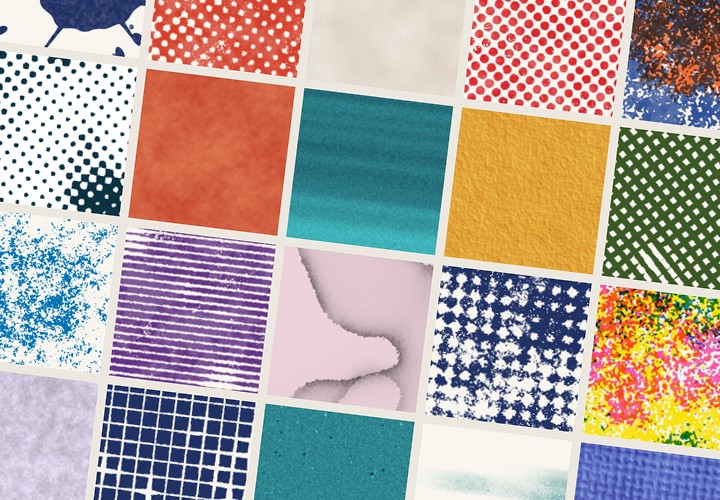
20 sets in 4K (4096 × 4096 px, 300 DPI) as JPG plus Photoshop patterns, calibrated to the fill method

Here you learn from real-world practice

100 presets in 5 themes · each look in .xmp, .dng, and .costyle · for desktop and smartphone
Comment now „Capture One Pro - Tutorial for image editing and image management“