
The OpenAI Agent Builder gives you the opportunity to create your own AI assistants without needing programming skills. Think of it like a construction kit where you can easily assemble visual workflows. These workflows allow you to automate tasks, generate text, and provide answers to questions. In this guide, we will thoroughly explore the features and use of the OpenAI Agent Builder, so that you can create your own digital assistant step by step.
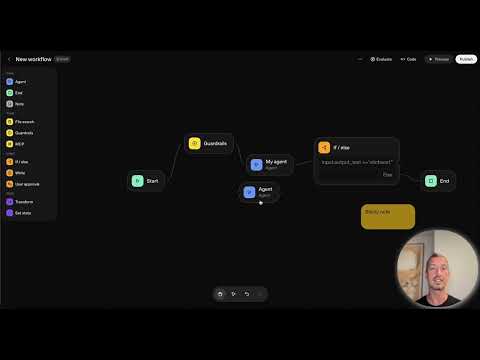
The video is only loaded from YouTube when you play it – data (including your IP address) is then transmitted to YouTube/Google. More in the privacy policy
Key insights
- The OpenAI Agent Builder is a user-friendly interface for creating AI assistants.
- You do not need any programming skills to work with the Agent Builder.
- Clicking together flexible workflows allows for the automation of tasks and the generation of content.
- The combination of different elements enables the creation of complex mini-workflows.
- The Agent Builder allows the use of logic, tools, and data sources in your assistants.
Step-by-Step Guide
To get started with the OpenAI Agent Builder, follow these simple steps:
Step 1: Accessing the OpenAI Agent Builder
Before you can start creating your first assistant, you first need to call up the OpenAI Agent Builder. Go to the OpenAI website and navigate to the appropriate interface. Here you will find all the necessary functions to create your AI-powered assistants.

Step 2: Creating a New Assistant
Once you are in the Agent Builder, you can begin customizing your digital assistant. Click the “Create New Assistant” button. Here you have the option to make basic settings and give the assistant a name. Think carefully about what functions the assistant should later fulfill.
Step 3: Defining Tasks
At this point, you define what your AI assistant is actually supposed to do. For example, you can specify that the assistant should provide answers to frequently asked questions, summarize information, or generate text. Each of these tasks can be supported by logs and data sources.
Step 4: Adding Rules and Examples
To help your assistant effectively fulfill its tasks, it is important to provide clear rules and examples. These help the artificial intelligence better understand the context and deliver more accurate answers. By setting rules, you enhance the accuracy and efficiency of your assistant.
Step 5: Combining Different Elements
The OpenAI Agent Builder allows you to combine multiple elements. You can connect text inputs, logic, and data sources to create complex processes. This enables the development of an intelligent system tailored exactly to your needs.
Step 6: Testing and Adjustments
After you have made all the settings, it is important to test your new AI assistant. Try it out and check if it delivers the expected results. If you notice any errors or inconsistencies, you can always make adjustments and repeat the steps to achieve the desired functionality.

Step 7: Publishing Your Assistant
Once you are satisfied with the result and the assistant functions as desired, you can publish it. Your assistant will now work in the background and be available 24 hours a day to fulfill its tasks. Enjoy the automation and support your digital assistant provides.

Summary - OpenAI Agent Builder: Easily Create AI Assistants
The OpenAI Agent Builder is an effective solution for creating digital assistants without programming skills. With the ability to combine different elements and set individual rules, you have a powerful tool at your disposal to automate tasks and process information efficiently. You can optimally tailor your assistant to your needs and use it indefinitely.
FAQ
What is the OpenAI Agent Builder?The OpenAI Agent Builder is a user-friendly interface for creating AI assistants without programming skills.
How does the Agent Builder work?You can click together visual workflows and assign tasks, rules, and examples to your assistant.
Do I need programming skills to use the Agent Builder?No, the Agent Builder is designed so that users without programming skills can use it effectively.
What types of tasks can I automate with my assistant?You can automate tasks such as answering questions, writing texts, summarizing data, and other small tasks.
Can I customize my assistant?Yes, you can add rules and examples as well as combine various elements to tailor the assistant to your specific needs.

