
Imagine you could create AI-powered applications without any programming knowledge at all. With Google Opal, this dream is more than a reality! In this guide, you will learn how to create, edit, and share impressive visual apps using natural language. Whether you're a beginner in programming or an experienced developer, Opal opens up unprecedented possibilities in low-code development.
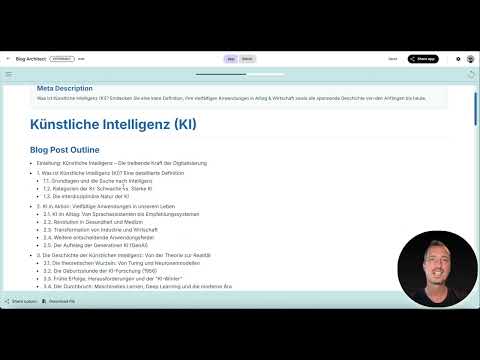
The video is only loaded from YouTube when you play it – data (including your IP address) is then transmitted to YouTube/Google. More in the privacy policy
Key Insights
Google Opal is a platform still in its beta stage that allows you to create AI applications through an intuitive user interface. You can use natural language to define workflows and bring your ideas to life. Currently, Opal is only available in the USA, and a VPN is required to use it.
Step-by-Step Guide to Using Google Opal
Before you start, make sure you have a VPN installed to access the service. I recommend Proton VPN to connect you to a US server.
First Step: Sign Up for Google Opal
Start by visiting the Google Opal website. You have the option to either sign up or try the platform. Click on “try Opal” to start the sign-up process. If you already have a Google account, just sign in with it. You will have to wait briefly while your account loads.

Second Step: Explore the Dashboard
After a successful login, you will be directed to the dashboard. Here you will find various workflows as templates. Note that not all templates are fully active as some AI components are still in development. The dashboard is user-friendly and allows you to grasp the important functions at a glance.

Third Step: Create a New App
To create a new app, click on “create new.” You are now in the main interface, where you can name the app and start developing. Don’t forget to give the app a suitable name – for example, call it “Test App.” The app will be saved as a draft while you continue working.

Fourth Step: Create Workflow with Natural Language
This is where it gets exciting! You can now define a workflow using natural language. Just write what you want the app to do. For example, “Create a workflow that automatically generates a blog post on a topic.” Opal uses the background AI to turn your command into an executable prompt.

Fifth Step: Add and Adjust Steps
After you have entered your first prompt, the individual steps for execution will be displayed to you. You can adjust the existing steps or add new ones to expand the functionality of your app. For instance, add SEO metadata or specify additional actions.

Sixth Step: Preview Your App
Now that the workflow is set, you can preview your app. With the preview, you can see what your final result looks like and make adjustments if needed. You also have the option to switch between different views to ensure everything is working correctly.

Seventh Step: Save and Share Results
Once you are satisfied with the result, you can save and share it. Opal allows you to save the outputs in various formats, such as Google Docs, Google Slides, or as a webpage. Select the desired format and click on “save.”

Eighth Step: Explore Additional Features
Google Opal offers you numerous additional possibilities. You can upload external sources or assets and integrate them into your app. This includes text documents and more. Additionally, you can set various triggers that will initiate the workflow.

Summary – Google Opal: Create Your Visual AI Apps Easily and Quickly
Google Opal is a promising tool for creating visual AI applications. Its intuitive features allow you to create complex workflows using only your language. You are now ready to develop your first apps and leverage the power of AI for your project! Let your creativity flow and share your results.
FAQ
How do I sign up for Google Opal?You can sign up with your Google account or try the free trial of Opal.
What features does Google Opal offer?Opal allows the creation of AI-powered applications with workflows defined through natural language.
Where is Google Opal available?Currently, Google Opal is only available in the USA, so you need a VPN to access it.
What formats can I save my results in?You can save your results in Google Docs, Google Slides, or as a webpage.
Is Google Opal free?Yes, the entire workflow creator is free to use during the beta phase.

