
If you often wonder how many manual tasks are repeated in your workday, you are not alone. Many people find themselves in a vicious cycle of recurring tasks that hinder productivity. But here comes the good news: With Make, a powerful automation tool, you can easily automate exactly these recurring tasks. In this tutorial, I will show you how to create not only uncomplicated but also complex workflows with the help of Make and OpenAI that can significantly increase your efficiency.
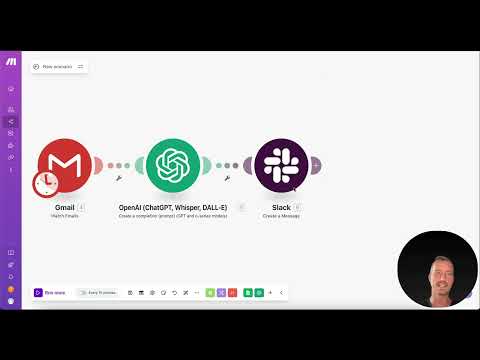
The video is only loaded from YouTube when you play it – data (including your IP address) is then transmitted to YouTube/Google. More in the privacy policy
Key Insights
- Make allows for the automation of complex workflows without any programming knowledge.
- The platform supports numerous apps, including Google Drive and social media.
- Through AI integration, intelligent automation processes can be created.
- Various pricing models are offered that are suitable for different user groups.
Step-by-Step Guide
Setting Up an Account with Make
To get started, you first need to register with Make. Go to the Make website and click on “Get Started Free.” You can sign up with either a Google account or your email address and set a password. After registering, log into your new account.

Getting to Know the Dashboard
After logging in, you land on the Make dashboard. It is designed to be clear and gives you a quick overview of your previous automations and activities. You should explore the various areas of the dashboard to get a feel for the user interface.

Creating a New Scenario
Now it's time to create your first automation scenario. You start by creating a new scenario by clicking on “Create Scenario.” Here, you choose the app that will initiate the automation as the first step. For example: Google Sheets. Select “Watch New Rows” – this allows the scenario to be triggered when a new row is added to your Google Sheet.

Connecting to Google Sheets
To access your Google Sheets, you need to establish a connection. Click on the connection settings and select “Create Connection.” You will be prompted to authenticate your Google accounts and grant the necessary access permissions. Ensure that your Google Drive has the correct permissions before proceeding.

Integrating OpenAI into the Workflow
After successfully connecting to Google Sheets, the next step is to integrate OpenAI into your workflow. You select “OpenAI” and search for the action “Summarize.” Here, you specify which text should be processed by OpenAI. This could be the content of the row you entered in Google Sheets earlier.

Returning Results to Google Sheets
Once OpenAI has analyzed your inputs, you want to transfer the results back to your Google Sheet. Add another action by selecting “Google Sheets” and choosing the action “Add a Row.” Here, you specify which table the results should be inserted into.

Testing the Automation
Before you put your scenario into live operation, test it by clicking “Run” to ensure everything works smoothly. Check your dashboard to see if the processes run as expected and if the data is correctly entered into the corresponding fields.
Using Templates
A useful aspect of Make is the predefined templates that make it easier for you to get started. You can use these to set up your workflows faster. Go to “Templates” and choose a template that meets your needs. This can save you a lot of time and ensure that you follow best practices.

Expanding the Above Scenario
If you want to further develop your scenario, you can add multiple actions and branches. Use the “Router” block to make decisions within the workflow. This allows you to implement different states and actions in your automated process.

Feedback and Quality Assurance
As you create your workflows, it is important to regularly collect feedback. If something does not work or the results do not meet expectations, check the logic and connections between the modules. It is advisable to proceed step by step and test each step to ensure you are on the right track.

Summary - ChatGPT Assistants: Visual Workflows for Professionals
With Make and the integration of OpenAI, you now have the foundation to create not only simple but also complex automation processes. This guide has shown you how to create workflows step by step, from integrating Google Sheets to utilizing AI for processing your data. With some practice and creativity, you will soon be able to elevate your automation skills to the next level.
FAQ
How do I sign up for Make?You need to go to the Make website and select “Get Started Free.”
What is the Free Edition of Make?The Free Edition allows you to run 1000 operations per month at no cost.
How do I integrate OpenAI into my workflow?Simply add the OpenAI app to your scenario and select the corresponding action.
Can I use other apps instead of Google Sheets?Yes, Make supports many apps that you can integrate into your workflows.
How do I find predefined templates?In your dashboard, there is a section for templates where you will find a wide selection.

