

Hardly any layout stays the way you planned it after the first page break. Suddenly the headings look too small, the body text seems too large, and highlights are supposed to look different. Especially with extensive projects such as books, manuals, or catalogs, it would be tedious to adjust every single spot by hand.
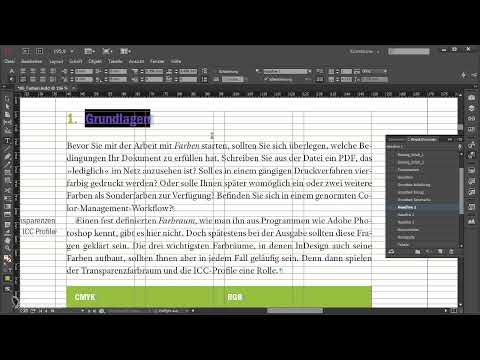
The video is only loaded from YouTube when you play it – data (including your IP address) is then transmitted to YouTube/Google. More in the privacy policy
In this tutorial, I will show you how to control such corrections centrally with paragraph styles and character styles. You will learn how to build paragraph styles on top of one another in a sensible way, how to structure character styles for highlights, and when the effort for clean formatting is particularly worthwhile.
Key Takeaways
Paragraph styles that are based on one another ensure that a change to the base style automatically affects all derived styles. Character styles make it possible to control highlights such as panels or keywords separately, without editing every text passage individually. Both save a lot of time, but require careful planning before you start.
Step-by-Step Guide
Step 1: Recognizing Typical Corrections After the First Page Break
Not every change concerns the type area or the number of columns. Often it only becomes apparent when reviewing the layout that the font size of the headings is not right or that the body text overall seems a little too large. This is exactly when it becomes clear whether your paragraph styles are set up sensibly. If they are, such adjustments can often be done in a few seconds.

Step 2: Building Paragraph Styles on a Base Style
Paragraph styles that belong together in terms of content should be based on one another. To do this, you create a body text paragraph style and, building on it, create further styles, such as a body text with indent. To do so, you select the base style in the Paragraph Styles panel and create a new, derived style via the menu. Make sure that the setting for the parent style is set correctly in the options of the new style.

Step 3: Using the Advantages of Derived Styles
The great advantage of this structure becomes apparent as soon as you make a change. If you adjust, for example, the font size of the body text paragraph style from 10.25 to 9.25 points, all derived styles automatically adopt this change. So you don't have to open and edit each individual style.

Step 4: Considering Side Effects
However, inheritance also has a downside. If you change a setting in the base style, it affects all styles based on it, even those where you don't want the effect at all. For example, the indent in the body text indent style also changes, although you only wanted to correct the font size. Therefore, think in advance about which properties should be in the base style and which are better defined in the derived styles.

Step 5: Creating Character Styles for Highlights
Alongside paragraph styles, character styles play an equally important role. They control highlights within a paragraph, such as emphasis. Here too, a sensible structure determines how easily later changes can be implemented. If you create character styles so that they reflect the meaning of the highlight, you keep an overview even in large documents.

Step 6: An Example of Well-Thought-Out Character Styles
A practical example is panel names such as Toolbar or Color, as well as technical terms such as CMYK or RGB. Both groups are set in italics in your document, the panels additionally because you mark them as interface elements. The technical terms, on the other hand, are supposed to appear in the keyword index. Instead of applying the same Italic character style to both groups, you create a separate character style for each group. Both remain italic, but can be edited separately.

Step 7: Changing Highlights Specifically via the Character Style
The real benefit becomes apparent with later corrections. Suppose someone wants panel names to no longer be set in italics, but slightly smaller and in capital letters. Then you simply adjust the character style for panels. All passages in the document formatted this way change immediately, while the keywords retain their italics.

Step 8: Assessing the Effort Without Separate Character Styles
Had you applied the same Italic character style to both groups, you would have to search through all pages for this change, find each panel name individually, and reformat it. For small documents this is still manageable, but for extensive projects it costs a lot of time and carries the risk of overlooking instances.

Step 9: Making the Right Decision for Your Project
Whether the effort of separate character styles is worthwhile depends on the project. If the formatting is already settled and is not expected to change, you can work directly with a simple character style. If, on the other hand, the layout is still in flux, a clean separation of character styles quickly pays off. Before you start, check which changes are likely and plan your styles accordingly.
Summary – Format Corrections in InDesign: Using Paragraph and Character Styles Effectively
Paragraph styles that are based on a common base style adopt changes automatically. This saves you many individual corrections, but requires you to keep side effects in mind. Character styles help you control formatting independently of one another. If you use both tools thoughtfully from the start, late changes to the layout remain manageable.
FAQ
Do I really have to adjust every paragraph style individually when changing the body text?No, as long as the styles are based on the body text style, they adopt the change automatically.
Can a change to the base style also have unwanted effects?Yes, for example, the indent of a derived style may change unintentionally. Therefore, check in advance which properties should be defined in the base style.
Why should I create multiple character styles for formatting even though they look the same?Because that way you can later change groups such as panels and keywords separately, without manually searching for every text instance.
Is the effort for a clean style structure worthwhile for every project?That depends on how likely later changes are. For layouts that are not yet finalized, the planning usually pays off especially well.


