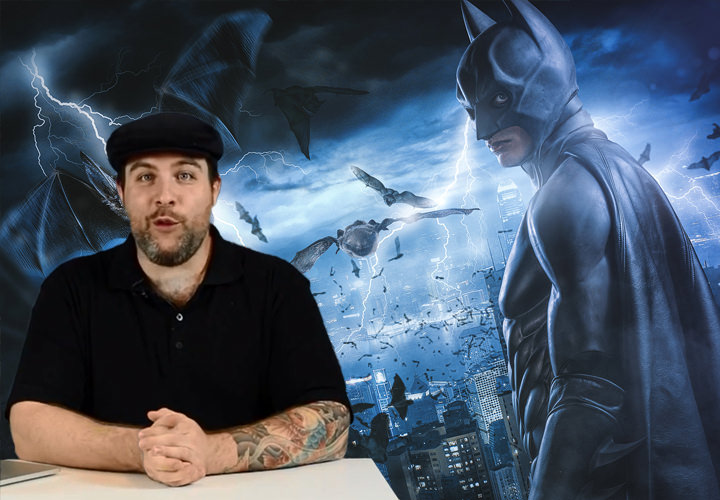
Jurek Gralak aka wayofart, based near Zurich in Switzerland, works as a freelancer and trainer in the fields of photography and digital image processing. He became known for his epic superhero composings and dark fantasy images, which are characterized by their perfect realization. He attaches great importance to small details in both photography and digital image processing. Realizing an image from inspiration to digital post-processing and creating epic worlds and stories in the process is what makes digital art so appealing to him.
Jurek Gralak – Trainer for Photoshop
Areas of expertise
- 1 course
- 53 video lessons
- 13 hours of video
- 53 text tutorials
To website: wayofart.ch/
Courses by Jurek Gralak
Go to content
To Image composing in Photoshop: Batman style artwork
Image composing in Photoshop: Batman style artwork
From the idea to the shoot to compositing
13 hours 26 minutes
Latest text tutorials by Jurek Gralak
- Photoshop Image Look: Lens Flare, Dust, and Color Look Step by Step
- Insert Photoshop background: Creating fog and lightning
- Photoshop retouching on the model: Liquify and Patch step by step
- Realistically integrating a 3D object in Photoshop: light, color, and atmosphere
- Color Look Photoshop: Color Mood with Color Fill and Brush
- Clipping in Photoshop: A Clean Cutout with the Pen Tool
- RAW development in compositing: setting highlights, shadows, and sharpness correctly
- Texture overlay in Photoshop: Understanding the basics
- Getting Creative in Photoshop: Ideas, Shooting, and Image Editing
- Image analysis and photography tips for Photoshop editing
- Shape Corrections in Photoshop: Here's How to Do It Easily
- Form corrections in Photoshop for impressive results
- Creating 3D Objects in SketchUp – Beginner’s Guide
- Use ambient light optimally in your Photoshop projects
- Artful texture overlay in Photoshop
- Use high-quality brushes for Photoshop
- 3D Object Integration in Photoshop: Fog and Figure
- Texture Overlay in Photoshop: Step-by-Step Guide
- Integrate 3D objects in Photoshop and apply textures
- Insert color-intensive backgrounds in Photoshop