

Superscript digits, true fractions, or the euro sign often seem small, but they determine how professional a layout looks. With InDesign CC 2015.2, Adobe has noticeably simplified how you handle such typographic elements. You get a new context menu for glyphs, an automatic conversion of text fractions, and a revised Glyphs panel with its own search. This guide shows you step by step where to find these features and how to use them. It is especially helpful for anyone who doesn't have a key for superscript two on a Mac.
The video is only loaded from YouTube when you play it – data (including your IP address) is then transmitted to YouTube/Google. More in the privacy policy
Key Takeaways
- You can access alternate glyphs by right-clicking selected characters via the new context menu.
- Superscript and subscript characters can be set without a keyboard shortcut.
- InDesign converts text fractions like 1/4 into clean, formatted fractions via the context menu.
- You open the Glyphs panel via Window > Type & Tables > Glyphs.
- The new search field in the panel finds characters by name, Unicode values, or GID values.
Step-by-Step Guide
Step 1: Create and align text
Start by selecting the Type tool and dragging out a large text frame with the mouse. To make your sample text look good in the document, align it centered. Then type in a word. Make sure to deliberately include a typo, for example one letter too many. That way you will see right away later how individual characters can be changed.

Step 2: Choose alternate glyphs via the context menu
Now use the Type tool to select a single letter within your word. A click with the right mouse button opens the new context menu for glyphs. There you will find alternate forms of the selected character. One example is the y with a longer tail, and there are even variants that swing out even further. Simply try out the different entries and watch how the character changes in the text. This approach works with many letters and is a quick way to give a typeface a personal touch.

Step 3: Set superscript numbers for square meters
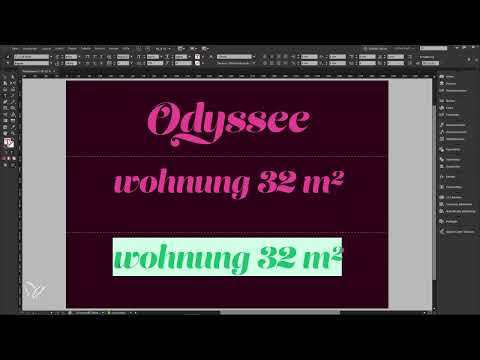
A typical everyday case is the specification "32 m²". Many Mac keyboards lack a key for superscript two, which used to force you into workarounds. So first write the text "32 m2" in your frame. If necessary, reduce the font size so that the text fits in the frame. Then select only the two and open the context menu with a right-click. Choose the appropriate glyph for the superscript variant there. The square meter specification is now correct, without you having to search for special characters.
Step 4: Create true fractions
Fractions can also be edited via the context menu. To do this, type a combination of numbers with a slash, such as "1/4", as you would when describing a slice of cake. Then select the input and open the context menu again. InDesign recognizes the fraction and offers you a display as a true, formatted fraction. With one click, this becomes a cleanly set fraction that looks much better than a simple slash between two digits.
Step 5: Open the Glyphs panel
For targeted searches for special characters, you need the Glyphs panel. You can find it via the Window menu, there in the Type & Tables submenu, and then the Glyphs entry. It is faster with the keyboard shortcut Alt+Shift+F11. Since the panel is not needed constantly in everyday work, you open it only when needed and close it again afterwards. This keeps your workspace uncluttered.

Step 6: Find glyphs via the new search
In the revised Glyphs panel there is now a search field. Here you can search by name, Unicode values, or GID values. Enter "Euro", for example. The panel then shows you various variants of the euro sign from the current typeface, in the video for example from Minion Pro. A double-click on the desired glyph inserts it at the text cursor, provided the text field is active. This saves you from laboriously scrolling through the entire character list.
Step 7: Search for other characters specifically
The search field is also suitable for other special characters. Enter "degree", for example, to find the degree symbol, or "dollar" for various variants of the dollar sign. You can indeed access some characters directly via the Unicode value, but searching by name is the faster solution in most cases. Keep in mind: The list only shows glyphs that the currently selected typeface actually contains. If you change the typeface, the result may therefore change.
Summary – Editing Glyphs in InDesign: Context Menu, Fractions, and Glyph Search
You have seen that InDesign CC 2015.2 makes working with special characters significantly easier. With the context menu, you select alternative glyphs directly on the selected character. You set superscript digits for square meters or exponents without a keyboard shortcut, and you convert text fractions into true fractions with just a few clicks. For everything else, you open the Glyphs panel and use the new search by name, Unicode, or GID values. Once you have tried out these steps, special characters in your layouts will cause you far fewer headaches.
FAQ
How do I open the Glyphs panel in InDesign?You can find it under Window > Type & Tables > Glyphs, or more quickly with the keyboard shortcut Alt+Shift+F11.
Can I also search for glyphs by their Unicode value?Yes, the new search field accepts names, Unicode values, and GID values for a specific character.
How do I set a superscript two for square meters if my keyboard has no key for it?Select the two in the text, open the context menu with a right-click, and choose the superscript glyph there.
How do I create a true fraction from an entry like 1/4?Select the entry and choose the fraction option in the context menu, then InDesign formats it automatically.
Do I have to insert a found character myself?No, with an active text field, a double-click on the glyph in the panel inserts the character directly at the text cursor.

