

InDesign CC 2020 (version 16) brings several new features that noticeably save you time in everyday layout work. Especially when you coordinate menus, flyers, or extensive brochures with clients, it's worth taking a look at the new tools. This guide walks you step by step through the four most important new features: document sharing with text annotations, searching for colors, smart text wrap, and repairing damaged documents.
The video is only loaded from YouTube when you play it – data (including your IP address) is then transmitted to YouTube/Google. More in the privacy policy
Key Takeaways
- You share a document via a link. Recipients can scroll through it in the browser, comment, highlight text passages, strike text through, and even add drawings.
- Using the Swatches panel, you can find every place where a color is used and replace it throughout the document.
- You can remove unused colors with just a few clicks.
- The Text Wrap panel adapts the text to the shape of an object, for example via the alpha channel.
- Damaged documents can be repaired automatically. You should always work with backup copies when doing so.
Step-by-Step Guide
Share the Document and Assign a Link Name
The entry point to collaboration is the Share button at the top of the document window. Click it, and InDesign asks you for a name for the link. Choose a term that clearly describes your project, for example "Menu". That way you keep track even when you have several shares.

Set Access Rights
In the next step, you decide who may access the document. You can release the link so that everyone can open it with commenting rights. Alternatively, you restrict access to specific people to whom you assign rights individually. Especially for confidential projects, the second option is usually the more sensible choice.
Generate the Link and Open It in the Browser
As soon as you confirm the settings, the document is uploaded to the Creative Cloud. With normal file sizes, this happens surprisingly quickly. Then copy the generated link to the clipboard and paste it into your browser. There you see your layout in the overall view and can conveniently scroll through all pages without opening InDesign.

Add Comments and Pins
Your client or contact person can now give feedback in two ways. With normal comments, they leave general feedback such as "looks great". It becomes even more precise with a pin: with it, they mark exactly the spot in question. In the menu example, it becomes immediately visible that a price of €9 should be changed to €12. The agency knows right away what needs to be changed.

Highlight Text Passages
In addition to pins, recipients can select and highlight specific text passages. To do so, select the relevant text with the mouse. You can then leave a comment explaining the desired suggested correction. That makes it clear which wording is meant, and there are no misunderstandings about lines or paragraphs.
Strike Through Text
If a term is to be removed entirely, the recipient uses the strikethrough function. The selected text is visually struck through, and a comment is optional. Anyone who enters nothing still sends a clear instruction, because the struck-through text is clearly recognizable as to be removed.
Replace Text and Draw Corrections
Besides striking through, there is the option to have text replaced. The recipient then simply writes the desired wording in the feedback. For image corrections, the drawing function is suitable: with it, a spot is marked directly in the layout and given a note, such as "different logo please". A red marking stands out particularly well.
Keep an Eye on Notifications
You don't have to constantly check the document yourself. After a certain time, you receive an email as soon as something has been done in the document, and you can check it specifically. This keeps the approval process lean, because you only step in when there is actually new feedback.

Search for Colors
The color search helps you keep track, especially in documents with many pages. Open the Swatches panel and click the options menu in the upper right corner. There, select the entry Find Color. The desired color is then preselected, and you can continue searching. InDesign shows you every single occurrence, so you know exactly where the color is used.

Replace colors across the entire document
Once you have found all occurrences, you can replace the color directly. In the Swatches panel, select the option Replace All and specify the new color. In the example, a color is replaced with blue, and at all places in the document simultaneously. This is much more reliable than adjusting each object individually.

Remove unused colors
Over time, many documents accumulate colors that are never used. To deal with this, select the entry Select All Unused in the options menu of the Swatches panel. InDesign marks all colors that are not used in the layout. You can then remove them with one click, and your color palette stays tidy.

Set up text wrap
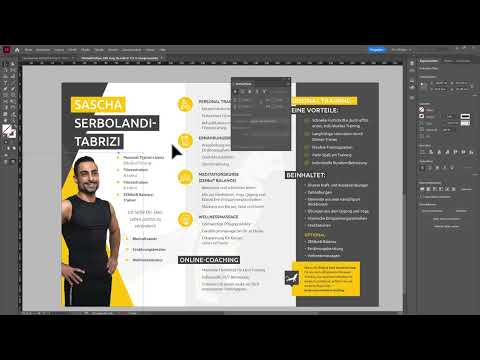
Intelligent subject detection is especially interesting for layouts with photos. Open the Text Wrap panel via the Window menu. Then select the image, for example the photo of a trainer in a flyer. In the panel, set the option Wrap Around.

Wrap with the alpha channel
By default, text wrap works with simple frame shapes. For more complex subjects, select the option Alpha Channel in the panel. The text then adapts exactly to the contour of the object. In the settings, you can also specify how much space should be left between the subject and the text. If you select the entire box, you can see how the upper text also follows the object. Be sure to try out the function on an example of your own, because it saves an enormous amount of time when fine-tuning.

Have damaged documents repaired
The new repair function kicks in when a document is damaged. In theory, the file is then automatically uploaded to Adobe's servers, repaired there, and then sent back. If the repair is successful, a message appears saying that something was corrected and that you should save the document.

Interpreting the repair message correctly
After a repair, InDesign displays a message saying that content was corrected. Save the document immediately afterwards so that the correction is secured. If the message does not appear, the document is either fine or the repair has failed. In that case, only an older backup copy will help.

A practical test with the hex editor
In the video, the repair is tested with a deliberately manipulated document. To do this, the file is opened with a hex editor and a text is inserted, in the example a name at the end of the file. You should only perform this test on copies, never on production files. In the example, the manipulation meant that the repair did not succeed and InDesign crashed. This shows that the function cannot fix every kind of damage.

Putting the crash into perspective
If InDesign crashes after a failed repair, a corresponding error message appears. Restart the program and check whether you can fall back on a backup. For everyday use, the following applies: The repair function is a useful fallback, but no substitute for regular backups.

Summary – InDesign CC 2020: New features for sharing, colors, and text wrap
With InDesign CC 2020, you work faster and more clearly. You share layouts via link, receive precise feedback through comments, pins, and text markups, and keep all color usages under control with the color search. Text wrap with the alpha channel saves a lot of detailed work when designing with images, and the repair function offers additional security for damaged files. Nevertheless, keep backup copies ready regularly, because no automatic repair replaces a proper data backup.
FAQ
How do I share an InDesign document with my client?Click Share at the top of the document window, assign a link name, and specify who gets access. Then copy the link and send it on.
Can my client view the document without InDesign?Yes, the recipient opens the link in the browser, scrolls through the document, and can comment there.
How do I mark a specific spot in the layout?With a pin, you place a comment exactly at the desired spot. Text passages can also be highlighted, struck through, or marked with a drawing.
How do I find all places where a color is used?Open the Swatches panel, choose the entry Find Color in the options menu, and select the desired color. InDesign shows you all occurrences.
How do I remove unused colors?In the options menu of the Swatches panel, you choose Select All Unused and then remove the selected colors.
Where do I find the settings for text wrap?You open the panel via Window and Text Wrap. There you set the option Wrap Around and, for complex subjects, choose the alpha channel.
What happens if a document is damaged?InDesign tries to repair the file. If successful, a message appears saying that something was corrected. Save the document immediately afterwards.
Is the repair function a substitute for backups?No. The repair cannot fix every kind of damage. Regular backup copies remain indispensable.

