

How do you type a superscript two, a fraction, or the euro sign when none of these keys is on your keyboard? InDesign provides the answer with the Glyphs panel. Well-developed fonts such as Source Sans Pro often contain thousands of characters, from arrows and fractions to exotic writing systems. In this tutorial, you will learn how to find and insert these characters and how to quickly correct errors in your document with the Find and Replace function.
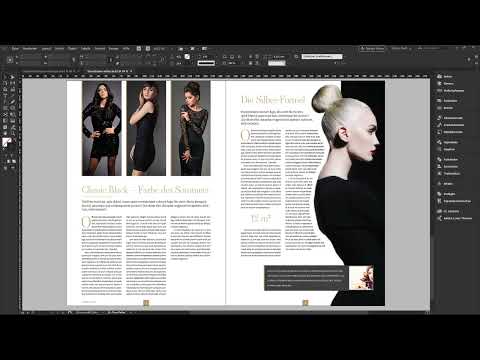
The video is only loaded from YouTube when you play it – data (including your IP address) is then transmitted to YouTube/Google. More in the privacy policy
Key Takeaways
The Glyphs panel displays all characters of the active font and is your central point of contact for special characters. Context-sensitive suggestions recognize the selected letter and directly offer suitable characters such as superscript digits or fractions. The search field in the Glyphs panel finds characters via terms such as dollar or degree. With Find and Replace (Ctrl+F or Command+F), you correct recurring errors, such as wrong currency symbols or double spaces, in one pass.
Step 1: Open the Glyphs Panel
Open the Glyphs panel via the Window menu, then Type & Tables, and then Glyphs. The panel can be moved freely, so it has room next to your document. If you need it often, you can dock it directly next to your page.

Step 2: Browse the Glyphs of Your Font
In the panel, you see all glyphs of the active font. In this example, that is Source Sans Pro. Make sure the correct font is set in the font selection, because every font has its own character set. From standard characters to currency symbols to hieroglyphs or familiar characters like the summation sign, you will find almost everything here. Simply scroll through the list to get an overview of what is on offer.

Step 3: Create Fractions with the Context Menu
Suppose you want to write "a quarter piece of cake" in a quote box. You can simply type 1/4. However, InDesign recognizes the number combination and offers you, in the type function, to turn it into a real fraction. To do this, select the sequence of digits, open the context menu with the right mouse button, and choose the fraction option. You can use the same route to undo the conversion.

Step 4: Find Superscript Characters via Context-Sensitive Suggestions
Many Macs have no key for the superscript two. On Windows, by contrast, it often works directly. For example, write "12 m2" for the area of your bathroom. Then select the two and open the context menu. InDesign recognizes that it is a letter or a digit and shows you suitable variants of the superscript two. This way, you don't have to laboriously scroll in the Glyphs panel. This function saves you a lot of time and is particularly helpful for units of measurement.
Step 5: Find Characters via the Search Field
Above the glyph list there is a search field. Enter a term there, for example dollar, euro, or degree. The panel immediately shows you the matching character. First place the insertion point at the desired spot in your text box. With a double-click on the glyph, you insert it directly there. At the same time, the character appears in the area of recently used glyphs, so you can find it again immediately next time.

Step 6: Correct Wrong Currency Symbols with Find and Replace
Imagine an editor has written an article for the European Economic Area and used the pound sign everywhere instead of the euro sign. First open the search dialog with Ctrl+F or Command+F. Enter the pound sign in the search field and click Find Next. InDesign highlights every occurrence. You can now check the instances individually and correct them with Change. For many occurrences, the Change All option is much faster.


After you click Change All, InDesign tells you how many replacements were made. Confirm the message and close the dialog. A look at the text shows you that the pound sign has now been replaced everywhere with the euro sign.

Step 7: Fix recurring typos
The Find and Replace dialog doesn't just help with special characters. When you copy text from Word, you often run into double spaces. Search for two spaces and replace them with a single space. The same method works for any other recurring deviation. With Ctrl+F or Command+F, you can also fix many glyph errors in a short time.

Summary – Using Glyphs in InDesign: Finding Special Characters and Quickly Correcting Errors
You have learned how to open the Glyphs panel and browse the characters of your font. You know how to create fractions via the context menu and find superscript characters with context-sensitive suggestions. With the search field, you can track down special characters in a targeted way, and with Find and Replace, you can correct wrong characters and typos in one pass. Try out the steps directly on your own text, and they will quickly become second nature.
FAQ
How do I open the Glyphs panel in InDesign?You open it via the Window menu, then Type & Tables, and then Glyphs.
Why don't I see all the characters shown in the video?The glyph list only shows the characters of the active font. Select the desired font, such as Source Sans Pro, to see its full character set.
How do I insert a special character directly?Place the insertion point at the desired spot in the text frame and then double-click the glyph in the panel.
How do I create a fraction such as one quarter?Select the combination of digits, open the context menu with the right mouse button, and choose the fraction option. You undo the conversion via the same menu.
Why is the superscript two missing on my Mac?Many Mac keyboards have no key for it. Select the two and use InDesign's context-sensitive suggestions to choose a suitable superscript variant.
How do I find a character if I know its name?Enter the term, such as dollar, euro, or degree, in the search field above the glyph list. The matching character is displayed immediately.
How do I correct a wrong character in the whole document?Open the Find and Replace dialog with Ctrl+F or Command+F, enter the wrong character, enter the correct one in the Replace field, and click Change All.
Can I also correct spaces with Find and Replace?Yes. Search for two consecutive spaces and replace them with a single space. This works in the same way for other recurring errors.

