
Anyone who wants to build niche sites needs a clear idea, before the first article, of what people are actually searching for. This is exactly where SEO Cockpit comes in. In this guide, I show you step by step how to use the tool to find new keywords, estimate search volume, assess the competition, and derive a niche that is worthwhile.
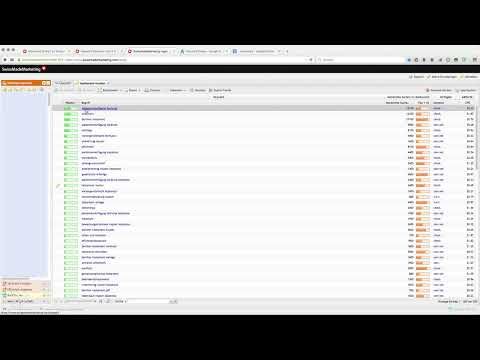
The video is only loaded from YouTube when you play it – data (including your IP address) is then transmitted to YouTube/Google. More in the privacy policy
Introduction
In the video on which this guide is based, a keyword research is walked through using the term "Testamentmuster" as an example. This is a good example because it shows how a single search term gives rise to many related ideas. The interface is clear, but there are a few places where it is easy to draw the wrong conclusions. That's why I explain not only where you need to click, but also how to interpret the numbers correctly.
One note in advance: SEO Cockpit is a paid tool. The video mentions a price of about 80 US dollars per month. The investment is worthwhile above all if you are planning several niche sites. For a single project, you should think carefully about whether you want to bear the costs.
Key Takeaways
Key Takeaways
- A keyword research answers two questions: How often is a term searched for, and how strong is the competition?
- High search volume alone is no guarantee of success if the top 10 results are hardly beatable.
- Related search terms that SEO Cockpit suggests are often the most valuable finds because they reveal niches.
- The MOSS rank traffic light gives you quick orientation, but it does not replace your own review of the results pages.
Step 1: Start a New Keyword Search
Open SEO Cockpit and select the menu item for a new keyword search. This is how you begin every research. The tool then opens an input form in which you define all parameters before the actual analysis starts.

Step 2: Understand the Search Form
In the form, you specify which term you want to examine and in which market. The term should be worded the way potential visitors would actually type it. So think in advance about whether people are more likely to search for "Testament Muster" or "Testamentvorlage". Both variants can be compared later.
Step 3: Classify Search Volume and Links
After the start, you can see how many queries per month come in for a term. The values come from the data that Google also provides. What matters here is that the tool shows you not only the main search term, but also links to further evaluations. These links will become important later in the research.
Step 4: Enter the Search Term
Now enter your main search term. In the example, it is "Testamentmuster". Make sure to enter the term without unnecessary additions so that the results are not distorted unnecessarily. Once the term is set, the next step is setting the region.
Step 5: Set Language and Location
Set German as the language and Germany as the location. These settings are crucial, because search volume differs significantly from country to country. If you are working for the German-speaking region, the values should also reflect exactly this market. Save the settings and close the form.

Step 6: Wait for the Analysis
Now the keyword search starts. Depending on the scope of the query, it may take a moment until all the data is loaded. This moment is worth it, because the tool usually then delivers a whole list of suggestions that you would not have found so quickly on your own.

Step 7: Evaluate Related Search Terms
Once the analysis is complete, SEO Cockpit displays related search terms. This function in particular is especially valuable for niche sites because terms often show up there that you had not initially thought of. Read through the list carefully and mark everything that fits your project thematically.

Step 8: Compare the Search Volume with the Keyword Planner
The video makes clear that the main search term also appears in Google's Keyword Planner, with around 4,400 searches per month. It is worth cross-checking such values. Different tools work with different data sources and calculations. If the numbers roughly match, you can trust them with greater confidence.
Step 9: Read the Potential Chart
At the top of the analysis you will find a green graphic that shows, as a bar chart, how much potential lies in the individual terms. Here you can see at a glance which keywords offer a good mix of search volume and manageable competition. Use this display as a guide before you get lost in the details.
Step 10: Weigh Niches Against Each Other
An example from the video: The term "Patientenverfügung Formular" is searched about 12,100 times per month, with comparatively few well-optimized pages in the top 10 relative to that volume. In contrast, there is "Berliner Testament" with around 27,100 searches. The volume is significantly higher, but the top 10 spots are fiercely contested. For a new provider, a smaller keyword with low competition can therefore be the better choice. Another example in the video is "Ehevertrag Muster", which can also be interesting by this logic.
Step 11: Check the Top 10 Results
Click on the keyword you are interested in to display the current top 10 hits. The tool shows you the URLs and titles of the pages that are currently ranking at the top on Google. Look at which providers are there and how professional they appear. Large portals are often hard to displace, while smaller sites may leave gaps.

Step 12: Recognize Competitor Optimization
An important signal is whether the competition has deliberately optimized its pages. In the video you can see that the search results contain the keyword in the page title. This indicates that SEO work has taken place there. If this is the case for almost all hits, you should realistically assess the effort before investing in this topic.

Step 13: Understand the MOSS Rank
SEO Cockpit additionally displays the MOSS Rank, a rating that estimates the strength of a page. The color coding works like a traffic light: Red signals high competition, yellow a medium range, and green a feasible task. Treat these colors as a first orientation and not as a final verdict.
Step 14: Interpret the Traffic Light Correctly
A green rating means that the keyword is likely achievable. A red rating is a warning signal that the competition is likely to be tough. Always combine the traffic light with the search volume and the top 10 results. Only then do you get a coherent picture on the basis of which you can decide which niche to tackle.
Summary – Keyword Research with SEO Cockpit: Finding Niches
With SEO Cockpit, you quickly gain an overview of which terms are being searched and how tough the competition for them is. The process ranges from entering a search term and setting language and region to evaluating related keywords, search volume, and competition. A high search volume is tempting, but often the greater gain lies in a smaller niche with manageable competition. Use the MOSS Rank traffic light as a starting point and always check the results yourself. This lays the foundation for niche sites that respond to real search queries.
FAQ
What is the main purpose of keyword research with SEO Cockpit?The main purpose is to find out how often a term is searched and how strong the competition is for that term.
Do I have to use the tool for every niche site?No, but with multiple projects it helps to make decisions based on reliable numbers.
Why are language and location so important?Search volume differs depending on country and language. Only with the right settings do you get values that fit your target market.
Is a high search volume always good?Not necessarily. If the top 10 results are heavily optimized and hard to beat, a smaller keyword with low competition can be the better choice.
What does the traffic light of the MOSS Rank mean?Red stands for high competition, yellow for a medium range, and green for a task that is likely feasible.
Can I rely solely on the MOSS Rank?No. The traffic light is a guide. Also check the result pages, titles, and the search volume yourself.


