
Maybe you know this: You have published many good articles, but visitors get stuck on a single page and don't click any further. Often this isn't due to the content itself, but because your pages are barely connected to each other. This is exactly where internal linking comes into play. It helps readers find their way around your website and gives search engines hints about which content is particularly important.
The video is only loaded from YouTube when you play it – data (including your IP address) is then transmitted to YouTube/Google. More in the privacy policy
In this guide, I show you step by step how to set internal links sensibly. This isn't about peripheral elements like widgets, but about contextual linking directly within the text. Using a wedding website as an example, you'll see how to review existing posts, create connections, and gradually improve your link structure.
Key Takeaways
Internal links are an important building block for the structure of your website and for your ranking. Use them primarily in the body text and always where they fit the content. Vary your link texts, don't overdo the number, and use filler articles such as news posts to connect your pages with each other.
Step-by-Step Guide
Step 1: Understanding the Importance of Internal Linking
Before you get started, you should know what internal linking is about. It refers to links that lead from one page of your website to another page on the same domain. Unlike external links, for which you would have to ask other websites to link to you, you control internal links completely yourself. You decide where they appear, what they point to, and how they are worded. That is precisely why it's worth planning this area deliberately.

Step 2: Separating Widgets and Peripheral Links from Text Linking
Many themes offer widgets, footers, or sidebars in which you can place links. These areas are practical, but play only a minor role for contextual linking. They appear on every page and therefore quickly seem arbitrary. So focus first on the actual text area of your articles. That's where connections arise that readers find meaningful.

Step 3: Linking Important Keywords Site-Wide
For highly competitive keywords, it can make sense to link the associated page site-wide, for example via a sidebar or a fixed area. This works particularly well for central topics such as the wedding checklist. Here too, however, the following applies: The linking should remain comprehensible and offer the visitor added value. A list of links unrelated to the content quickly looks artificial.
Step 4: Implementing Contextual Linking in the Content
Contextual linking is an important point in its own right. Here you set a link from the running text to a suitable page. The link must not simply be inserted anywhere just because a keyword appears there. It has to fit the sentence in terms of content. With every link, ask yourself whether a reader would actually want to keep reading at this point. If the answer is yes, you're on the right track.
Step 5: Checking Existing Posts for Linking Potential
Now take a look at the posts you have already published. In a test project, you may find placeholder texts like Lorem ipsum posts, but also real content such as a prenuptial agreement guide or a wedding checklist. Note down which articles fit together thematically. These pairs in particular form the basis for your internal links, because a connection can be established quite naturally here.

Step 6: Using News Articles as a Bridge to Keyword Content
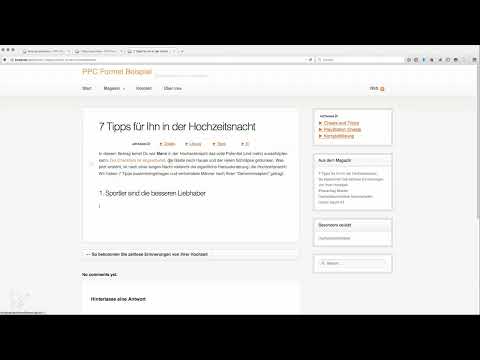
News articles and filler posts are ideal for creating connections to your important keyword pages. A post like "Seven Tips for Him on the Wedding Night," for example, isn't aimed at serving a specific keyword. It is meant to entertain readers and encourage them to click. That's exactly why it is well suited to point to a keyword article without the text seeming forced.
Step 7: Building an Internal Link into a Sentence
Now you place the link in a concrete sentence. An example: In the news article, you could write a casual hook in the introduction that alludes to the wedding checklist. You could write that the checklist has been worked through and the guests have gone home. Then comes the real challenge, namely the wedding night. Such wording feels relaxed and leads the reader to the keyword article quite incidentally. This example is just one of many possibilities, but it shows well how you can use context.
Step 8: Phrasing the Link Text Naturally
When you set a link, you don't just highlight the keyword, but a fitting part of a sentence. Instead of a choppy reference like "wedding checklist," a sentence like "The checklist has been completed" is more suitable. This sentence reads completely normally in the flow of reading, and the link appears where it makes sense in terms of content. If necessary, don't place the sentence right at the beginning of the article, but further back, so that it doesn't seem forced.

Step 9: Vary Anchor Texts and Avoid Over-Optimization
The link text, called anchor text in technical jargon, should not always be identical when there are multiple links to the same page. If you use exactly the main keyword every time, Google recognizes over-optimization. Therefore, add words that belong to the reading flow and vary the wording. The anchor text should arise from the text and not seem artificial. You are concerned with internal links, not classic link building, where you would have to ask other websites for links.

Step 10: Limit the Number of Internal Links
Don't set too many internal links per article. Three, at most four links are a good range in most cases. If you overdo it, readability suffers, and the text seems overloaded. If you offer, for example, a prenuptial agreement template or have additional information, you can also link there. Another option is a short paragraph on the wedding checklist, which you can then refer to.
Step 11: Use Gap-Filler Articles Purposefully for Optimization
Finally, it's worth taking a look at the gap-filler articles. News posts are often the key to a better internal link structure, because they are open in terms of topic and can be connected well with keyword pages. Go through your posts regularly and check whether you can add new connections. In this way, you improve the structure of your entire website step by step.
Summary – Setting Internal Links Correctly: Guide to Contextual Linking
Internal links connect the pages of your website with each other and support both readers and search engines. Focus on the body text, link only where the context fits, and vary your anchor texts. Limit the number of links per article and use news posts as a bridge to your important keyword pages. With this approach, a coherent link structure gradually emerges.
FAQ
Do I always have to set internal links in the body text?Not necessarily, but the body text is the most important place because that's where contextual links are created. Widgets and sidebars can be used as a supplement, but should not be the focus.
How many internal links per article make sense?Three to at most four internal links are generally a good range. It's important that each link offers real added value for the reader.
Should the anchor text always contain the main keyword?No. If you use exactly the same keyword every time, it can appear as over-optimization. Vary the anchor texts and add words that fit the reading flow.
What is the difference between internal and external links?Internal links lead to other pages of the same website. External links point to other domains. You can fully control internal links yourself.
Why are news articles well suited for internal linking?News articles are often broader in topic and not optimized for a specific keyword. This makes it possible to naturally create connections from them to your important keyword pages.
Do I have to ask other websites for links for internal links?No. Internal links are about connections within your own website. You don't have to contact anyone outside your site.


