
At the bottom of the screen, a notice about cookies appears when visiting many websites. This cookie banner can be set up in WordPress without any programming knowledge. You install the free plugin Cookie Notice, customize the text and buttons, link your privacy policy, and secure a Google Analytics code so that it is only executed with the visitors' consent. The video is part of the series "Elementor for WordPress", but the banner is independent of the page builder.
The video is only loaded from YouTube when you play it – data (including your IP address) is then transmitted to YouTube/Google. More in the privacy policy
Key Takeaways
- Cookie Notice is a free WordPress plugin that lets you create a cookie banner without programming.
- The message text, button label, and link to the privacy policy should be worded completely and clearly.
- Via the "Script blocking" field, a tracking code such as Google Analytics is only executed after consent has been given.
- The "Revoke consent" option gives visitors the opportunity to change their decision later.
- Test the banner in an incognito window, because you will not see it as a logged-in administrator or when Coming Soon mode is active.
Step 1: Understanding the starting point
Before you install anything, it is worth looking at the goal. The banner informs visitors that the website uses cookies and, for example, uses Google Analytics. Those who continue browsing implicitly agree to this. Visitors can find out more via a button or a link. This is exactly the structure you will now recreate.

Step 2: Finding and installing the Cookie Notice plugin
In the WordPress dashboard, open the Plugins menu item and click Install. Enter the term "Cookie notice" in the search field. The results list contains many plugins, some paid, others only partially usable or time-limited. The Cookie Notice plugin is completely free, has over a million active installations, and very good reviews. Click on it, then click Install Now at the top right, and then Activate.

Step 3: Opening the Cookie Notice settings
After activation, you will find the Cookie notice entry in the menu with the associated settings. There you can configure everything needed for a working banner. The Pro version can also be downloaded, but it shows advertising. For the steps described here, the free version is perfectly sufficient.

Step 4: Writing the message text
The message text is the heart of the banner. In the video, it reads roughly as follows: This website uses cookies and uses Google Analytics. Those who continue to use the website agree to this. You can adopt this text or adapt it to your website. What matters is that visitors immediately recognize which data is collected and what their consent means. A short, clear sentence is more helpful here than a long technical text.

Step 5: Setting the button text
In the field for the button text, enter a short, unambiguous label, such as "Okay". When a visitor clicks on it, the banner disappears. A clear wording like "Okay" or "Agreed" is understood without visitors having to think about what happens.

Step 6: Linking the privacy policy
The privacy policy should always be accessible in the banner. For this, enter something like "Privacy Policy" as the link text so that visitors immediately know what is behind it. After that you have two options: Either you insert any URL via the Custom link option, or you select an existing page of your website via Page link. In the video, the privacy policy is linked because it makes the most sense for the banner. You can add the legal notice if needed or use it instead.

Step 7: Activating the "Decline consent" option
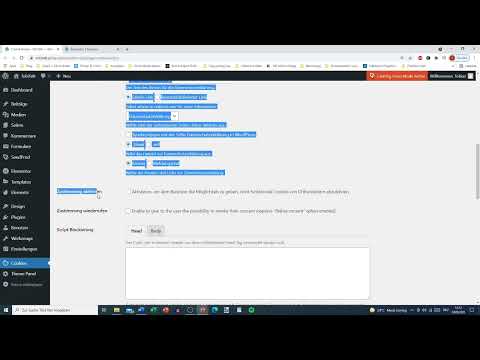
Check the box for the Decline consent option. It adds a button to the banner with which visitors can expressly say no. The speaker explicitly recommends this option, because otherwise visitors have no real choice. Those who do not want to be tracked can react directly this way.

Step 8: Securing Google Analytics via Script Blocking
This is where it is decided whether your banner is more than a formality. A Google Analytics code that sits normally in the source code of your website collects data from the very first page view. If you instead insert it into the Script Blocking field, it is only executed once the visitor consents. If someone clicks No, the code remains inactive, and that person's data is not collected. Make sure the code is not additionally embedded somewhere else, such as in the theme or in another plugin. Otherwise it will run despite the refusal.

Step 9: Enabling the Withdrawal of Consent
Visitors who initially clicked No should be able to change their decision later. To do this, activate the Withdraw consent option. After refusing, a button with the text "Withdraw consent" then appears. Clicking it grants consent again. In the video, this point is deliberately added only at the end because it extends the settings.

Step 10: Saving Changes and Deactivating Coming Soon Mode
Save your settings using the Save Changes button. To actually see the banner, you must first deactivate Coming Soon mode. If it is active, visitors only see the placeholder page and the banner stays hidden. This is a typical stumbling block with new websites, so it is worth checking the plugin list.

Step 11: Testing the Banner in an Incognito Window
Open your website in an incognito window of the browser or on another device, without being logged in to the WordPress dashboard. As a logged-in user, you would not see the banner. The notice with the message text and the buttons now appears at the bottom. If you click No, the banner disappears, and the Google Analytics code is not executed. Also check whether the link to the privacy policy works correctly.

Step 12: Testing the Withdrawal of Consent
After refusing, you reload the page or switch to another subpage. The Withdraw consent button should now be visible. Click it to grant consent again. If the banner does not appear cleanly on the first attempt, simply reload the page once more. Many problems result from cached views and can be quickly resolved this way.
Step 13: Leaving the Banner Permanently Active and Reactivating the Test Plugin
The speaker recommends generally leaving the banner active, even if you do not use Google Analytics at all. A provisional banner is better than none at all. For testing, you have to switch off the Coming Soon plugin. Afterwards, you can reactivate it as soon as your test is complete. Please note, however: you should have the legal wording of the texts and privacy policy reviewed by a professional, because the plugin does not replace legal advice.

Summary ??? Setting Up a Cookie Banner in WordPress with Cookie Notice
With the free plugin Cookie Notice, you set up a cookie banner in WordPress that informs, requests consent, and allows genuine refusal. You customize the message text and button, link the privacy policy, and activate the options for refusal and withdrawal. The Google Analytics code belongs in the Script Blocking field so that it only runs with consent. Finally, you test everything in an incognito window after deactivating Coming Soon mode.
FAQ
Do I need Google Analytics to use a cookie banner?No. The banner is also useful if you do not use a tracking code. The speaker recommends leaving it active in any case.
Is the Cookie Notice plugin free?Yes, the version used in the video is completely free. A Pro version also exists, but it contains advertising.
What happens if a visitor clicks No?The Google Analytics code in the Script Blocking field is not executed. This visitor's data is then not collected.
Why should I test in an incognito window?As a logged-in user, you do not see the banner. In an incognito window, you experience the site the way a normal visitor sees it.
How can a visitor change their decision later?If the Withdraw consent option is activated, a button appears after refusing, with which consent can be granted again.
Is the plugin enough to be legally protected?The plugin helps with the technical implementation. However, texts and privacy policy should additionally be reviewed by a professional.


