
Without measurement, you don't know whether your ads are delivering results. Whether someone gets in touch via your contact form, calls you, or completes a purchase can only be tracked with a properly set up conversion. This is exactly what the conversion management in Google Ads is for. In this tutorial, I'll walk you through all the settings you need to prepare for conversion tracking. The Google Ads interface has changed somewhat since the video was recorded (back then still AdWords), but the logic behind it has remained the same.
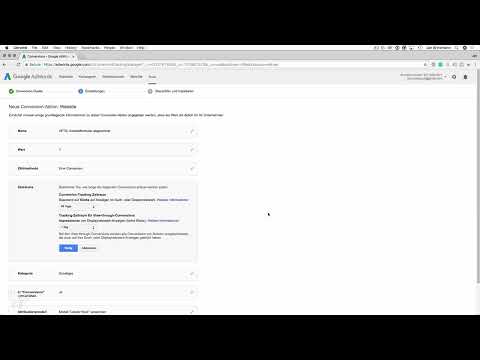
The video is only loaded from YouTube when you play it – data (including your IP address) is then transmitted to YouTube/Google. More in the privacy policy
Key Takeaways
- A conversion is an action that you define as a success, for example submitting a contact form, a phone call, or a purchase.
- You can find the conversion management under Tools and then Conversions.
- Phone calls can also be counted as conversions via a phone number provided by Google.
- The conversion value does not necessarily have to be specified in euros. A uniform value of 1 is sufficient to start with, as long as you count the conversions.
- With the counting method, you determine whether each click generates only one conversion or whether multiple conversions are counted.
- The conversion window determines how many days after the click a conversion is still attributed. For services, 90 days is often sensible.
- The attribution model determines which ad the conversion value is attributed to. To get started, the default value "last click" is usually sufficient.
- At the end, you receive a tag snippet that you will later integrate into your website or into Google Tag Manager.
Opening the Conversion Management
The starting point is the "Tools" menu in your Google Ads account. There you will find the "Conversions" section. Open it to see an overview of all conversion actions that have already been created. If you haven't set up a conversion yet, the list is empty. This is exactly where the preparation begins.


Adding a New Conversion
With the "Add conversion" button, you start the setup wizard. You will notice right away that Google offers you various sources from which conversions can originate. These include websites, phone calls, apps, and imports. For most service providers, the website is the most important source, because that is where prospects are supposed to leave their inquiry.
Understanding the Value of a Conversion
Before you make any settings, it's worth taking a brief look at the principle. Imagine your ad generates 100 clicks to your website. Of these, five visitors submit the contact form. That puts your conversion rate at five percent. This figure shows you how effective your ads actually are, and you can compare different ads with each other using this metric.
Tracking Phone Calls as Conversions
If you advertise your phone number directly in the ads, it makes sense to count calls as well. For this, Google provides its own phone number, which is integrated into the ad. Calls via this number are recorded by Google and forwarded to your actual number. Especially for services where the first contact often takes place by phone, this type of measurement can be very revealing. In this tutorial, however, we focus on the website.
Selecting the Website as the Source
With the "Website" source, you select the page on which the conversion is supposed to take place. In the example, this is the contact page with the form. You don't have to make any complicated settings here, you only need to specify where the conversion should be measured.

Assigning a Unique Name
The name of the conversion should immediately make clear what is being measured. In the example, the action is called "Contact form submitted". If you only run one Google Ads account and offer several services, you can additionally refine the category, for example with "Client". This helps you later to tell the conversions of different services apart. If you work, for example, as a freelancer for Magento, iOS, or Swift, you can note the respective activity in the name.
Defining the Conversion Value
Next, you can specify a value for the conversion. In e-commerce, this value is usually dynamic and corresponds to the order amount. For a contact form, such an amount is often missing. Here you can simply assign a fixed value, for example 1 without currency. This value has no monetary significance, but serves as a comparison figure. If a particular action is more important to you, such as signing up for your email list, you can assign it a higher value, for example 2. This way, the conversions can be weighted later.

Determining the Counting Method
The counting method determines how many conversions are counted per click. With "Every," Google counts each individual event. So if one click on an ad results in three purchases, three conversions are counted. With "One," only the first conversion is taken into account. For a contact form, "One" is generally recommended, because if a prospect gets in touch several times, for example with follow-up questions, that provides no additional insight. For repeat purchases in online retail, on the other hand, "Every" may be the better choice.

Setting the Conversion Window
With the conversion window, you determine how many days after the click a conversion can still be attributed. By default, 30 days are available to choose from, but you can also set 90 days. Especially with services, prospects often only get in touch after some time. Perhaps they receive an email, click on an ad again later, and then make contact. A 90-day window captures such journeys better.

Choosing the Conversion Category
Google offers various categories, such as "Purchase," "Sign-up," or "Page view." For a contact form, the "Inquiry" category is a good fit. This step mainly affects the reporting in the account. Make sure you choose a category that matches your action. Otherwise, the conversion will be classified incorrectly in the reports.

You should also enable the option "Include inquiry in conversions." Only then will the conversion actually be counted in the Google Ads interface.
Selecting the Attribution Model
The attribution model determines which ad is credited with the value of a conversion when a user has seen multiple ads. With the "First click" model, the ad the user first came into contact with receives the entire value. With the "Last click" model, the ad that was clicked immediately before the conversion is rewarded. To get started, the default value "Last click" is a good choice. The more complex models are only worthwhile once you already know your campaigns well.

Inserting and Copying the Tag
After saving, you receive a tag, which is provided in Google Ads as a small JavaScript snippet. The tag consists of a text section, the so-called Global Site Tag, and an event snippet for the conversion. Copy the entire code, including the comments marked with C-Data sections. Afterwards, you can specify whether the conversion should be recorded when the page loads or when a button is clicked. This option is somewhat advanced for beginners and is usually used for clicks on the submit button.


Completing the Setup
With the copied code, you can activate tracking in the next step. You can insert the code directly into your website or store it via Google Tag Manager. The advantage of Tag Manager is that you can manage changes centrally without having to touch your site's source code every time. So prepare for the integration to continue in the next step. Until then, your conversion action is fully set up.
Summary ??? Preparing Conversion Tracking in Google Ads: Step by Step to Measuring Success
You have learned how to create a conversion action in Google Ads. You have defined the source, name, value, counting method, conversion window, category, and attribution model, and prepared the tag for the website. With these settings, you can measure at any time which ads lead to inquiries. The next step is to actually integrate the tag into your website.
FAQ
What is a conversion?A conversion is an action by a user that you define as a success, for example submitting a form, a phone call, or a purchase.
Where do I find conversions in Google Ads?You can find the section under Tools and then Conversions in your account's menu.
Does the conversion value always have to be specified in euros?No, for actions without direct revenue, you can use a fixed value such as 1 without a currency in order to count the conversions.
What is the difference between the counting methods "Every" and "One"?With "Every," all conversions after a click are counted; with "One," only the first.
Which conversion window makes sense for services?A period of 90 days often makes sense because prospects sometimes only get in touch after weeks.
What does the attribution model do?It determines which ad the value of a conversion is assigned to when a user has seen multiple ads.
Can I build the tag directly into my website?Yes, you can insert the copied code directly or manage it via Google Tag Manager.


