

Have you already made several changes in InDesign and suddenly want to restore an earlier state? Then the new History panel in the July 2024 update comes in just right. It records your steps, lets you jump directly to an earlier state, and even lets you create a new document from it. In addition, there are two further new features: changing upper and lower case via Find and Replace, as well as generative expansion of images, which is currently still in the beta version.
The video is only loaded from YouTube when you play it – data (including your IP address) is then transmitted to YouTube/Google. More in the privacy policy
This tutorial guides you step by step through all three functions. You will also learn where the beta function still shows weaknesses.
Key Takeaways
- You can find the History panel under "Window > History". It records your work steps, provided the document has been saved.
- With a click on an earlier step, you jump straight back to that state. All further steps remain in the history.
- Via the context menu of a history step, you can create a new document from that state. This way, the original version remains unchanged.
- You change upper and lower case via "Find and Replace" (Ctrl + F) in the "GREP" tab using the case change command.
- Generative expansion adds missing image areas using AI. The function is currently only available in the beta and was still unstable in the video.
Step-by-Step Guide
Opening the History panel
First, open the History panel via the "Window" menu and select "History" there. It appears as its own panel, which you can freely drag to any position in your workspace. Make sure your document is saved, because only then does InDesign reliably record your steps.

Letting work steps be recorded automatically
As soon as the document is saved, InDesign logs every action. You don't need to set anything up for this. For example, change a name in your document and you will immediately see that a new entry appears in the history. This list is your timeline, from which you can read at any time what you did and in which order.
Jumping back to an earlier state with one click
If you want to undo a change, you don't have to press Ctrl + Z several times. Simply click on the history entry of the desired state. InDesign jumps back there immediately. The later steps remain visible in the history, so you can jump forward again at any time.
Trying out several changes
In the video, the text colors of a design are first set to yellow and then completely to green. Each of these changes appears as its own step in the history. This way, you can try out different variants without losing your work and switch back and forth between the states.
Creating a new document from a history step
Perhaps the most powerful function shows itself when you want to keep an earlier variant even though you have already continued working in the document. To do this, right-click on the desired history step and select "New Document". InDesign then creates a completely new document with exactly that editing state. You can save it and, for example, pass it on to a client, while the original document with your current changes stays open.

Opening the Find and Replace window
To change upper and lower case, you need the "Find and Replace" window. Open it with the keyboard shortcut Ctrl + F. Select the text you want to edit, or work directly in the entire document.

Selecting the "GREP" tab
Switch to the "GREP" tab in the window. Here you work with patterns and commands that target specific parts of the text. For upper and lower case in particular, this tab is the right choice because it offers you more extensive options than the normal search.
Finding the case change command
In the "Replace with" field, you will find the entry for changing upper and lower case via the menu. There, various modifications are available to you, such as converting to uppercase or lowercase letters, or capitalizing only the first letter. Choose the variant that suits your text.
Confirm the change
Confirm your selection with "OK" and then apply the replacement. The chosen conversion is then applied to all matches. You can undo the change as usual via the History panel if the result doesn't fit.
Controlling upper and lower case in a targeted way
An example illustrates the possibilities: With the command "First letter lowercase" or "First letter uppercase" you can quickly standardize headings or names. The advantage is speed, because you don't have to correct every term by hand.
Preparing an image frame for the expansion
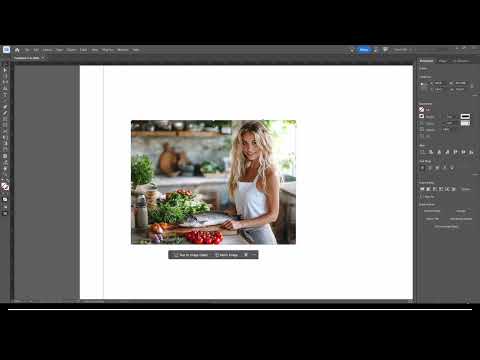
Generative Expand helps when your image is too tight within the frame. Simply enlarging the image within the frame is not enough for this, because that does not create any new image content. Instead, enlarge the frame so that an area without image information is created. The AI is then supposed to fill this area.

Using the beta feature "Generative Expand"
Generative Expand is currently only available in the beta version. Open the beta, select your frame, and click the "Generative Expand" button. Then specify what content should be created, for example a continuation of the pants or the table. The AI then generates the new image area. The idea is promising, but in practice it was still bumpy in the video.
Reacting correctly to error messages
In the video, InDesign crashed several times during generation or reported an error. If this happens to you, save your work beforehand, restart the program if necessary, and try again. If the error persists, you can report it to Adobe via the message offered. Therefore, don't plan on using this feature for production projects yet.

Looking ahead to upcoming innovations
In conclusion, the instructor points to Adobe MAX in October, where further new features for InDesign are expected. Keep an eye on the announcements, especially if you are hoping for more stable versions of the beta features.

Summary – InDesign History: Undoing steps and duplicating documents
The History panel in InDesign is a real time saver. With one click you jump to earlier working states, create a new document from any step, and keep track of all changes. Changing upper and lower case via Find and Replace in the GREP tab saves a lot of manual work on texts. Generative Expand shows great potential, but is still error-prone in the beta version. Therefore, test it first on non-critical projects.
FAQ
Where do I find the History panel in InDesign?You can find it under "Window > History". The panel then appears as its own window in your workspace.
Why are my steps not being recorded in the History panel?The document must be saved so that InDesign reliably records the steps.
Can I also restore an earlier state without losing it?Yes, by clicking an earlier step you jump back, and the later steps remain in the History panel.
How do I create a new document from a History step?Right-click the desired step and select "New Document". InDesign then creates a document with exactly that state.
How do I change upper and lower case in InDesign?Press Ctrl + F to open the "Find and Replace" window, switch to the "GREP" tab, and select the appropriate case command in the "Replace with" field.
Is Generative Expand stable enough to use yet?No, the feature is still in the beta version and was unstable in the video. Do not use it in important projects yet.
How do I deal with crashes during Generative Expand?Save your work beforehand, restart InDesign if necessary, and report the error to Adobe via the message offered.
